NETWORK USER’S GUIDE Internet Fax and Windows® Internet Printing The Brother Solutions Center (http://solutions.brother.com) is your one stop resource for all your printing needs. Download the latest drivers and utilities for your machine, read FAQs and troubleshooting tips.
Definitions of warnings, cautions, and notes We use the following icon throughout this User’s Guide: Notes tell you how you should respond to a situation that may arise or give tips about how the operation works with other features. Trademarks Brother and the Brother logo are registered trademarks and BRAdmin Professional is a trademark of Brother Industries, Ltd. UNIX is a registered trademark of The Open Group. Microsoft and Windows are registered trademarks of Microsoft Corporation.
IMPORTANT NOTE: This product is approved for use in the country of purchase only. Do not use this product outside the country of purchase as it may violate the wireless telecommunication and power regulations of that country. Windows® XP in this document represents Windows® XP Professional, Windows® XP Professional x64 Edition and Windows® XP Home Edition. Go to the Brother Solutions Center ( http://solutions.brother.com) for more information on Windows® XP Professional x64 Edition support.
Table of Contents 1 Internet FAX 1 Overview....................................................................................................................................................1 Getting Connected...............................................................................................................................1 Control Panel Key Functions ...............................................................................................................2 Sending an Internet Fax .....
1 Internet FAX 1 1 Overview 1 Internet Faxing (I-Fax) allows you to send and receive FAX documents using the Internet as the transport mechanism. Documents are transmitted in E-mail messages as attached TIFF-F files. This means that PC’s are also able to receive and send documents, providing that the PC has as an application that can generate and view TIFF-F files, you can use Microsoft® Imaging or a TIFF-F viewer application.
Internet FAX Control Panel Key Functions 1 1 Search/Speed Dial + 1 1 Used to change input mode. You can use Dial Pad keys as Standard alphabet character key(26 letters), as well as @. space ! “ # % & ’ () + / : ; < > = ? [ ] ^ - $ , _ and Numbers. Search/Speed Dial + 3 1 To change between upper case and lower case for entering the E-mail/ I-Fax address. d or c 1 Moves the LCD cursor to the left or right when you enter text. OK 1 Used to store multiple numbers.
Internet FAX If you specify more than 16 characters, the LCD panel will scroll the name to the left character by character. You can enter up to 60 characters. a 1 Press Mono Start to send the document. After the document is scanned, it is transmitted to the Recipient Internet Fax Machine automatically via your SMTP server. You can cancel the send operation by pressing the Stop/Exit button during scanning. After the transmission has finished, the machine will return to standby mode.
Internet FAX If the PC to which you wish to send a document is not running Windows® 98/98SE/Me/2000/XP/XP Professional x64 Edition operating system, please inform the PC's owner that they must install some software that can view TIFF-F files. 1 You can use “Microsoft® Imaging” that is supplied with Windows® 98/Me/2000 and Windows “Picture and Fax Viewer” with WIndows XP/XP Professional x64 Edition.
Internet FAX Setup Mail (RX) 1 1 There are three possible settings for this option ON/MDN/OFF. Receive Notification “ON” When switched to “ON” a fixed message is sent back to the sending station to indicate successful reception and processing of the message. These fixed messages depend on the operation requested by the sending station.
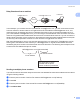
Internet FAX Relay Broadcast from a machine 1 UKFAX@brother.co.uk FAX@brother.com 1 123456789 Internet UKFAX@brother.co.uk(fax#123456789) In this example, your machine has an E-mail address of FAX@brother.com, you wish to send a document from this machine to another machine in England with an E-mail address of UKFAX@brother.co.uk, this machine will then forward the document to a standard fax machine using a conventional telephone line. If your E-mail address is FAX@brother.
Internet FAX Relay Broadcast from a PC 1 Your PC UKFAX@brother.co.uk 1 123456789 Internet UKFAX@brother.co.uk (fax#123456789) You can also send E-mail from your PC and have it relayed to a conventional FAX machine. The method of entering the phone number of the conventional FAX machine that will receive the relayed E-mail will vary depending on the mail application you are using.
2 Windows® Internet printing 2 Internet Printing Installation 2 2 Overview 2 Brother Internet Print (BIP) software for Windows® 98/98SE/Me/2000/XP/XP Professional x64 Edition it allows a PC user at one location to send a print job to a Brother Printer at a remote location via the Internet. For example, a user on a PC in New York could print a document directly from their Microsoft Excel application program to a printer in Paris.
Windows® Internet printing Brother Internet Print: Configuring the Brother Print Server 2 The print server can be configured using the BRAdmin Professional utility. Print Server Configuration Checklist 2 Note Before configuring the print server to receive BIP jobs, be sure that the E-mail server at the remote site (the receiving end) is configured to handle the TCP/IP POP3, and SMTP (SMTP is only required if the notification feature is enabled).
Windows® Internet printing e Enter the POP3 Account Name for the remote Brother print server. Usually this will be the first part of the E-mail address (for example, if the E-mail address of the print server is emailprinter@xyz.com, then the POP3 Account Name would be emailprinter). f g Enter the password for the mailbox, if any. h If you have enabled notification, enter the address of your SMTP server (consult your Network Administrator if you do not know this address).
Windows® Internet printing i j Press OK to continue. You will then be asked to re-start your computer. Once your computer has re-started you must create a printer on your Windows® 98/98SE/Me/2000/XP/XP Professional x64 Edition system using the standard Windows® printer setup procedure. To do this, go the Start button and select Settings and then Printers (Windows® 98/98SE/Me/2000). For Windows® XP/XP Professional x64 Edition users, go to the Start button, select Printers and Faxes.
Windows® Internet printing Adding a Second Brother Internet Port 2 You should not re-run the install program to add a new Brother Internet Port. Instead, press the Start button, select Settings, and open the Printers window. Click on the icon of a printer that is using BIP, select File from the menu bar, and then choose Properties. Click on the Details (Ports on Windows® 2000/XP/XP Professional x64 Edition) tab and click the Add Port button.
3 Control panel setup 3 LAN menu 3 The control panel LAN menu section can be used to configure network settings. Press Menu, 5 for LAN and then proceed to the menu selection you wish to configure. 3 Please note that the machine is supplied with the BRAdmin Professional Windows® software, BRAdmin Light Macintosh® software and RemoteSetup which also can be used to configure network settings (See the Network User’s Guide located on the CD-ROM included with your machine).
Control panel setup DHCP mode 3 Dynamic Host Configuration Protocol (DHCP) is one of several automated mechanisms for IP address allocation. If you have a DHCP server in your network (typically a UNIX®, Windows® 2000/XP network) the print server will automatically obtain its IP address from a DHCP server and register its name with any RFC 1001 and 1002 compliant dynamic name services.
Control panel setup Note Depending on the system, this entry might be called “bootps” instead of “bootp”. In order to enable BOOTP, simply use an editor to delete the “#” (if there is no “#”, then BOOTP is already enabled). Then edit the BOOTP configuration file (usually /etc/bootptab) and enter the name, network type (1 for Ethernet), Ethernet address and the IP address, subnet mask and gateway of the print server.
Control panel setup Subnet Mask 3 This field displays the current subnet mask used by the machine. If you are not using DHCP or BOOTP to obtain the subnet mask, enter the desired subnet mask. Check with your network administrator for the subnet mask to use. a b c d 3 Press Menu, 5, 1, 3. Select 1 to change. Enter the Subnet Mask address. Press OK. Press Stop/Exit. Gateway 3 This field displays the current gateway or router address used by the machine.
Control panel setup WINS Config 3 This selection controls how the machine obtains the IP address of the WINS server. a b c d Press Menu, 5, 1, 6. Press a or b to select Auto or Static. 3 Press OK. Press Stop/Exit. Auto 3 Automatically uses a DHCP request to determine the IP addresses for the primary and secondary WINS servers. You must set the BOOT Method to Auto for this feature to work. Static 3 Uses a specified IP address for the primary and secondary WINS servers.
Control panel setup DNS Server 3 Primary DNS Server IP Address 3 This field specifies the IP address of the primary DNS (Domain Name Service) server. Secondary DNS Server IP Address 3 3 This field specifies the IP address of the secondary DNS server. It is used as a backup to the Primary DNS server address. If the Primary server is unavailable, the machine will contact the Secondary DNS server. a b c d e f Press Menu, 5, 1, 8. Press a or b to select Primary or Secondary. Press OK.
Control panel setup Setup Internet 3 This menu has five selections: Mail Address, SMTP Server, POP3 Server, Mailbox Name and Mailbox Pwd. These settings must be configured for the I-Fax feature to work. Mail Address 3 3 This field displays the E-mail address that you can set for the machine. a b c Press Menu, 5, 2, 1. Select 1 to change. Enter the mail address. Press OK. Press Stop/Exit. Entering text 3 You can access the character you want by repeatedly pressing the appropriate number key.
Control panel setup POP3 server 3 This field displays the Node Name or IP address of the POP3 server (incoming E-mail server) used by the Brother machine. This address is necessary for the Internet Fax features to function correctly.(Ex, mailhost.brothermail.net -or- 192.000.000.001) a b c d e Press Menu, 5, 2, 3. 3 Press a or b to select Name or IP address. Enter the POP3 Server Address. Press OK. Press Stop/Exit.
Control panel setup Setup Mail RX 3 This menu has five selections Auto Polling, Poll Frequency, Header, Del Error Mail and Notification. Auto Polling 3 3 When set to On, the Brother machine will automatically check the POP3 server for new messages. a b c d Press Menu, 5, 3, 1. Press a or b to select On or Off. Press OK. Press Stop/Exit. Poll Frequency 3 Sets the interval for checking for new messages on the POP3 server (default is 10Min). a b c d Press Menu, 5, 3, 2.
Control panel setup Del Error Mail 3 When set to On, the machine automatically deletes error mails that the machine can not receive from the POP server. a b c d Press Menu, 5, 3, 4. Press a or b to select On or Off. 3 Press OK. Press Stop/Exit. Notification 3 The notification feature allows a receive notification message to be transmitted to the sending station to indicate successful reception of the I-Fax.
Control panel setup Size Limit 3 Some E-mail servers do not allow you to send large E-mail documents(the System Administrator will often place a limit on the maximum E-mail size). With this function enabled, the machine will display Out of Memory when trying to send E-mail documents over 1Mbyte in size. The document will not be sent and an error report will be printed. The document you are sending should be separated into smaller documents that will be accepted by the mail server.
Control panel setup Setup Relay 3 This menu has three selections Rly Broadcast, Relay Domain and Relay Report. For more information on Relay Broadcast, see Relay Broadcasting on page 5. Rly Broadcast a b c d 3 3 Press Menu, 5, 5, 1. Press a or b to select On or Off. Press OK. Press Stop/Exit. Relay Domain 3 You can register the Domain Names (Max.5) that are allowed to request a Relay Broadcast. a b c d e f Press Menu, 5, 5, 2. Press a or b to select the Relay Domain (01 - 05). Press OK.
Control panel setup Setup Misc. 3 Ethernet 3 Ethernet link mode. Auto allows the print server to operate in 100BASE-TX full or half duplex, or in 10BASET full or half duplex mode by auto negotiation. 100BASE-TX Full Duplex (100B-FD) or Half Duplex (100B-HD) and 10BASE-T Full Duplex (10B-FD) or Half Duplex (10B-HD) fix the print server link mode. This change is valid after the print server has been reset (default is Auto).
Control panel setup Time Zone 3 This field displays your country time zone. The time shown is the time difference between your country and Greenwich Mean Time. For example, the Time Zone for Eastern Time in the USA and Canada is UTC-05:00. a b c d Press Menu, 5, 6, 2. Press a or b to enter the time. 3 Press OK. Press Stop/Exit. Note Windows® Time Zone Setting You can determine the time difference for your location by using the Time Zone setting in Windows®. a b c d e Click on Start.
Control panel setup Scan to E-mail (E-mail server) Black and Whilte File Type for Scan to E-mail (E-mail server) 3 3 You can select the default Black and White file type (TIFF or PDF) for the Scan to E-mail (E-mail server) function. 3 a b c d Press Menu, 5, 7, 1. Press a or b to select TIFF.or PDF. Press OK. Press Stop/Exit. Colour File Type for Scan to E-mail (E-mail server) 3 You can select the default colour file type (PDF or JPEG) for the Scan to E-mail (E-mail server) function.
Control panel setup Restoring the network settings to factory default 3 If you wish to reset the print server back to its default factory settings (resetting all information such as the password and IP address information), please follow these steps: Note This function restores all network settings to the factory default. a Make sure the machine is not operating, then disconnect all the cables from the machine (except the power cable). b c d e Press Menu, 5, 0. 3 Press 1 to select 1.Reset.
A Appendix A A Entering text A When you are setting certain menu selections, such as the Station ID, you may need to enter text into the machine. Most number keys have three or four letters printed on keys. The keys for 0, # and l do not have printed letters because they are used for special characters. By pressing the correct number key repeatedly, you can access the character you want. A To change the mode between upper case and lower case, press Search/Speed Dial + 3.
B Index A P APIPA ....................................................................... 18 POP3 .......................................................................... 8 B R BIP .............................................................................. 8 BOOTP ..................................................................... 14 RARP ........................................................................ 14 Restoring the network settings ..................................