
All in One Printer User Manual
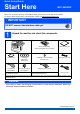
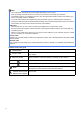
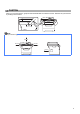
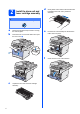
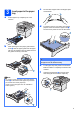
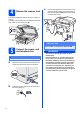
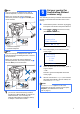
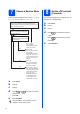
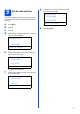
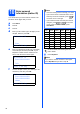
Table Of Contents
- Quick Setup Guide MFC-8890DW
- Start Here
- 1 Unpack the machine and check the components
- 2 Install the drum unit and toner cartridge assembly
- 3 Load paper in the paper tray
- 4 Release the scanner lock
- 5 Connect the power cord and telephone line
- 6 Set your country (for Australia/New Zealand customer only)
- 7 Choose a Receive Mode
- 8 Set the LCD contrast (If needed)
- 9 Set the date and time
- 10 Enter personal information (station ID)
- 11 Fax Transmission Report
- 12 Set tone or pulse dialling mode (not available in New Zealand)
- 13 Dial Prefix
- 14 Set Daylight Saving Time
- 15 Choose your connection type
- For USB Interface Users (Windows® 2000 Professional/XP/XP Professional x64 Edition/ Windows Vista®)
- For USB Interface Users (Mac OS® X 10.3.9 or greater)
- For Parallel Interface Users (Windows® 2000 Professional/XP/XP Professional x64 Edition)
- For Wired Network Interface Users (Windows® 2000 Professional/XP/XP Professional x64 Edition/ Windows Vista®)
- For Wired Network Interface Users (Mac OS® X 10.3.9 or greater)
- For Wireless Network Interface Users
- For Network Users
- Options and Consumables
- brother ARL/ASA/NZ
- Start Here

2
Symbols used in this guide
Note
• The components included in the box may differ depending on your country.
• Save all packing materials and the box in case for any reason you must ship your machine.
• The interface cable is not a standard accessory. Buy the appropriate interface cable for the interface you
want to use (USB, Parallel or Network).
• To ensure safe operation the supplied plug must be inserted only into a standard power outlet that is
properly grounded through the standard electrical wiring. Non grounded equipment may cause an electrical
shock hazard, and may cause excessive electrical noise radiation.
USB cable
• Please make sure you use a USB 2.0 cable (Type A/B) that is no longer than 2 metres.
• DO NOT connect the interface cable at this time. Connecting the interface cable is done during MFL-Pro
installation process.
• When you use a USB cable, make sure you connect it to the USB port of your computer and not to a USB
port on a keyboard or non-powered USB hub.
Parallel cable
DO NOT use a parallel interface cable that is longer than 2 metres. Use a shielded interface cable that is IEEE
1284-compliant.
Network cable
Use a straight-through Category5 (or greater) twisted-pair cable for 10BASE-T or 100BASE-TX Fast Ethernet
Network.
WARNINGS tell you what to do to prevent possible personal injury.
CAUTIONS specify procedures you must follow or avoid to prevent possible
minor injuries.
IMPORTANT describe procedures you must follow or avoid to prevent possible
machine problems or machine damage, or damage to other objects.
Electrical Hazard icons alert you to a possible electrical shock.
Hot Surface icons warn you not to touch machine parts that are hot.
Note
Notes tell you how you should respond to a situation that may arise or give tips
about how the current operation works with other features.
User’s Guide
Software User’s Guide
Network User’s Guide
Indicates reference to the User’s Guide, Software User’s Guide or Network
User’s Guide.
WARNING
CAUTION
IMPORTANT