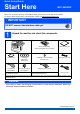
Quick Setup Guide Start Here MFC-8890DW Before you can use the machine, read this Quick Setup Guide for the correct setup and installation. To view the Quick Setup Guide in other languages, please visit http://solutions.brother.com/. IMPORTANT DO NOT connect the interface cable yet.
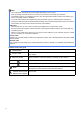
Note • The components included in the box may differ depending on your country. • Save all packing materials and the box in case for any reason you must ship your machine. • The interface cable is not a standard accessory. Buy the appropriate interface cable for the interface you want to use (USB, Parallel or Network). • To ensure safe operation the supplied plug must be inserted only into a standard power outlet that is properly grounded through the standard electrical wiring.
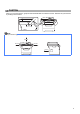
CAUTION CAUTION When you move the machine, grasp the side handholds that are under the scanner. DO NOT carry the machine by holding it at the bottom. Note Keep a minimum gap around the machine as shown in the illustration.
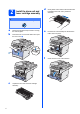
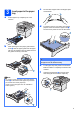
2 Install the drum unit and toner cartridge assembly d Gently shake it from side to side several times to distribute the toner evenly inside the assembly. IMPORTANT DO NOT connect the interface cable yet. a b Remove the protective tape and film covering the scanner glass. e Put the drum unit assembly into the machine until it clicks into place. Press the front cover release button and open the front cover a. 1 f c 4 Unpack the drum unit and toner cartridge assembly.
a 3 Load paper in the paper tray c Fan the stack of paper well to avoid paper jams and misfeeds. Pull the paper tray completely out of the machine. d Put paper in the tray, and make sure that the paper is below the maximum paper mark a. The side to be printed on must be face down. 1 b While pressing the blue paper-guide release lever a, slide the paper guides to fit the paper size you are loading in the tray. Make sure that the guides are firmly in the slots.
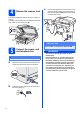
4 Release the scanner lock c Connect the telephone line cord. Connect one end of the telephone line cord to the socket on the machine marked LINE and the other end to a modular wall socket. Push the lever a in the direction shown to unlock the scanner. (The grey scanner lock lever is located at the back left side, under the document cover b.) 2 1 IMPORTANT 5 The telephone line cord MUST be connected to the socket on the machine marked LINE.
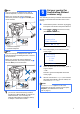
If you are sharing one telephone line with an external telephone, connect it as shown below. Before you connect the external telephone, remove the protective cap a from the EXT. jack on the machine. 1 2 Set your country (for Australia/New Zealand customer only) 6 Note You must set your country so that the machine works correctly on local telecommunication lines in each country. a b Check that the power is turned on by plugging in the power cord and turn the power switch on.
7 8 Choose a Receive Mode There are four possible receive modes: Fax Only, Fax/Tel, Manual and External TAD. Do you want to use the telephone features of your machine (if available) or an external telephone or external telephone answering device connected on the same line as the machine? Yes No Are you using the voice message function of an external telephone answering device? If you are having difficulty reading the LCD, try changing the contrast setting.
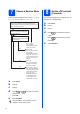
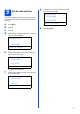
Set the date and time g 02.Date&Time 25/03/2009 The machine displays the time, and if you set up the station ID the date and time will be added to each fax you send. a b c d Time:15:25 Enter & OK Key Press Menu. Press 0. Press 2. Enter the time in 24-hour format on the dial pad, and then press OK. (e.g. Enter 1 5, 2 5 for 3:25 P.M.) h Press Stop/Exit. Enter the last two digits of the year on the dial pad, and then press OK. 02.Date&Time Year:2009 Enter & OK Key (e.g. Enter 0, 9 for 2009.
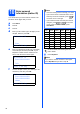
Enter personal information (station ID) You should store your name and fax number to be printed on all fax pages that you send. a b c d Note • See the following chart for entering your name. • If you need to enter a character that is on the same key as the last character, press move the cursor to the right. • If you entered a letter incorrectly and want to change it, press or to move the cursor to the incorrect character, press Clear/Back. Press Menu. Press 0. Press 3.
Fax Transmission Report Your Brother machine is equipped with a Transmission Verification Report that can be used as confirmation that you sent a fax. This report lists the name or fax number of the receiving party, the date, time, and duration of the transmission, the number of pages transmitted, and whether or not the transmission was successful. If you want to use the Fax Transmission Report feature see Chapter 11 Printing Reports in the User’s Guide.
14 Set Daylight Saving Time You can set the machine to change for Daylight Saving Time. If you choose On, it will reset the time forward one hour and if you choose Off, it will reset the time backward one hour. a b c d e f g 12 Press Menu. Press 1. Press 4. Press or to choose On or Off. Press OK. Press 1 or 2 to choose 1.Change or 2.Exit. Press Stop/Exit.
For USB Interface Users Macintosh® USB Windows®, go to page 14 Macintosh®, go to page 18 Windows® 15 Choose your connection type For Parallel interface cable Windows® Macintosh® 13 Macintosh® Windows® and Macintosh®, go to page 30 Wireless Network For Wireless Network Windows® For Windows Server® 2003/ 2008, see the Network User’s Guide on the CD-ROM.
USB Windows® For USB Interface Users (Windows® 2000 Professional/XP/XP Professional x64 Edition/ Windows Vista®) 16 a Before you install Make sure that your computer is ON and you are logged on with Administrator rights. 17 a IMPORTANT Install MFL-Pro Suite Put the supplied CD-ROM into your CD-ROM drive. If the model name screen appears, choose your machine. If the language screen appears, choose your language. • DO NOT connect the USB cable yet. • If there are any programs running, close them.
USB Note f The installation of ScanSoft™ PaperPort™ 11SE will automatically start and is followed by the installation of MFL-Pro Suite. g When the Brother MFL-Pro Suite Software License Agreement window appears, click Yes if you agree to the Software License Agreement. h d Choose Local Connection, and then click Next. The installation continues. If you do not want to monitor the machine status and error notifications from your computer, uncheck Enable Status Monitor and then click Next.
USB 18 Connect the USB cable IMPORTANT Windows® 19 a • DO NOT connect the machine to a USB port on a keyboard or a non-powered USB hub. Connect the power cord Plug the AC power cord into an AC outlet. Turn the power switch on. • Connect the machine directly to your computer. a The installation will continue automatically. Remove the label covering the USB interface connector. The installation screens appear one after another. IMPORTANT DO NOT cancel any of the screens during the installation.
USB a Finish and restart Click Finish to restart your computer. After restarting the computer, you must be logged on with Administrator rights. If an error message appears during the software installation, run the Installation Diagnostics located in Start/All Programs/Brother /MFC-XXXX (where MFC-XXXX is your model name). b If this screen appears, choose the firmware update setting and click OK. Note Internet access is required for the firmware upgrade. Finish The installation is now complete.
USB Macintosh® For USB Interface Users (Mac OS® X 10.3.9 or greater) 16 a Before you install b Connect the USB cable to the USB connector on the machine marked with the symbol. Then connect the cable to your computer. Make sure your machine is connected to the power and your Macintosh® is ON. You must be logged on with Administrator rights. IMPORTANT Make sure a USB Flash memory device is not inserted into the machine.
USB c Choose Local Connection, and then click Next. Follow the on-screen instructions. Macintosh® When Presto! PageManager is installed OCR capability is added to Brother ControlCenter2. You can easily scan, share and organize photos and documents using Presto! PageManager. Double-click Presto! PageManager and follow the on-screen instructions. Please wait, it will take a few seconds for the software to install. After the installation, click Restart to finish installing the software.
Parallel Windows® For Parallel Interface Users (Windows® 2000 Professional/XP/XP Professional x64 Edition) 16 a Before you install Make sure that your computer is ON and you are logged on with Administrator rights. 17 a IMPORTANT Install MFL-Pro Suite Put the supplied CD-ROM into your CD-ROM drive. If the model name screen appears, choose your machine. If the language screen appears, choose your language. • DO NOT connect the Parallel cable yet. • If there are any programs running, close them.
Parallel Note Windows® g If the installation does not continue automatically, open the main menu again by ejecting and then reinserting the CD-ROM or double-click the Start.exe program from the root folder, and continue from c to install MFL-Pro Suite. d When the Brother MFL-Pro Suite Software License Agreement window appears, click Yes if you agree to the Software License Agreement. Choose Local Connection, and then click Next. The installation continues.
Parallel 18 Connect the Parallel cable Windows® b Do one of the following: For Windows® 2000 Professional users, click Next. IMPORTANT Connect the machine directly to your computer. a Connect the Parallel interface cable to your computer, and then connect it to the machine. Note If this screen appears, click OK. 19 a Connect the power cord Plug the AC power cord into an AC outlet. Turn the power switch on. The installation will continue automatically.
Parallel 20 a Windows® Finish and restart Click Finish to restart your computer. After restarting the computer, you must be logged on with Administrator rights. Note If this screen appears, choose the firmware update setting and click OK. Note Internet access is required for the firmware upgrade. Finish The installation is now complete.
Wired Network Windows® For Wired Network Interface Users (Windows® 2000 Professional/XP/XP Professional x64 Edition/ Windows Vista®) 16 a Before you install Make sure that your computer is ON and you are logged on with Administrator rights. 17 a Connect the network cable Connect the network interface cable to the LAN connector marked with a symbol and then connect it to a free port on your hub. IMPORTANT • If there are any programs running, close them.
Wired Network 19 a Windows® Note Install MFL-Pro Suite • If the installation does not continue automatically, open the main menu again by ejecting and then reinserting the CD-ROM or double-click the Start.exe program from the root folder, and continue from c to install MFL-Pro Suite. Put the supplied CD-ROM into your CD-ROM drive. If the model name screen appears, choose your machine. If the language screen appears, choose your language.
Wired Network g Windows® When the Brother MFL-Pro Suite Software License Agreement window appears, click Yes if you agree to the Software License Agreement. Note • You can find your machine’s IP address and the node name by printing out the Network Configuration List. See Print the Network Configuration List on page 45. • If your machine is not found over the network, following screen will appear.
Wired Network b Note For Windows Vista®, when this screen appears, click the check box and click Install to complete the installation correctly. l Windows® When the On-Line Registration screen is displayed, make your selection and follow the on-screen instructions. Once you have completed the registration process, close your web browser to return to this window. Then click Next. If this screen appears, choose the firmware update setting and click OK.
Wired Network Macintosh® For Wired Network Interface Users (Mac OS® X 10.3.9 or greater) 16 a Before you install Make sure your machine is connected to the power and your Macintosh® is ON. You must be logged on with Administrator rights. 18 a Install MFL-Pro Suite Put the supplied CD-ROM into your CD-ROM drive. IMPORTANT Make sure a USB Flash memory device is not inserted into the machine. 17 a Connect the network cable b Double-click Start Here OSX to install.
Wired Network d e The Brother software will search for the Brother device. During this time the following screen will appear. Macintosh® f When this screen appears, click OK. The installation of MFL-Pro Suite is now complete. Go to step 19 on page 29. If the machine is configured for your network, choose the machine from the list, and then click OK. 19 Install Presto! PageManager When Presto! PageManager is installed OCR capability is added to Brother ControlCenter2.
For Wireless Network Users For Wireless Network Interface Users 16 Before you begin First you must configure the wireless network settings of your machine to communicate with your network access point (router). After the machine is configured to communicate with your access point (router) computers on your network will have access to the machine. To use the machine from these computers, you will need to install the drivers and software.
For Wireless Network Users Infrastructure Mode 1 4 2 3 a b c d Access Point (router) Wireless Network machine (your machine) Wireless capable computer connected to the access point Wired computer connected to the access point Windows® Macintosh® Wireless Network 31
For Wireless Network Users 17 Confirm your network environment (Infrastructure Mode) The following instructions will offer two methods for installing your Brother machine in a wireless network environment. Both methods are for infrastructure mode, using a wireless router or access point that uses DHCP to assign IP addresses. Choose a configuration method and proceed to the page indicated.
For Wireless Network Users Connecting the Brother machine to the wireless network 18 a f or or to choose None for Encryption Type? and press OK. Then press 1 for Yes to apply your settings. Go to step k. No Authentication with WEP Encryption: Choose Open System, press OK then use to choose On, then press The machine will search for available SSIDs. If a list of SSIDs is displayed, use or to choose the SSID you wrote down in step 17 on page 32, then press OK. Go to step f.
For Wireless Network Users h Press or to choose TKIP or AES for Encryption Type? and press OK. Enter the WPA/WPA2-PSK password you wrote down in step 17 on page 32 using the dial pad to choose each letter or number. For example, to enter the letter a, press the 2 key on the dial pad once. To enter the number 3, press the 3 key on the dial pad seven times. The letters appear in this order: lower case, upper case and then numbers. (For more information, see Entering Text for Wireless Settings on page 46.
For Wireless Network Users 18 a b c d Configure the wireless settings using the automatic wireless (onepush) method Confirm your wireless router or access point has the SecureEasySetup™, Wi-Fi Protected Setup or AOSS™ symbol as shown below. Place the Brother machine within range of a SecureEasySetup™, Wi-Fi Protected Setup or AOSS™ access point/router. The range may differ depending on your environment. Refer to the instructions provided with your access point/router.
For Wireless Network Users Wireless setup is now complete. To install MFL-Pro Suite, continue to step 19.
Wireless Network Windows® Install the Drivers & Software (Windows® 2000 Professional/XP/XP Professional x64 Edition/ Windows Vista®) 19 a Before you install MFL-Pro Suite Make sure that your computer is ON and you are logged on with Administrator rights. 20 a IMPORTANT Install MFL-Pro Suite Put the supplied CD-ROM into your CD-ROM drive. If the model name screen appears, choose your machine. If the language screen appears, choose your language. • If there are any programs running, close them.
Wireless Network Note f • If the installation does not continue automatically, open the main menu again by ejecting and then reinserting the CD-ROM or double-click the Start.exe program from the root folder, and continue from step c to install MFL-Pro Suite. Windows® When the ScanSoft™ PaperPort™ 11SE License Agreement window appears, click Yes if you agree to the Software License Agreement. • For Windows Vista®, when the User Account Control screen appears, click Allow.
Wireless Network j If the machine is configured for your network, choose the machine from the list, and then click Next. Note • You can find your machine’s IP address and the node name by printing out the Network Configuration List. See Print the Network Configuration List on page 45. • If your wireless settings fail, an error message will appear during the installation of MFL-Pro Suite and the installation will be terminated. Confirm your network setting by following the on-screen instruction.
Wireless Network 21 a Finish and restart Click Finish to restart your computer. After restarting the computer, you must be logged on with Administrator rights. Windows® 22 Install MFL-Pro Suite on additional computers (If needed) If you want to use your machine with multiple computers on the network, install MFL-Pro Suite on each computer. Go to step 19 on page 37. Note The MFL-Pro Suite Software License permits installation on up to 5 network computers.
Wireless Network Macintosh® Install the Drivers & Software (Mac OS® X 10.3.9 or greater) 19 a Before you install MFL-Pro Suite c Choose Wireless Network Connection, and then click Next. Make sure your machine is connected to the power and your Macintosh ® is ON. You must be logged on with Administrator rights. IMPORTANT Make sure a USB Flash memory device is not inserted into the machine.
Wireless Network Note • You can find your machine’s IP address and the node name by printing out the Network Configuration List. See Print the Network Configuration List on page 45. • If your wireless settings fail, the installation of the MFL-Pro software will be terminated. Confirm your network settings. If you encounter this failure, go to step 17 on page 32 and setup the wireless connection again. • If this screen appears click OK.
For Network Users BRAdmin Light utility (For Windows® users) BRAdmin Light is a utility for initial setup of Brother network connected devices. It also can search for Brother products on your network, view the status and configure basic network settings, such as IP address. For more information on BRAdmin Light, visit us at http://solutions.brother.com/.
For Network Users BRAdmin Light utility (For Mac OS® X users) BRAdmin Light is a utility for initial setup of Brother network connected devices. It also can search for Brother products on your network, view the status and configure basic network settings, such as IP address from a computer running Mac OS® X 10.3.9 or greater. The BRAdmin Light software will be installed automatically when you install the printer driver.
For Network Users Web Based Management (web browser) Print the Network Configuration List The Brother print server is equipped with a web server that allows you to monitor its status or change some of its configuration settings, using HTTP (Hyper Text Transfer Protocol). You can print the Network Configuration List to confirm the current network settings. To print the Network Configuration List: Note a • The User Name is ‘admin’ and the default password is ‘access’.
For Network Users Entering Text for Wireless Settings Most number keys have three or four letters printed on them. The keys for 0, # and l do not have printed letters because they are used for special characters. By pressing the correct number key repeatedly, you can access the character you want.
Options and Consumables Options Lower Tray Unit SO-DIMM Memory LT-5300 Second lower paper tray unit can hold up to 250 sheets of paper. When the tray is installed, the machine expands total input capacity up to 550 sheets. You can expand the memory by installing a (144-pin SO-DIMM) memory module. For more details about the optional Lower Tray Unit and compatible SO-DIMM Memory please see the User’s Guide or visit http://solutions.brother.com/.
Trademarks The Brother logo is a registered trademark of Brother Industries, Ltd. Brother is a registered trademark of Brother Industries, Ltd. Multi-Function Link is a registered trademark of Brother International Corporation. Windows Vista is either a registered trademark or a trademark of Microsoft Corporation in the United States and other countries. Microsoft, Windows and Windows Server and Internet Explorer are registered trademarks of Microsoft Corporation in the United States and/or other countries.