
Multi-Protocol Print Server Network User's Guide
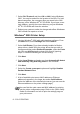
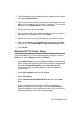
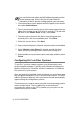
Table Of Contents
- Table of Contents
- 1 Unix Printing 1-1
- 2 TCP/IP Printing 2-1
- 3 Peer to Peer Printing 3-1
- 4 NetBIOS Peer to Peer Printing 4-1
- 5 Configuring Internet Printing for Windows® 5-1
- 6 Novell NetWare Printing 6-1
- 7 Printing From a Macintosh® 7-1
- 8 DLC Printing 8-1
- 9 Web Based Management 9-1
- 10 TCP/IP Configuration 10-1
- 11 Troubleshooting 11-1
- 12 Appendix A-1
- 13 INDEX 1-1
- IMPORTANT INFORMATION: REGULATIONS
- Unix Printing
- TCP/IP Printing
- Printing from Windows NT®4.0, Windows® 2000/XP, LAN Server and Warp Server
- Overview
- Windows NT®4.0 and Windows® 2000/XP (TCP/IP) Configuration
- Windows® 2000/XP Printing (Printer Driver not yet installed)
- Windows® 2000/XP Printing (Printer Driver already installed)
- Windows NT®4.0 Printing
- Windows NT®4.0 Printing: Installing the Brother Peer to Peer Software
- Windows NT®4.0 Printing: Associating to the Printer
- Windows NT®4.0 Printing: Adding a Second Brother LPR Port
- LAN Server, OS/2 Warp Server Configuration
- Other Sources of Information
- Printing from Windows NT®4.0, Windows® 2000/XP, LAN Server and Warp Server
- Peer to Peer Printing
- NetBIOS Peer to Peer Printing
- How to Print Using NetBIOS in Windows® 95/98/Me/2000/XP, Windows NT®4.0, LAN Server and OS/2 Warp Server
- Overview
- Print Server Configuration
- Changing the Workgroup/Domain Name Using TELNET or BRCONFIG or a Web Browser
- NetBIOS Port Monitor for Windows® 95/98/Me/ 2000/XP and Windows NT®4.0
- Installing the Brother NetBIOS Port Monitor
- Associating the Printer
- Adding a Second NetBIOS Print Port
- LAN Server/OS/2 Warp Server Configuration
- Other Sources of Information
- How to Print Using NetBIOS in Windows® 95/98/Me/2000/XP, Windows NT®4.0, LAN Server and OS/2 Warp Server
- Configuring Internet Printing for Windows®
- Internet Printing Installation
- Overview
- Brother Internet Print General Information
- Brother Internet Print: Configuring the Brother Print Server
- Brother Internet Print: Using BRAdmin to Configure the Print Server
- Brother Internet Print: Using a Web Browser to Configure the Print Server
- Brother Internet Print: Using TELNET to Configure the Print Server
- Brother Internet Print: Installing the BIP Software on Windows® 95/98/Me/2000/XP and Windows NT®4.0
- Adding a Second Brother Internet Port
- Windows® 2000/XP IPP Printing
- Specifying a Different URL
- Other Sources of Information
- Internet Printing Installation
- Novell NetWare Printing
- How to Configure Novell NetWare Printing
- Overview
- General Information
- Creating a NDPS Printer Using NWADMIN for NetWare5
- NDPS Manager
- NDPS Broker
- Creating a Printer Agent
- Configuring NetWare 3 and NetWare 4 Systems
- Configuring the Brother Print Server (Queue Server Mode in Bindery Emulation Mode) Using BRAdmin
- Configuring the Brother Print Server (Queue Server Mode in NDS mode) Using BRAdmin
- Configuring the Brother Print Server (Queue Server Mode in NDS Mode) Using Novell NWADMIN and BRAdmin
- Configuring the Brother Print Server (Remote Printer Mode in NDS mode) Using Novell NWAdmin and BRAdmin
- Configuring the Brother Print Server (Queue Server Mode in Bindery Emulation Mode) Using PCONSOLE and BRCONFIG
- Configuring the Brother Print Server (Queue Server Mode in NDS Mode) Using PCONSOLE and BRCONFIG
- Configuring the Brother Print Server (Remote Printer Mode) Using PCONSOLE and BRCONFIG
- Other Sources of Information
- How to Configure Novell NetWare Printing
- Printing From a Macintosh®
- DLC Printing
- Web Based Management
- TCP/IP Configuration
- Assigning TCP/IP Information
- Overview
- Using the Printer Control Panel to Allocate an IP Address (Printers with LCD Panels Only)
- Changing the IP Address Using the BRAdmin Application
- Using BRAdmin and the IPX/SPX Protocol to Set the IP Address
- Using BRAdmin and the TCP/IP Protocol to Set the IP Address
- Using DHCP to Configure the IP Address
- Using APIPA to Configure the IP Address
- Using ARP to Configure the Print Server IP Address
- Using RARP to Configure the IP Address
- Using BOOTP to Configure the IP Address
- Configuring the IP Address with BRCONFIG
- Changing the IP Address Settings with the TELNET Console
- Assigning TCP/IP Information
- Troubleshooting
- Overview
- Installation Problems
- Intermittent Problems
- TCP/IP Troubleshooting
- UNIX Troubleshooting
- Windows NT®4.0/LAN Server (TCP/IP) Troubleshooting
- Windows® 95/98/Me Peer to Peer Print (LPR) Troubleshooting
- Windows® 95/98/Me Peer-to-Peer (HP JetAdmin Compatible Method) Troubleshooting
- Windows® 95/98/Me and Windows NT®4.0 Peer-to- Peer Print (NetBIOS) Troubleshooting
- Brother Internet Print (TCP/IP) Troubleshooting
- Windows® 95/98/Me/2000/XP IPP Troubleshooting
- Novell NetWare Troubleshooting
- AppleTalk Troubleshooting
- DLC/LLC Troubleshooting
- Web Browser Troubleshooting (TCP/IP)
- Appendix
- INDEX

8 - 2 DLC PRINTING
3
Select DLC Protocol and then OK or Add if using Windows
®
2000. You may be asked for the location of the files. For Intel
based computers, the necessary files are stored in the i386
directory of the Windows NT
®
4.0 CD-ROM. If you have a non-
Intel platform, specify the correct directory on your Windows
NT
®
4.0 CD-ROM and close the window.
4
Reboot your system to make the change take effect. Windows
®
2000 should not require a re-boot.
Windows
®
2000 Printer Setup
1
Log into Windows
®
2000 with administrative privileges. From
the Start menu, select Settings and then Printers.
2
Select Add Printer (If you have already installed a Brother
printer driver, double click the printer driver that you wish to
configure and then select Printers/Properties, select the Ports
tab, click on Add Port and continue from Step 6 (ignoring
steps 11-14 about installing the correct driver)).
3
Click Next.
4
Select Local Printer and make sure that Automatically detect
and install my Plug and Play printer is not checked.
5
Click Next.
6
Select the Create a new port: option and highlight Hewlett-
Packard Network Port.
7
Click Next.
8
A list of available print server MAC addresses (Ethernet
addresses) appears in the larger box under Card Address.
Select the address of the desired print server (you can see the
Ethernet address on the printer settings page).
You can find the node name and MAC address by printing
out the printer configuration page. Refer to the Quick Setup
Guide for information on how to print the settings page on
your print server.