
User Manual


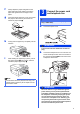


Table Of Contents
- Quick Setup Guide MFC-J6910DW
- Start Here
- 1 Unpack the machine and check the components
- 2 Load plain A4 paper
- 3 Connect the power cord and telephone line
- 4 Set your country (Australia and New Zealand only)
- 5 Install the ink cartridges
- 6 Check the print quality
- 7 Set the paper settings
- 8 Choose your language (if needed) (Not available in Australia and New Zealand)
- 9 Choose a Receive Mode
- 10 Set the date and time
- 11 Enter personal information (Station ID)
- 12 Fax Transmission Report
- 13 Set Tone or Pulse dialling mode (Not available in New Zealand)
- 14 Set the telephone line compatibility
- 15 Manual Feed Slot
- 16 Choose your connection type
- For USB interface users (Windows® 2000 Professional/XP Home/XP Professional/Windows Vista®/Windows® 7)
- For USB interface users (Mac OS X 10.4.11, 10.5.x, 10.6.x)
- For wired network interface users (Windows® 2000 Professional/XP Home/XP Professional/Windows Vista®/Windows® 7)
- For wired network interface users (Mac OS X 10.4.11, 10.5.x, 10.6.x)
- For wireless network interface users
- 17 Before you begin
- 18 Confirm your network environment (Infrastructure Mode)
- 19 Configure the wireless settings (typical Wireless Setup in infrastructure mode)
- 19 Configure the wireless settings using the automatic wireless (one-push) method
- Troubleshooting
- Install the drivers & software (Windows® 2000 Professional/XP Home/XP Professional/Windows Vista®/Windows® 7)
- Install the drivers & software (Mac OS X 10.4.11, 10.5.x, 10.6.x)
- Install Optional Applications Windows®
- For Network Users
- Consumables
- brohter ARL/ASA/NZ
- Start Here

10
12
Fax Transmission Report
Your Brother machine is equipped with a
Transmission Verification Report that can be used as
confirmation that you sent a fax. This report lists the
name or fax number of the receiving party, the date,
time, and duration of the transmission, the number of
pages transmitted, and whether or not the
transmission was successful. If you want to use the
Fax Transmission Report feature, see Transmission
Verification Report in chapter 4 of the Basic User’s
Guide.
13
Set Tone or Pulse dialling
mode (Not available in
New Zealand)
Your machine comes set for Tone dialling service. If
you have Pulse dialling service (rotary), you need to
change the dialling mode.
a Press MENU.
b Press a or b to display Initial Setup.
c Press Initial Setup.
d Press a or b to display Tone/Pulse.
e Press Tone/Pulse.
f Press Pulse (or Tone).
g Press Stop/Exit.
14
Set the telephone line
compatibility
If you are connecting the machine to a VoIP service
(over the Internet) we recommend that you change
the modem speed to minimize errors in fax
operations.
a Press MENU.
b Press a or b to display Initial Setup.
c Press Initial Setup.
d Press a or b to display Compatibility.
e Press Compatibility.
f Press Basic(for VoIP).
g Press Stop/Exit.
15
Manual Feed Slot
You can load special print media into this slot. (Please
note that only one sheet can be used at a time.) Use
the manual feed slot to print or copy on envelopes,
labels or thicker paper.
For details, see Loading paper in the manual feed slot
in chapter 2 of the Basic User’s Guide.
Note
If you are using an analogue telephone line you
can skip this step.