
Software User's Guide
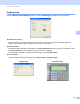
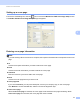
Table Of Contents
- SOFTWARE USER’S GUIDE
- Table of Contents
- Windows®
- 1 Printing
- Using the Brother printer driver
- Features
- Choosing the right type of paper
- Simultaneous printing, scanning and faxing
- Clearing data from the memory
- Status Monitor
- Printer driver settings
- Accessing the printer driver settings
- Basic tab
- Advanced tab
- Print Profiles tab
- Support
- Using FaceFilter Studio for photo printing by REALLUSION
- 2 Scanning
- Scanning a document using the TWAIN driver
- Scanning a document using the WIA driver (Windows® XP/Windows Vista®/Windows® 7)
- Scanning a document using the WIA driver (Windows® Photo Gallery and Windows® Fax and Scan users)
- Using ScanSoft™ PaperPort™12SE with OCR by NUANCE™
- 3 ControlCenter4
- 4 Remote Setup
- 5 Brother PC-FAX Software
- 6 PhotoCapture Center™
- 7 Firewall settings (For Network users)
- 1 Printing
- Apple Macintosh
- 8 Printing and Faxing
- 9 Scanning
- 10 ControlCenter2
- 11 Remote Setup & PhotoCapture Center™
- Using the Scan key
- Index
- brother USA

Brother PC-FAX Software
86
5
Sending setup 5
From the Brother PC-FAX Setup dialog box, choose the Sending tab to display the screen below.
Outside line access
Enter a number to access an outside line here. This is sometimes required by local PBX telephone
systems (for example, dialling 9 to get an outside line in your office).
Include header
To add the header information you entered in the User Information tab to the top of your sent faxes, check
the Include header box. See Setting up user information on page 85.
To add header information to the top of the fax pages, check Include header.
User interface
Choose the user interface from two choices: Simple style or Facsimile style.
Simple style
5 Facsimile style 5