
Software User's Guide
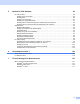
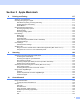
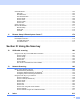
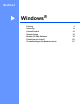
Table Of Contents
- SOFTWARE USER’S GUIDE
- Table of Contents
- Windows®
- 1 Printing
- Using the Brother printer driver
- Features
- Choosing the right type of paper
- Simultaneous printing, scanning and faxing
- Clearing data from the memory
- Status Monitor
- Printer driver settings
- Accessing the printer driver settings
- Basic tab
- Advanced tab
- Print Profiles tab
- Support
- Using FaceFilter Studio for photo printing by REALLUSION
- 2 Scanning
- Scanning a document using the TWAIN driver
- Scanning a document using the WIA driver (Windows® XP/Windows Vista®/Windows® 7)
- Scanning a document using the WIA driver (Windows® Photo Gallery and Windows® Fax and Scan users)
- Using ScanSoft™ PaperPort™12SE with OCR by NUANCE™
- 3 ControlCenter4
- 4 Remote Setup
- 5 Brother PC-FAX Software
- 6 PhotoCapture Center™
- 7 Firewall settings (For Network users)
- 1 Printing
- Apple Macintosh
- 8 Printing and Faxing
- 9 Scanning
- 10 ControlCenter2
- 11 Remote Setup & PhotoCapture Center™
- Using the Scan key
- Index
- brother USA

v
Section II Apple Macintosh
8 Printing and Faxing 117
Setting up your Macintosh.....................................................................................................................117
Choosing the right type of paper............................................................................................................117
Simultaneous printing, scanning and faxing....................................................................................117
Clearing data from the memory.......................................................................................................117
Status Monitor .................................................................................................................................118
Using the Brother printer driver..............................................................................................................120
Choosing page setup options..........................................................................................................120
Duplex Printing ................................................................................................................................122
Choosing printing options................................................................................................................123
Print Settings .........................................................................................................................................124
Media Type......................................................................................................................................124
Print Quality.....................................................................................................................................125
Color/Grayscale...............................................................................................................................125
Paper Source (Not available for MFC-J6510DW) ...........................................................................125
Advanced settings ...........................................................................................................................126
Color Settings........................................................................................................................................129
Advanced Color Settings .................................................................................................................129
Sending a fax.........................................................................................................................................131
Drag a vCard from the Mac OS X Address Book application (Mac OS X 10.4.11) .........................134
Using Mac OS X 10.5.x to 10.6.x Addresses panel.........................................................................136
9Scanning 138
Scanning a document using the TWAIN driver......................................................................................138
Accessing the TWAIN driver............................................................................................................138
Scanning an image into your Macintosh..........................................................................................139
Pre-Scanning an image...................................................................................................................139
Scanning a duplex (two-sided) document (For MFC-J6910DW).....................................................141
Settings in the Scanner window ......................................................................................................142
Scanning a document using the ICA driver (Mac OS X 10.6.x).............................................................146
Using Image Capture.......................................................................................................................146
Scanning directly from the “Print & Fax” section .............................................................................149
Using Presto! PageManager..................................................................................................................152
Features ..........................................................................................................................................152
System requirements for Presto! PageManager .............................................................................152
Technical support ............................................................................................................................153
10 ControlCenter2 155
Using ControlCenter2 ............................................................................................................................155
Turning the AutoLoad feature off.....................................................................................................156
SCAN.....................................................................................................................................................157
File types .........................................................................................................................................158
Document Size ................................................................................................................................158
Image (example: Apple Preview).....................................................................................................158
OCR (word processing application).................................................................................................160
E-mail ..............................................................................................................................................161
File...................................................................................................................................................162