
Software User's Guide
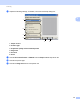

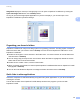
Table Of Contents
- SOFTWARE USER’S GUIDE
- Table of Contents
- Windows®
- 1 Printing
- Using the Brother printer driver
- Features
- Choosing the right type of paper
- Simultaneous printing, scanning and faxing
- Clearing data from the memory
- Status Monitor
- Printer driver settings
- Accessing the printer driver settings
- Basic tab
- Advanced tab
- Print Profiles tab
- Support
- Using FaceFilter Studio for photo printing by REALLUSION
- 2 Scanning
- Scanning a document using the TWAIN driver
- Scanning a document using the WIA driver (Windows® XP/Windows Vista®/Windows® 7)
- Scanning a document using the WIA driver (Windows® Photo Gallery and Windows® Fax and Scan users)
- Using ScanSoft™ PaperPort™12SE with OCR by NUANCE™
- 3 ControlCenter4
- 4 Remote Setup
- 5 Brother PC-FAX Software
- 6 PhotoCapture Center™
- 7 Firewall settings (For Network users)
- 1 Printing
- Apple Macintosh
- 8 Printing and Faxing
- 9 Scanning
- 10 ControlCenter2
- 11 Remote Setup & PhotoCapture Center™
- Using the Scan key
- Index
- brother USA

Scanning
52
2
Image View displays a close-up of a single page. You can open a PaperPort™12SE item by clicking the
Open with Image View button on the Desktop ribbon.
As long as you have the appropriate application on your PC to display it, you can also open a non-
PaperPort™12SE item by double-clicking it.
Organizing your items in folders 2
PaperPort™12SE has an easy-to-use filing system for organizing your items. The filing system consists of
folders and items that you choose to view in Desktop. An item can be a PaperPort™12SE item or a non-
PaperPort™12SE item:
Folders are arranged in a ‘tree’ structure in the Folder View. You use this section to choose folders and
view their items in Desktop.
You can simply drag and drop an item onto a folder. When the folder is highlighted, release the mouse
button and the item is stored in that folder.
Folders can be ‘nested’—that is, stored in other folders.
When you double-click a folder, its contents (both PaperPort™12SE MAX files and non PaperPort™12SE
files) appear in Desktop.
You can also use Windows
®
Explorer to manage the folders and items shown in Desktop.
Quick links to other applications 2
ScanSoft™ PaperPort™12SE automatically recognizes many other applications on your PC and creates a
‘working link’ to them.
The bar at the bottom of the PaperPort™12SE desktop shows which programs you can use with
PaperPort™12SE.