
Software User's Guide
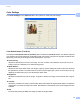
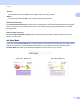
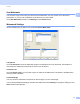

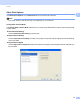
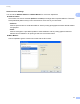
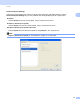
Table Of Contents
- SOFTWARE USER’S GUIDE
- Table of Contents
- Windows®
- 1 Printing
- Using the Brother printer driver
- Features
- Choosing the right type of paper
- Simultaneous printing, scanning and faxing
- Clearing data from the memory
- Status Monitor
- Printer driver settings
- Accessing the printer driver settings
- Basic tab
- Advanced tab
- Print Profiles tab
- Support
- Using FaceFilter Studio for photo printing by REALLUSION
- 2 Scanning
- Scanning a document using the TWAIN driver
- Scanning a document using the WIA driver (Windows® XP/Windows Vista®/Windows® 7)
- Scanning a document using the WIA driver (Windows® Photo Gallery and Windows® Fax and Scan users)
- Using ScanSoft™ PaperPort™12SE with OCR by NUANCE™
- 3 ControlCenter4
- 4 Remote Setup
- 5 Brother PC-FAX Software
- 6 PhotoCapture Center™
- 7 Firewall settings (For Network users)
- 1 Printing
- Apple Macintosh
- 8 Printing and Faxing
- 9 Scanning
- 10 ControlCenter2
- 11 Remote Setup & PhotoCapture Center™
- Using the Scan key
- Index
- brother USA

Printing
22
1
Advanced Duplex Settings 1
Some types of print media may need more drying time when using the duplex feature. Change
Advanced Duplex Settings if you have problems with smudged duplex prints or paper jams.
Normal
Choose Normal to print at normal speed, using a normal amount of ink.
Duplex 1 (Slower print speed)
Choose Duplex 1 to print at a slower speed, using a normal amount of ink.
Duplex 2 (Slower print speed & less ink)
Choose Duplex 2 to print the same speed as using Duplex 1, but using less ink.
Note
Duplex 1 (Slower print speed) is not available for Ledger or A3 size paper.