
Software User's Guide
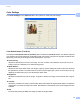
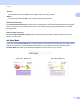
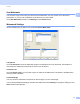
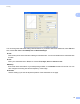

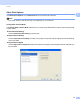
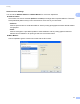
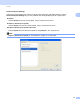
Table Of Contents
- SOFTWARE USER’S GUIDE
- Table of Contents
- Windows®
- 1 Printing
- Using the Brother printer driver
- Features
- Choosing the right type of paper
- Simultaneous printing, scanning and faxing
- Clearing data from the memory
- Status Monitor
- Printer driver settings
- Accessing the printer driver settings
- Basic tab
- Advanced tab
- Print Profiles tab
- Support
- Using FaceFilter Studio for photo printing by REALLUSION
- 2 Scanning
- Scanning a document using the TWAIN driver
- Scanning a document using the WIA driver (Windows® XP/Windows Vista®/Windows® 7)
- Scanning a document using the WIA driver (Windows® Photo Gallery and Windows® Fax and Scan users)
- Using ScanSoft™ PaperPort™12SE with OCR by NUANCE™
- 3 ControlCenter4
- 4 Remote Setup
- 5 Brother PC-FAX Software
- 6 PhotoCapture Center™
- 7 Firewall settings (For Network users)
- 1 Printing
- Apple Macintosh
- 8 Printing and Faxing
- 9 Scanning
- 10 ControlCenter2
- 11 Remote Setup & PhotoCapture Center™
- Using the Scan key
- Index
- brother USA

Printing
16
1
Green
Increases the intensity of Green in the image to make the image greener.
Blue
Increases the intensity of Blue in the image to make the image bluer.
Bi-Directional Printing
1
When Bi-Directional Printing is checked, the print head prints in both directions offering faster print speeds.
When unchecked, the print head will only print in one direction giving higher quality printouts, but slower
printing speeds.
Improve Pattern Printing 1
Select the Improve Pattern Printing option if the printed fills and patterns appear different to how they
appear on your screen.
Ink Save Mode 1
When you choose Ink Save Mode, the machine prints the colors lighter and emphasizes the outlines of the
images. The amount of ink that is saved varies depending on the type of documents that are printed.
Ink Save Mode may make your printouts look different to what you see on your screen.
Ink Save Mode: Off 1 InkSaveMode: On 1