
Software User's Guide
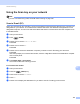
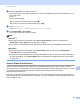
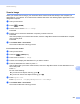
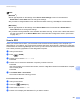
Table Of Contents
- SOFTWARE USER’S GUIDE
- Table of Contents
- Windows®
- 1 Printing
- Using the Brother printer driver
- Features
- Choosing the right type of paper
- Simultaneous printing, scanning and faxing
- Clearing data from the memory
- Status Monitor
- Printer driver settings
- Accessing the printer driver settings
- Basic tab
- Advanced tab
- Print Profiles tab
- Support
- Using FaceFilter Studio for photo printing by REALLUSION
- 2 Scanning
- Scanning a document using the TWAIN driver
- Scanning a document using the WIA driver (Windows® XP/Windows Vista®/Windows® 7)
- Scanning a document using the WIA driver (Windows® Photo Gallery and Windows® Fax and Scan users)
- Using ScanSoft™ PaperPort™12SE with OCR by NUANCE™
- 3 ControlCenter4
- 4 Remote Setup
- 5 Brother PC-FAX Software
- 6 PhotoCapture Center™
- 7 Firewall settings (For Network users)
- 1 Printing
- Apple Macintosh
- 8 Printing and Faxing
- 9 Scanning
- 10 ControlCenter2
- 11 Remote Setup & PhotoCapture Center™
- Using the Scan key
- Index
- brother USA

Network Scanning
203
13
Scan to File 13
When you choose Scan to File, you can scan a black and white or color document and send it directly to a
computer you designate on your network. The file will be saved in the folder and file format that you have
configured in ControlCenter.
a Load your document.
b Press (SCAN).
c Press a or b to choose Scan to File.
Press OK.
d Press a or b to choose the destination computer you want to send to.
Press OK.
If the LCD prompts you to enter a PIN number, enter the 4-digit PIN number for the destination computer
on the control panel.
Press OK.
e Press Black Start or Color Start.
The machine starts the scanning process.
For Touchscreen models 13
a Load your document.
b Press the (SCAN) key.
c Press d or c to choose to File.
d Press a or b to display the destination PC you want to send to.
e Press the destination PC and then press OK.
If the LCD prompts you to enter a PIN number, enter the 4-digit PIN number for the destination PC on
the control panel.
Press OK.
Do one of the following:
If you want to use duplex scanning, go to f.
If you do not want to use duplex scanning, go to g.
f Press Duplex Scan.
Press DuplexScan :LongEdge or DuplexScan :ShortEdge.
g Press Black Start or Color Start.
The machine starts the scanning process.