
Software User's Guide

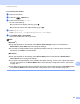
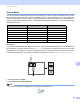
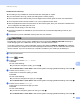
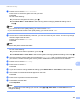

Table Of Contents
- SOFTWARE USER’S GUIDE
- Table of Contents
- Windows®
- 1 Printing
- Using the Brother printer driver
- Features
- Choosing the right type of paper
- Simultaneous printing, scanning and faxing
- Clearing data from the memory
- Status Monitor
- Printer driver settings
- Accessing the printer driver settings
- Basic tab
- Advanced tab
- Print Profiles tab
- Support
- Using FaceFilter Studio for photo printing by REALLUSION
- 2 Scanning
- Scanning a document using the TWAIN driver
- Scanning a document using the WIA driver (Windows® XP/Windows Vista®/Windows® 7)
- Scanning a document using the WIA driver (Windows® Photo Gallery and Windows® Fax and Scan users)
- Using ScanSoft™ PaperPort™12SE with OCR by NUANCE™
- 3 ControlCenter4
- 4 Remote Setup
- 5 Brother PC-FAX Software
- 6 PhotoCapture Center™
- 7 Firewall settings (For Network users)
- 1 Printing
- Apple Macintosh
- 8 Printing and Faxing
- 9 Scanning
- 10 ControlCenter2
- 11 Remote Setup & PhotoCapture Center™
- Using the Scan key
- Index
- brother USA

USB cable scanning
186
12
Scan to Media 12
You can scan black and white and color documents directly to a memory card or USB Flash memory drive.
Black and white documents will be stored in the PDF (*.PDF) or TIFF file formats (*.TIF). Color documents
may be stored in PDF (*.PDF) or JPEG (*.JPG) file formats. File names are based on the current date. For
example, the fifth image scanned on July 1, 2010 would be named 07011005.PDF. You can change the color,
quality and file name.
Auto Crop
12
You can scan multiple documents placed on the scanner glass. An individual document can be previewed on
the LCD before you save it. When choosing Auto Crop, the machine will scan each document and create
separate files. For example, if you place three documents on the scanner glass, the machine will scan and
create three separate files. If you want to create a three page file, choose T IFF or PDF for File Type.
1 0.4 in. (10 mm) or greater
2 0.8 in. (20 mm) or greater (bottom)
Note
The Auto Crop feature is supported by technology from Reallusion, Inc.
Resolution File Format Options Default File Format
B/W 100 or B/W 100 dpi TIFF / PDF PDF
B/W 200 or B/W 200 dpi TIFF / PDF PDF
B/W 300 or B/W 300 dpi TIFF / PDF PDF
Color 100 or Color 100 dpi JPEG / PDF PDF
Color 200 or Color 200 dpi JPEG / PDF PDF
Color 300 or Color 300 dpi JPEG / PDF PDF
Color 600 or Color 600 dpi JPEG / PDF PDF
1
2
3
1
23
1
2