
Software User's Guide
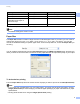
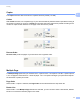
Table Of Contents
- SOFTWARE USER’S GUIDE
- Table of Contents
- Windows®
- 1 Printing
- Using the Brother printer driver
- Features
- Choosing the right type of paper
- Simultaneous printing, scanning and faxing
- Clearing data from the memory
- Status Monitor
- Printer driver settings
- Accessing the printer driver settings
- Basic tab
- Advanced tab
- Print Profiles tab
- Support
- Using FaceFilter Studio for photo printing by REALLUSION
- 2 Scanning
- Scanning a document using the TWAIN driver
- Scanning a document using the WIA driver (Windows® XP/Windows Vista®/Windows® 7)
- Scanning a document using the WIA driver (Windows® Photo Gallery and Windows® Fax and Scan users)
- Using ScanSoft™ PaperPort™12SE with OCR by NUANCE™
- 3 ControlCenter4
- 4 Remote Setup
- 5 Brother PC-FAX Software
- 6 PhotoCapture Center™
- 7 Firewall settings (For Network users)
- 1 Printing
- Apple Macintosh
- 8 Printing and Faxing
- 9 Scanning
- 10 ControlCenter2
- 11 Remote Setup & PhotoCapture Center™
- Using the Scan key
- Index
- brother USA

Printing
12
1
Duplex / Booklet 1
You can print a booklet or do duplex printing with these features.
None
Disable duplex printing.
Duplex
Use this option to duplex print. Once Duplex is selected, you may click the Duplex Settings button to
adjust the duplex options. You can configure the following settings in the Duplex Settings dialog box:
• Duplex Type
There are four types of duplex binding directions available for each orientation.
• Binding Offset
When checking Binding Offset, you can also specify the offset for binding in inches or millimeters.
Booklet
Use this option to print a document in booklet format using duplex printing; it will arrange the document
according to the correct page number and allows you to fold at the center of the print output without having
to change the order of the page number. When choosing Booklet, the Duplex Settings button becomes
available to choose. You can set following settings in the Duplex Settings dialog box.
• Duplex Type
There are two types of duplex binding directions available for each orientation.
• Booklet Printing Method
When Divide into Sets is selected, this option allows you to print the whole booklet into smaller
individual booklet sets, it still allows you to fold at the center of the smaller individual booklet sets without
having to change the order of the page number. You can specify the number of sheets in each smaller
booklet set, from 1 to 15. This option can help when folding the printed booklet that has a large number
of pages.
• Binding Offset
When checking Binding Offset, you can also specify the offset for binding in inches or millimeters.
Note
The Borderless feature is not available for duplex printing and booklet printing.
Paper Source (Not available for MFC-J6510DW) 1
You can choose Auto Select, Tray1 or Tray2 as Paper Source. If you put one sheet of paper in the manual
feed slot, the paper from the slot is automatically chosen. Make sure that you do not put any paper in the slot
when printing on paper from Tray1 or Tray2.