
User Manual



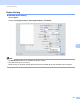


Table Of Contents
- SOFTWARE USER’S GUIDE
- Table of Contents
- Windows®
- 1 Printing
- Using the Brother printer driver
- Features
- Choosing the right type of paper
- Simultaneous printing, scanning and faxing
- Clearing data from the memory
- Status Monitor
- Printer driver settings
- Accessing the printer driver settings
- Basic tab
- Advanced tab
- Print Profiles tab
- Support
- Using FaceFilter Studio for photo printing by REALLUSION
- 2 Scanning
- 3 ControlCenter4
- 4 Remote Setup
- 5 Brother PC-FAX Software
- 6 PhotoCapture Center™
- 7 Firewall settings (For Network users)
- 1 Printing
- Apple Macintosh
- 8 Printing and Faxing
- 9 Scanning
- 10 ControlCenter2
- 11 Remote Setup & PhotoCapture Center™
- Using the Scan key
- Index
- brother CHN-ENG

Printing and Faxing
120
8
(Mac OS X 10.5.x to 10.6.x)
For more page setup options, click the disclosure triangle beside the Printer drop-down list.
To do borderless printing 8
From the Paper Size drop-down list, choose the size of paper you want to print such as A4 (Borderless).
Note
• If your prints look smudged when you use Ledger paper, your paper may be short grain paper. Choose
Tabloid (Short Grain) to avoid smudging. Consult the paper packaging or paper manufacturer for paper
specifications.
• Printing will be slower when using the Tabloid (Short Grain) setting.