
User Manual
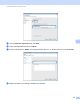



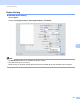


Table Of Contents
- SOFTWARE USER’S GUIDE
- Table of Contents
- Windows®
- 1 Printing
- Using the Brother printer driver
- Features
- Choosing the right type of paper
- Simultaneous printing, scanning and faxing
- Clearing data from the memory
- Status Monitor
- Printer driver settings
- Accessing the printer driver settings
- Basic tab
- Advanced tab
- Print Profiles tab
- Support
- Using FaceFilter Studio for photo printing by REALLUSION
- 2 Scanning
- 3 ControlCenter4
- 4 Remote Setup
- 5 Brother PC-FAX Software
- 6 PhotoCapture Center™
- 7 Firewall settings (For Network users)
- 1 Printing
- Apple Macintosh
- 8 Printing and Faxing
- 9 Scanning
- 10 ControlCenter2
- 11 Remote Setup & PhotoCapture Center™
- Using the Scan key
- Index
- brother CHN-ENG

Printing and Faxing
117
8
Mac OS X 10.5.x and 10.6.x users can also start the Status Monitor in the following ways:
(Mac OS X 10.5.x)
a Run the System Preferences, select Print & Fax, then choose the machine.
b Click the Open Print Queue..., then click Utility. The Status Monitor will start up.
(Mac OS X 10.6.x)
a Run the System Preferences, select Print & Fax, then choose the machine.
b Click the Open Print Queue..., then click Printer Setup. Select the Utility tab then click
Open Printer Utility. The Status Monitor will start up.
Updating the machine’s status
If you want the latest machine status while the Status Monitor window is open, click the update button (1).
You can set at what interval the software will update the machine status information. Go to the menu bar,
Brother Status Monitor and choose Preferences.
Hiding or showing the window
After starting the Status Monitor, you can hide or show the window. To hide the window, go to the menu
bar, Brother Status Monitor and choose Hide Status Monitor. To show the window, click the
Status Monitor icon in the dock or click the Ink Level button in the DEVICE SETTINGS tab of
ControlCenter2.
1