
User Manual


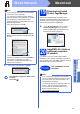



Table Of Contents
- Quick Setup Guide MFC-J6910DW
- Start Here
- 1 Unpack the machine and check the components
- 2 Load plain A4 paper
- 3 Connect the power cord and telephone line
- 4 Install the ink cartridges
- 5 Check the print quality
- 6 Set the paper settings
- 7 Choose a Receive Mode
- 8 Set the date and time
- 9 Enter personal information (Station ID)
- 10 Fax Transmission Report
- 11 Set Tone or Pulse dialling mode
- 12 Set the telephone line type
- 13 Set the telephone line compatibility
- 14 Manual Feed Slot
- 15 Choose your connection type
- For USB interface users (Windows® 2000 Professional/XP Home/XP Professional/Windows Vista®/Windows® 7)
- For USB interface users (Mac OS X 10.4.11, 10.5.x, 10.6.x)
- For wired network interface users (Windows® 2000 Professional/XP Home/XP Professional/Windows Vista®/Windows® 7)
- For wired network interface users (Mac OS X 10.4.11, 10.5.x, 10.6.x)
- For wireless network interface users
- 16 Before you begin
- 17 Confirm your network environment (Infrastructure Mode)
- 18 Configure the wireless settings (typical Wireless Setup in infrastructure mode)
- 18 Configure the wireless settings using the automatic wireless (one- push) method
- Troubleshooting
- Install the drivers & software (Windows® 2000 Professional/XP Home/XP Professional/Windows Vista®/Windows® 7)
- Install the drivers & software (Mac OS X 10.4.11, 10.5.x, 10.6.x)
- Install Optional Applications Windows®
- For Network Users
- Consumables
- brother UK/IRE/GEN
- Start Here

21
Macintosh
Wired Network
Windows
®
Macintosh
Wired Network
For wired network interface users
(Mac OS X 10.4.11, 10.5.x, 10.6.x)
16
Before you install
Make sure your machine is connected to the power
and your Macintosh is ON. You must be logged on
with Administrator rights.
17
Connect the network
cable
a Lift the scanner cover into the open position.
b You will find the LAN socket marked with a
symbol inside the machine on the left as shown
below. Remove the protective cap and connect
the network cable to the LAN socket.
Note
• For the latest drivers and information on the
Mac OS X you are using, visit
http://solutions.brother.com/
.
• For Mac OS X 10.4.0 to 10.4.10 users, upgrade
to Mac OS X 10.4.11 - 10.6.x.
• If you have previously set up your machine for
a wireless network and then want to set it up on
a wired network, you should check that the
machine’s Network I/F is set to
Wired LAN. The wireless network interface
will become inactive with this setting.
On your machine, press MENU.
Press Network.
Press a or b to display Network I/F.
Press Network I/F.
Press Wired LAN.
Press Stop/Exit.
LAN USB