
User Manual


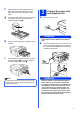


Table Of Contents
- Quick Setup Guide MFC-J6910DW
- Start Here
- 1 Unpack the machine and check the components
- 2 Load plain A4 paper
- 3 Connect the power cord and telephone line
- 4 Install the ink cartridges
- 5 Check the print quality
- 6 Set the paper settings
- 7 Choose your language (if needed)
- 8 Choose a Receive Mode
- 9 Set the date and time
- 10 Enter personal information (Station ID)
- 11 Fax Transmission Report
- 12 Set Tone or Pulse dialling mode
- 13 Set the telephone line compatibility
- 14 Manual Feed Slot
- 15 Choose your connection type
- For USB interface users (Windows® 2000 Professional/XP Home/XP Professional/Windows Vista®/Windows® 7)
- For USB interface users (Mac OS X 10.4.11, 10.5.x, 10.6.x)
- For wired network interface users (Windows® 2000 Professional/XP Home/XP Professional/Windows Vista®/Windows® 7)
- For wired network interface users (Mac OS X 10.4.11, 10.5.x, 10.6.x)
- For wireless network interface users
- 16 Before you begin
- 17 Confirm your network environment (Infrastructure Mode)
- 18 Configure the wireless settings (typical Wireless Setup in infrastructure mode)
- 18 Configure the wireless settings using the automatic wireless (one- push) method
- Troubleshooting
- Install the drivers & software (Windows® 2000 Professional/XP Home/XP Professional/Windows Vista®/Windows® 7)
- Install the drivers & software (Mac OS X 10.4.11, 10.5.x, 10.6.x)
- Install Optional Applications
- For Network Users
- Consumables
- Brother CHN-ENG
- Start Here

7
5
Check the print quality
a When the preparation process has finished, the
LCD shows Set Paper and Press Start.
Press Color Start.
b Check the quality of the four color blocks on the
sheet. (black/yellow/cyan/magenta)
c If all lines are clear and visible, press Yes to
finish the quality check and go to step 6.
If you can see missing short lines, press No and
follow the steps on the LCD.
6
Set the paper settings
For your machine to produce the best print quality and
feed the correct paper size, the paper type and size
must be set to match the paper in the tray.
For details on the types and sizes of paper supported,
see Paper Size and Type in chapter 2 of the Basic
User’s Guide.
a When the LCD shows to set the paper size and
paper type, press Tray Setting.
b Press Tray#1 or Tray#2 for paper size, or the
button below Tray#1 for paper type of Tray#1.
c Press the type or size of paper you are using.
d Press Stop/Exit.
7
Choose your language
(if needed)
a Press MENU.
b Press a or b to choose Initial Setup.
c Press Initial Setup.
d Press a or b to choose Local Language.
e Press Local Language.
f Press your language.
g Press Stop/Exit.
Note
Make sure you put paper in the paper tray
(tray #1, the upper tray) for the initial setup.
OK
Poor
Note
You can change the default tray the machine will
use for printing copies or received faxes. (See
Tray use in Copy mode or Tray use in Fax mode
in chapter 2 of the Basic User’s Guide.)
Note
To cancel, press Stop/Exit. You can set the
paper settings later.