
User Manual


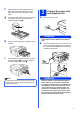


Table Of Contents
- Quick Setup Guide MFC-J6910DW
- Start Here
- 1 Unpack the machine and check the components
- 2 Load plain A4 paper
- 3 Connect the power cord and telephone line
- 4 Install the ink cartridges
- 5 Check the print quality
- 6 Set the paper settings
- 7 Choose your language (if needed)
- 8 Choose a Receive Mode
- 9 Set the date and time
- 10 Enter personal information (Station ID)
- 11 Fax Transmission Report
- 12 Set Tone or Pulse dialling mode
- 13 Set the telephone line compatibility
- 14 Manual Feed Slot
- 15 Choose your connection type
- For USB interface users (Windows® 2000 Professional/XP Home/XP Professional/Windows Vista®/Windows® 7)
- For USB interface users (Mac OS X 10.4.11, 10.5.x, 10.6.x)
- For wired network interface users (Windows® 2000 Professional/XP Home/XP Professional/Windows Vista®/Windows® 7)
- For wired network interface users (Mac OS X 10.4.11, 10.5.x, 10.6.x)
- For wireless network interface users
- 16 Before you begin
- 17 Confirm your network environment (Infrastructure Mode)
- 18 Configure the wireless settings (typical Wireless Setup in infrastructure mode)
- 18 Configure the wireless settings using the automatic wireless (one- push) method
- Troubleshooting
- Install the drivers & software (Windows® 2000 Professional/XP Home/XP Professional/Windows Vista®/Windows® 7)
- Install the drivers & software (Mac OS X 10.4.11, 10.5.x, 10.6.x)
- Install Optional Applications
- For Network Users
- Consumables
- Brother CHN-ENG
- Start Here

4
4
Install the ink cartridges
a Make sure that the power is turned on.
The LCD shows No Ink Cartridge.
b Open the ink cartridge cover a.
c Remove the orange protective part a.
IMPORTANT
The telephone line cord MUST be connected
to the socket on the machine marked LINE.
Note
If you are sharing one telephone line with an
external telephone, connect it as shown below.
1 Extension telephone
2 External telephone
Note
If you are sharing one telephone line with an
external telephone answering machine, connect it
as shown below.
Set the receive mode to External TAD if you
have an external answering machine. See
Choose a Receive Mode on page 8. For
additional details, see Connecting an external
TAD (telephone answering device) in chapter 6 of
the Basic User’s Guide.
1
2
Note
Make sure you install the Introductory Ink
Cartridges included with your machine first.
Note
Do not throw away the orange protective part.
You will need it if you transport the machine.
1
1