
User Manual



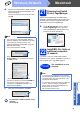


Table Of Contents
- Quick Setup Guide MFC-J6910DW
- Start Here
- 1 Unpack the machine and check the components
- 2 Load plain A4 paper
- 3 Connect the power cord and telephone line
- 4 Install the ink cartridges
- 5 Check the print quality
- 6 Set the paper settings
- 7 Choose your language (if needed)
- 8 Choose a Receive Mode
- 9 Set the date and time
- 10 Enter personal information (Station ID)
- 11 Fax Transmission Report
- 12 Set Tone or Pulse dialling mode
- 13 Set the telephone line compatibility
- 14 Manual Feed Slot
- 15 Choose your connection type
- For USB interface users (Windows® 2000 Professional/XP Home/XP Professional/Windows Vista®/Windows® 7)
- For USB interface users (Mac OS X 10.4.11, 10.5.x, 10.6.x)
- For wired network interface users (Windows® 2000 Professional/XP Home/XP Professional/Windows Vista®/Windows® 7)
- For wired network interface users (Mac OS X 10.4.11, 10.5.x, 10.6.x)
- For wireless network interface users
- 16 Before you begin
- 17 Confirm your network environment (Infrastructure Mode)
- 18 Configure the wireless settings (typical Wireless Setup in infrastructure mode)
- 18 Configure the wireless settings using the automatic wireless (one- push) method
- Troubleshooting
- Install the drivers & software (Windows® 2000 Professional/XP Home/XP Professional/Windows Vista®/Windows® 7)
- Install the drivers & software (Mac OS X 10.4.11, 10.5.x, 10.6.x)
- Install Optional Applications
- For Network Users
- Consumables
- Brother CHN-ENG
- Start Here

36
Windows
®
Install Optional Applications
1
Install FaceFilter
Studio/BookScan &
Whiteboard Suite
supported by Reallusion,
Inc
FaceFilter Studio is an easy-to-use borderless photo
printing application. FaceFilter Studio also lets you
edit your photo data and add photo effects such as
red eye reduction or skin tone enhancement.
The BookScan Enhancer software can correct your
scanned book images automatically.
The Whiteboard Enhancer software cleans up and
enhances text and images from photos taken of your
whiteboard.
a Open the top menu again by ejecting and then
reinserting the installation CD-ROM or by
double-clicking the start.exe program from the
root folder.
b The CD-ROM Top Menu will appear. Choose
your language and then click Additional
Applications.
c Click the button for the application you want to
install.
d Go back to the Additional Applications
screen to install more applications.
Note
• The machine must be ON and connected to the
computer.
• The computer must be connected to the
Internet.
• Make sure you are logged on with
Administrator rights.
• This application is not available for Windows
Server
®
2003/2008 series.
Note
For information on basic FaceFilter Studio functions,
see Using FaceFilter Studio for photo printing by
REALLUSION in the Software User's Guide.
For more detailed information, see FaceFilter
Studio Help.