
User Manual


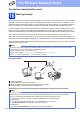


Table Of Contents
- Quick Setup Guide MFC-J6910DW
- Start Here
- 1 Unpack the machine and check the components
- 2 Load plain A4 paper
- 3 Connect the power cord and telephone line
- 4 Install the ink cartridges
- 5 Check the print quality
- 6 Set the paper settings
- 7 Choose your language (if needed)
- 8 Choose a Receive Mode
- 9 Set the date and time
- 10 Enter personal information (Station ID)
- 11 Fax Transmission Report
- 12 Set Tone or Pulse dialling mode
- 13 Set the telephone line compatibility
- 14 Manual Feed Slot
- 15 Choose your connection type
- For USB interface users (Windows® 2000 Professional/XP Home/XP Professional/Windows Vista®/Windows® 7)
- For USB interface users (Mac OS X 10.4.11, 10.5.x, 10.6.x)
- For wired network interface users (Windows® 2000 Professional/XP Home/XP Professional/Windows Vista®/Windows® 7)
- For wired network interface users (Mac OS X 10.4.11, 10.5.x, 10.6.x)
- For wireless network interface users
- 16 Before you begin
- 17 Confirm your network environment (Infrastructure Mode)
- 18 Configure the wireless settings (typical Wireless Setup in infrastructure mode)
- 18 Configure the wireless settings using the automatic wireless (one- push) method
- Troubleshooting
- Install the drivers & software (Windows® 2000 Professional/XP Home/XP Professional/Windows Vista®/Windows® 7)
- Install the drivers & software (Mac OS X 10.4.11, 10.5.x, 10.6.x)
- Install Optional Applications
- For Network Users
- Consumables
- Brother CHN-ENG
- Start Here

25
For Wireless Network Users
Wireless Network
17
Confirm your network environment (Infrastructure Mode)
The following instructions will offer two methods for installing your Brother machine in a wireless network
environment.
a If your wireless access point/router does not support WPS (Wi-Fi Protected Setup) or AOSS™, write
down the wireless network settings of your wireless access point/router in the area below.
Please do not contact Brother Customer Service for assistance without the wireless security
information. We cannot assist you in locating your network security settings.
Item Record the current wireless network settings
SSID (Network Name):
Network Key
* The Network Key may also be described as the Password, Security Key or Encryption Key.
Note
If you do not know this information (SSID and Network Key), you cannot continue the wireless
setup.
How can I find this information
1) You should see the documentation provided with your wireless access point/router.
2) The initial SSID could be the manufacturer’s name or the model name.
3) If you do not know the security information, please consult the router manufacturer, your system
administrator, or internet provider.
Now go to
page 26
b If your wireless access point/router supports automatic wireless (one-push) setup (WPS or AOSS™)
Now go to
page 27