
Quick Setup Guide

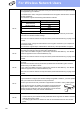


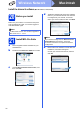
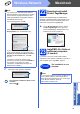


Table Of Contents
- Quick Setup Guide MFC-J280W MFC-J625DW
- Start Here
- 1 Unpack the machine and check the components
- 2 Load plain Letter/A4 paper
- 3 Connect the power cord and telephone line
- 4 Install the ink cartridges
- 5 Check the print quality
- 6 Choose your language (if needed)
- 7 Choose the correct Receive Mode
- 8 Set the LCD contrast (if needed)
- 9 Set the date and time
- 10 Set your Station ID
- 11 Fax Transmission Report
- 12 Set Tone or Pulse dialing mode (Canada only)
- 13 Set the telephone line compatibility (VoIP)
- 14 Automatic Daylight Savings Time
- 15 Send in the Product Registration Sheet (USA only)
- 16 Choose your connection type
- For USB interface users (Windows® XP Home/XP Professional/Windows Vista®/Windows® 7)
- For USB interface users (Mac OS X 10.4.11, 10.5.x, 10.6.x)
- For wireless network interface users
- 17 Before you begin
- 18 Choose your wireless install method
- 19 Configuration using the CD-ROM installer and a USB cable (Windows® only)
- 19 Manual configuration from the control panel (Windows® and Macintosh)
- 19 One-push configuration using WPS or AOSS™ (Windows® and Macintosh)
- Troubleshooting
- Install the drivers & software (Windows® XP Home/XP Professional/Windows Vista®/Windows® 7)
- Install the drivers & software (Mac OS X 10.4.11, 10.5.x, 10.6.x)
- Install Optional Applications Windows®
- For Network Users
- Consumables
- brother USA/CAN
- Start Here

33
Macintosh
Wireless Network
Windows
®
Macintosh
Wireless Network
f When this screen appears, click Next.
The installation of MFL-Pro Suite is now
complete.
Go to step 22.
22
Download and install
Presto! PageManager
When Presto! PageManager is installed OCR
capability is added to Brother ControlCenter2. You
can easily scan, share and organize photos and
documents using Presto! PageManager.
a On the Brother Support screen, click the
Presto! PageManager icon to go to the
Presto! PageManager download site, and
follow the on-screen instructions.
23
Install MFL-Pro Suite on
additional computers
(if needed)
If you want to use your machine with multiple
computers on the network, install MFL-Pro Suite on
each computer. Go to step 20 on page 32.
Note
• You can find your machine’s MAC Address
(Ethernet Address) and IP Address by printing
out the Network Configuration Report. See
Printing the Network Configuration Report in
the Network User’s Guide.
• If this screen appears click OK.
Enter a name for your Macintosh in
Display Name up to 15 characters long.
If you want to use the machine’s SCAN key to
scan over the network, you must check the
Register your computer with the “Scan To”
function on the machine box. Click OK.
Go to f.
The name you enter will appear on the
machine’s LCD when you press the SCAN key
and choose a scan option. (For more
information, see Network Scanning in the
Software User’s Guide.)
Finish
The installation is now
complete.
Note
To use Image Capture for scanning on Mac OS X
10.6.x, please install the CUPS Printer Driver,
which can be downloaded from your model page
on the Brother Solutions Center at
http://solutions.brother.com/
.