
Quick Setup Guide

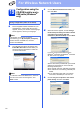


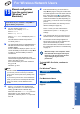


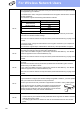


Table Of Contents
- Quick Setup Guide MFC-J280W MFC-J625DW
- Start Here
- 1 Unpack the machine and check the components
- 2 Load plain Letter/A4 paper
- 3 Connect the power cord and telephone line
- 4 Install the ink cartridges
- 5 Check the print quality
- 6 Choose your language (if needed)
- 7 Choose the correct Receive Mode
- 8 Set the LCD contrast (if needed)
- 9 Set the date and time
- 10 Set your Station ID
- 11 Fax Transmission Report
- 12 Set Tone or Pulse dialing mode (Canada only)
- 13 Set the telephone line compatibility (VoIP)
- 14 Automatic Daylight Savings Time
- 15 Send in the Product Registration Sheet (USA only)
- 16 Choose your connection type
- For USB interface users (Windows® XP Home/XP Professional/Windows Vista®/Windows® 7)
- For USB interface users (Mac OS X 10.4.11, 10.5.x, 10.6.x)
- For wireless network interface users
- 17 Before you begin
- 18 Choose your wireless install method
- 19 Configuration using the CD-ROM installer and a USB cable (Windows® only)
- 19 Manual configuration from the control panel (Windows® and Macintosh)
- 19 One-push configuration using WPS or AOSS™ (Windows® and Macintosh)
- Troubleshooting
- Install the drivers & software (Windows® XP Home/XP Professional/Windows Vista®/Windows® 7)
- Install the drivers & software (Mac OS X 10.4.11, 10.5.x, 10.6.x)
- Install Optional Applications Windows®
- For Network Users
- Consumables
- brother USA/CAN
- Start Here

27
For Wireless Network Users
Wireless Network
Troubleshooting
How can I find the wireless security information (SSID and Network Key)
* The Network Key may also be described as the Password, Security Key or Encryption Key.
Wireless LAN report
If the wireless LAN report that printed shows that the connection failed, check the error code on the printed report
and refer to the following instructions.
Please do not contact Brother Customer Service for assistance without the wireless security
information. We cannot assist you in locating your network security settings.
1) You should see the documentation provided with your wireless access point/router.
2) The initial SSID could be the manufacturer’s name or the model name.
3) If you do not know the security information, please consult the router manufacturer, your system
administrator, or internet provider.
Error code Recommended Solutions
TS-01
The wireless setting is not activated, turn the wireless setting to ON.
On your machine, press Menu.
Press s or t to display Network.
Press Network.
Press s or t to display WLAN Enable.
Press WLAN Enable.
Press On.
Press Stop/Exit.
TS-02
The wireless access point/router cannot be detected.
1. Check the following 4 points.
- Make sure that the wireless access point/router is powered on.
- Move your machine to an obstruction-free area, or closer to the wireless access
point/router.
- Temporarily place your machine within about 3.3 feet (one meter) from the wireless
access point when you are configuring the wireless settings.
- If your wireless access point/router is using MAC address filtering, confirm the MAC
address of the Brother machine is allowed in the filter.
2. If you manually entered the SSID and security information (SSID/authentication
method/encryption method/Network Key), the information may be incorrect.
Reconfirm the SSID and security information and re-enter the correct information as
necessary.
See How can I find the wireless security information (SSID and Network Key) on page 27 to
confirm.