
User Manual
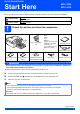
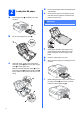
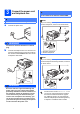
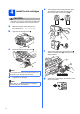
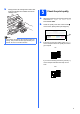
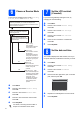
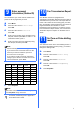
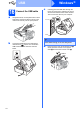
Table Of Contents
- Quick Setup Guide MFC-J220 MFC-J410
- Start Here
- 1 Unpack the machine and check the components
- 2 Load plain A4 paper
- 3 Connect the power cord and telephone line
- 4 Install the ink cartridges
- 5 Check the print quality
- 6 Choose a Receive Mode
- 7 Set the LCD contrast (if needed)
- 8 Set the date and time
- 9 Enter personal information (Station ID)
- 10 Fax Transmission Report
- 11 Set Tone or Pulse dialling mode
- 12 Set the telephone line type
- 13 Set the phone line compatibility
- For USB interface users (Windows® 2000 Professional/XP/XP Professional x64 Edition/Windows Vista®/Windows® 7)
- For USB interface users (Mac OS X 10.4.11, 10.5.x, 10.6.x)
- Install Optional Applications Windows®
- Consumables
- brother SAF
- Start Here

10
Windows
®
USB
16
Connect the USB cable
a Using both hands, use the plastic tabs on both
sides of the machine to lift the scanner cover
until it locks securely into the open position.
b Connect the USB cable to the USB socket
marked with a symbol. You will find the
USB socket inside the machine as shown
below.
c Carefully guide the USB cable through the
trench as shown below, following the trench
around and toward the back of the machine.
Then connect the cable to your computer.
d Lift the scanner cover to release the lock a.
Gently push the scanner cover support
down b and close the scanner cover c.
USB
IMPORTANT
Make sure that the cable does not restrict the
cover from closing, or an error may occur.
1
3
2
2