
User Manual
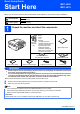
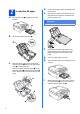
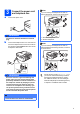
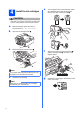
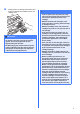
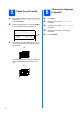
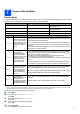
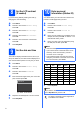
Table Of Contents
- Quick Setup Guide MFC-J220 MFC-J410
- Start Here
- 1 Unpack the machine and check the components
- 2 Load plain A4 paper
- 3 Connect the power cord and telephone line
- 4 Install the ink cartridges
- 5 Check the print quality
- 6 Choose your language (if needed)
- 7 Choose a Receive Mode
- 8 Set the LCD contrast (if needed)
- 9 Set the date and time
- 10 Enter personal information (Station ID)
- 11 Fax Transmission Report
- 12 Set Tone or Pulse dialling mode
- 13 Set the phone line compatibility
- For USB interface users (Windows® 2000 Professional/XP/XP Professional x64 Edition/ Windows Vista®/Windows® 7)
- For USB interface users (Mac OS X 10.4.11, 10.5.x, 10.6.x)
- Install Optional Applications
- Consumables
- brother CHN-ENG
- Start Here

6
5
Check the print quality
a When the preparation process has finished, the
LCD shows Set Paper and Press Start.
Press Color Start.
b Check the quality of the four color blocks a on
the sheet. (black/yellow/cyan/magenta)
c If all lines are clear and visible, press 1 (Yes)
on the dial pad to finish the quality check and
go to step 6.
If you can see missing short lines, press 2 (No)
on the dial pad and follow the steps on the
LCD.
6
Choose your language
(if needed)
a Press Menu.
b Press a or b to choose Initial Setup.
Press OK.
c Press a or b to choose Local Language.
Press OK.
d Press a or b to choose your language.
Press OK.
e Press Stop/Exit.
OK
Poor
1
1