
User Manual
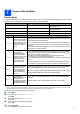
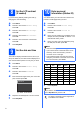
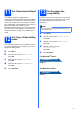
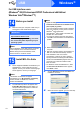
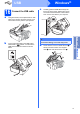
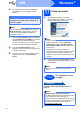
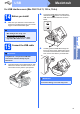
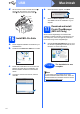
Table Of Contents
- Quick Setup Guide MFC-J220 MFC-J410
- Start Here
- 1 Unpack the machine and check the components
- 2 Load plain A4 paper
- 3 Connect the power cord and telephone line
- 4 Install the ink cartridges
- 5 Check the print quality
- 6 Choose your language (if needed)
- 7 Choose a Receive Mode
- 8 Set the LCD contrast (if needed)
- 9 Set the date and time
- 10 Enter personal information (Station ID)
- 11 Fax Transmission Report
- 12 Set Tone or Pulse dialling mode
- 13 Set the phone line compatibility
- For USB interface users (Windows® 2000 Professional/XP/XP Professional x64 Edition/ Windows Vista®/Windows® 7)
- For USB interface users (Mac OS X 10.4.11, 10.5.x, 10.6.x)
- Install Optional Applications
- Consumables
- brother CHN-ENG
- Start Here

14
Macintosh
USB
d Lift the scanner cover to release the lock a.
Gently push the scanner cover support
down b and close the scanner cover c.
16
Install MFL-Pro Suite
a Put the supplied installation CD-ROM into your
CD-ROM drive.
b Double-click the Start Here OSX icon to install.
c Please wait, it will take a few seconds for the
software to install. After the installation, the
Brother software will search for the Brother
device.
d Choose the machine from the list, and then
click OK.
e When this screen appears, click Next.
f When the Brother Support screen appears,
click Close to finish the installation or go to
step 17.
17
Download and install
Presto! PageManager
(MFC-J410 only)
When Presto! PageManager is installed OCR
capability is added to Brother ControlCenter2. You
can easily scan, share and organize photos and
documents using Presto! PageManager.
a Click the Presto! PageManager icon to go to
the Presto! PageManager download site, and
follow the on-screen instructions.
1
3
2
2
Finish
The installation is now
complete.
Note
To use Image Capture on Mac OS X 10.6.x,
please install the CUPS Printer Driver, which can
be downloaded from the Brother Solutions Center
(http://solutions.brother.com/
).