
User Manual
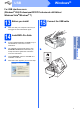
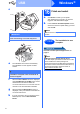
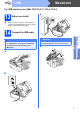
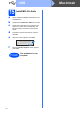
Table Of Contents
- Quick Setup Guide MFC-J220 MFC-J410
- Start Here
- 1 Unpack the machine and check the components
- 2 Load plain A4 paper
- 3 Connect the power cord and telephone line
- 4 Install the ink cartridges
- 5 Check the print quality
- 6 Choose your language
- 7 Choose a Receive Mode
- 8 Set the date and time
- 9 Enter personal information (Station ID)
- 10 Set Tone or Pulse dialling mode
- 11 Set the telephone line type
- 12 Set the phone line compatibility
- For USB interface users (Windows® 2000 Professional/XP/XP Professional x64 Edition/ Windows Vista®/Windows® 7)
- For USB interface users (Mac OS X 10.4.11, 10.5.x, 10.6.x)
- Install Optional Applications Windows®
- brother CEE-ENG
- Start Here

8
Windows
®
USB
c
d
e
The installation will continue automatically.
The installation screens appear one after
another.
f When the User’s Guides screen is displayed,
click View Manuals on the Web if you want to
download the manuals and follow the
on-screen instructions. You can also view the
manuals on the documentation CD-ROM.
g When the On-Line Registration screen is
displayed, make your selection and follow the
on-screen instructions.
h If you do not want to set your machine as the
Default printer, uncheck Set as Default
Printer.
16
Finish and restart
a Click Finish to restart your computer.
After restarting the computer, you must be
logged on with Administrator rights.
b In the Check for Firmware Updates screen,
choose the firmware update setting you want
and click OK.
Now go to
Proceed to Install Optional Applications on
page 11.
IMPORTANT
Make sure that the cable does not restrict the
cover from closing, or an error may occur.
IMPORTANT
DO NOT cancel any of the screens during the
installation. It may take a few seconds for all
screens to appear.
1
3
2
2
Note
Internet access is required for the firmware
update.
Finish
The installation is now
complete.
Note
XML Paper Specification Printer Driver
The XML Paper Specification Printer Driver is the
most suitable driver when printing from
applications that use the XML Paper Specification
documents. Please download the latest driver by
accessing the Brother Solutions Center at
http://solutions.brother.com/