
User guide



MFC990CW Vista Network Connection Repair Instructions
4
© 1995 - 2010 Brother International Corporation
www.brother-usa.com
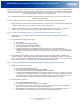
d. Press YES.
e. Press and hold YES again for 2 seconds. The machine will restart and the network card will be
reset.
5. When the machine powers on:
a. Press MENU
b. Scroll to and press NETWORK.
c. Press WLAN.
d. Press SETUP WIZARD.
e. When SWITCH NETWORK INTERFACE TO WIRELESS is displayed, press YES to accept the
change.
6. The machine will search for your network and display a list of available SSIDs. You should see the
SSID you wrote down earlier. If the machine finds more than one network use the up or down arrow
keys to choose your network, then press OK. Skip to step 10. If your access point is set to not
broadcast the SSID you will have to manually add the SSID name. Continue to step 7.
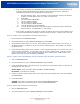
7. Press <NEW SSID>.
8. Enter a new SSID using the touch screen and press OK. The SSID must match the settings of your
router or access point. For information on ENTERING TEXT, please refer to that section at the below.
9. Press INFRASTRUCTURE.
10. Choose one of the options below: If your network is configured for Authentication and Encryption you
must match the settings used for your network.
a. NO AUTHENTICATION OR ENCRYPTION: Press OPEN SYSTEM then press NONE for Encryption
Type. Press YES to apply your settings. Skip to step 13.
b. NO AUTHENTICATION WITH WEP ENCRYPTION: Press OPEN SYSTEM, then press WEP for the
Encryption Type. Continue to step 11.
c. AUTHENTICATION WITH WEP ENCRYPTION: Press SHARED KEY. Continue to step 11.
d. AUTHENTICATION WITH WPA/WPA2-PSK (TKIP or AES) ENCRYPTION: Press WPA/WPA2-PSK.
Skip to step 12.
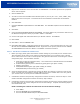
11. Choose the appropriate key number:
a. Enter the WEP key you wrote down earlier using the touch screen. For information on
ENTERING TEXT, please refer to that section at the below. NOTE: The WEP key is case
sensitive. You may still get CONNECTED even if you enter the key incorrectly, but the router
will not assign an IP address to the Brother machine. You must enter this key exactly as it is
set on your access point.
b. Press OK when you have entered all the characters.
c. Press YES to apply your settings. Skip to step 13.
Note: Most access points and routers can store more than one key, but they will only use
one at any time for authentication and encryption.
12. Scroll to TKIP or AES for Encryption Type and press OK.
a. Enter the WPA/WPA2-PSK Password you wrote down earlier using the touch screen. For
information on ENTERING TEXT, please refer to that section at the below.
b. Press OK when you have entered all the characters.
c. Press YES to apply your settings. Continue to step 13.
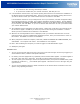
13. Your machine will now try to connect to your wireless network using the information you have
entered. If successful, CONNECTED will appear on the LCD. A four level indicator at the top of your
machine’s LCD will show the wireless signal strength of your access point or router. If CONNECTION