
Printer/Fax/Scanner/Copier Quick Setup Guide

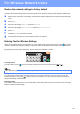
Table Of Contents
- Quick Setup Guide MFC-790CW MFC-990CW
- Start Here
- 1 Unpack the machine and check the components
- 2 Connect the handset (MFC-790CW only)
- 3 Load plain Letter/A4 paper
- 4 Connect the power cord and telephone line
- 5 Install the ink cartridges
- 6 Check the print quality
- 7 Choose your language (If needed)
- 8 Choose the correct Receive Mode
- 9 Setting up the Message Center
- 10 Set the LCD contrast (If needed)
- 11 Set the date and time
- 12 Set your station ID
- 13 Set tone or pulse dialing mode
- 14 Automatic Daylight Savings Time
- 15 Send in the Product Registration and Test Sheet (USA only)
- Set up the cordless handset (MFC-990CW only)
- For USB Interface Users (For Windows® 2000 Professional/XP/XP Professional x64 Edition/ Windows Vista®)
- For USB Interface Users (For Mac OS® X 10.2.4 or greater)
- For Wired Network Interface Users (For Windows® 2000 Professional/XP/XP Professional x64 Edition/ Windows Vista®)
- For Wired Network Interface Users (For Mac OS® X 10.2.4 or greater)
- For Wireless Network Interface Users
- 23 Before you begin
- 24 Confirm your network environment (Infrastructure Mode)
- Connecting the Brother machine to the wireless network
- Install the Drivers & Software (For Windows® 2000 Professional/XP/XP Professional x64 Edition/ Windows Vista®)
- Install the Drivers & Software (For Mac OS® X 10.2.4 or greater)
- Install Optional Applications Windows®
- For Network Users
- Consumables
- brother USA/CAN
- Start Here
49
For Wireless Network Users
Restore the network settings to factory default
To restore all network settings of the internal Print/Scan server to factory default, please follow the steps below.
a Make sure the machine is not operating, then disconnect all the cables from the machine (except the power
cord).
b Press MENU.
c Press a or b to display Network and press Network.
d Press a or b to display Factory Reset and press Factory Reset.
e Press Yes.
f Hold down Yes for 2 seconds to confirm.
g The machine will restart, re-connect cables once this is complete.
Entering Text for Wireless Settings
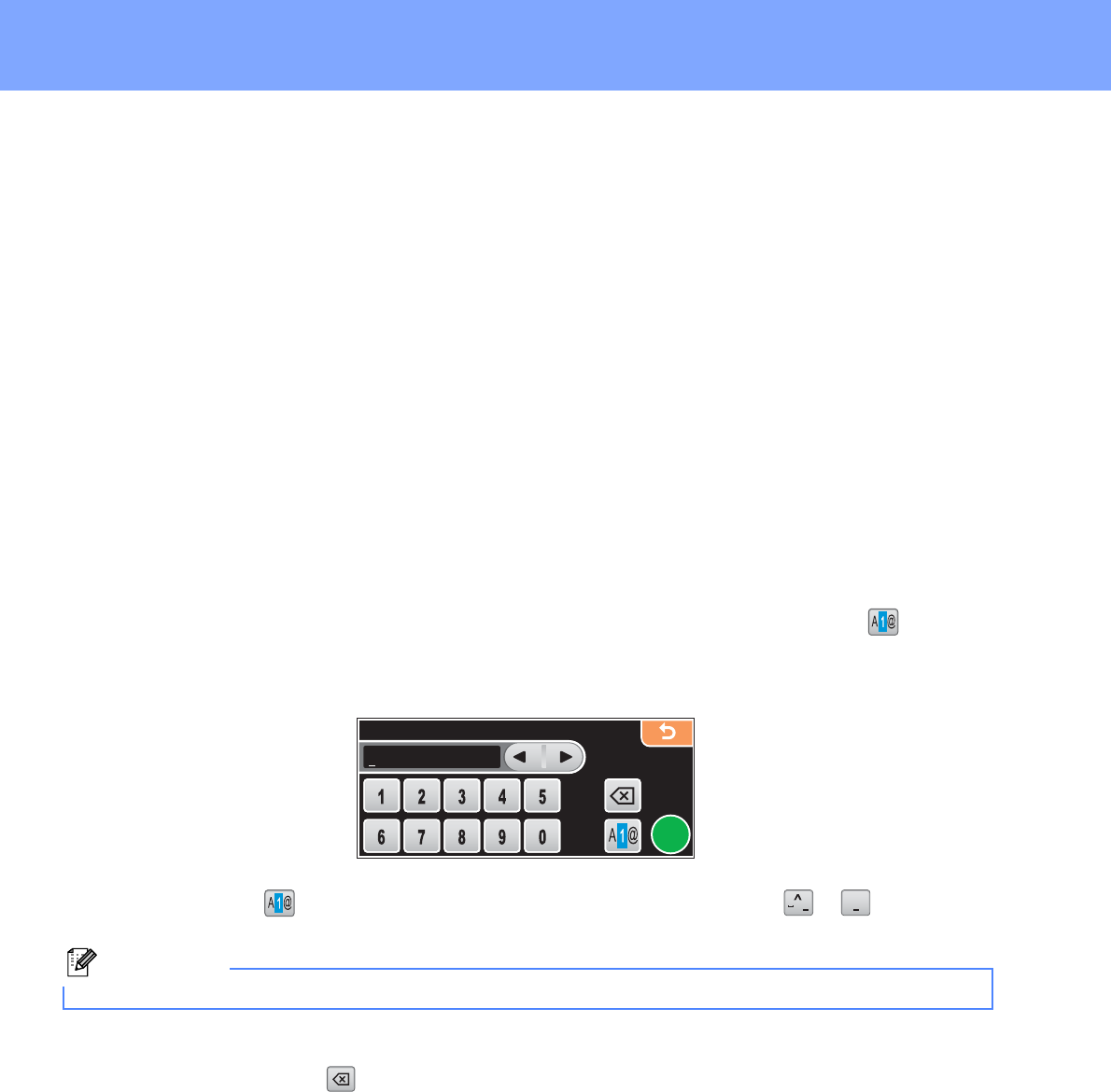
When you are setting certain menu selections, you may need to enter text into the machine. Press to choose
numbers, characters and special characters. Up to four letters are assigned to each button on the Touchscreen.
By pressing the correct button repeatedly, you can access the character you want.
Inserting spaces
To enter a space, press to choose special characters, then press the space button or .
Making corrections
If you entered an incorrect letter and want to change it, use the arrow buttons to move the cursor under the
incorrect character. Then press . Re-enter the correct character. You can also insert letters by moving the
cursor and entering a character.
Repeating letters
If you need to enter a letter that is on the same button as the letter before, press c to move the cursor to the right
before you press the button again.
OK
Note
The characters available may differ depending on your country.