
Printer/Fax/Scanner/Copier Quick Setup Guide
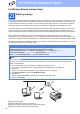
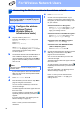

Table Of Contents
- Quick Setup Guide MFC-790CW MFC-990CW
- Start Here
- 1 Unpack the machine and check the components
- 2 Connect the handset (MFC-790CW only)
- 3 Load plain Letter/A4 paper
- 4 Connect the power cord and telephone line
- 5 Install the ink cartridges
- 6 Check the print quality
- 7 Choose your language (If needed)
- 8 Choose the correct Receive Mode
- 9 Setting up the Message Center
- 10 Set the LCD contrast (If needed)
- 11 Set the date and time
- 12 Set your station ID
- 13 Set tone or pulse dialing mode
- 14 Automatic Daylight Savings Time
- 15 Send in the Product Registration and Test Sheet (USA only)
- Set up the cordless handset (MFC-990CW only)
- For USB Interface Users (For Windows® 2000 Professional/XP/XP Professional x64 Edition/ Windows Vista®)
- For USB Interface Users (For Mac OS® X 10.2.4 or greater)
- For Wired Network Interface Users (For Windows® 2000 Professional/XP/XP Professional x64 Edition/ Windows Vista®)
- For Wired Network Interface Users (For Mac OS® X 10.2.4 or greater)
- For Wireless Network Interface Users
- 23 Before you begin
- 24 Confirm your network environment (Infrastructure Mode)
- Connecting the Brother machine to the wireless network
- Install the Drivers & Software (For Windows® 2000 Professional/XP/XP Professional x64 Edition/ Windows Vista®)
- Install the Drivers & Software (For Mac OS® X 10.2.4 or greater)
- Install Optional Applications Windows®
- For Network Users
- Consumables
- brother USA/CAN
- Start Here
34
For Wireless Network Users
Connecting the Brother machine to the wireless network
25
Configure the wireless
settings (Typical
Wireless Setup in
infrastructure mode)
a On your machine, press MENU.
Press a or b to display Network and press
Network.
Press WLAN.
Press Setup Wizard.
When Switch Network interface to
wireless? is displayed, press Yes to accept.
This will start the wireless setup wizard.
To cancel, press No.
b The machine will search for available SSIDs. If
a list of SSIDs is displayed, press a or b to
choose the SSID you wrote down in step 24 on
page 33. Press the SSID you want to connect
with. Go to f.
If your access point is set to not broadcast the
SSID you will have to manually add the SSID
name. Go to c.
c Press <New SSID>. Go to d.
d Enter the SSID you wrote down in step 24 on
page 33 using the Touchscreen.
You can use the d and c keys to move the
cursor left and right.
The letters appear in this order: upper case and
then lower case.
To enter numbers or special letters, press
repeatedly until the character you want to enter
appears.
(For more information, see Entering Text for
Wireless Settings on page 49.)
Press OK when you have entered all the
characters.
e Press Infrastructure.
f Choose one of the options below: If your
network is configured for Authentication and
Encryption you must match the settings used
for your network.
No Authentication or Encryption:
Press Open System, then press None for
Encryption Type? Then press Yes to
apply your settings. Go to i.
No Authentication with WEP Encryption:
Press Open System, then press WEP for
the Encryption Type? Go to g.
Authentication with WEP Encryption:
Press Shared Key. Go to g.
Authentication with WPA/WPA2-PSK
(TKIP or AES) Encryption:
Press WPA/WPA2-PSK. Go to h.
g Choose the appropriate key number. Enter the
WEP key you wrote down in step 24 on
page 33 on the Touchscreen.
You can use the d and c keys to move the
cursor left and right.
The letters appear in this order: upper case and
then lower case.
To enter numbers or special letters, press
repeatedly until the character you want to enter
appears.
(For more information, see Entering Text for
Wireless Settings on page 49.)
Press OK when you have entered all the
characters, then press Yes to apply your
settings. Go to i.
Important
You must have the wireless setting you wrote
down for your network in step 24 on page 33
before you proceed.
Note
It will take several seconds to display a list of
available SSIDs.