
Printer/Fax/Scanner/Copier Quick Setup Guide
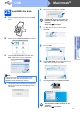
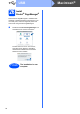
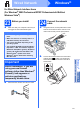
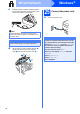
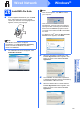

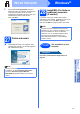
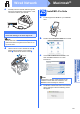
Table Of Contents
- Quick Setup Guide MFC-790CW MFC-990CW
- Start Here
- 1 Unpack the machine and check the components
- 2 Connect the handset (MFC-790CW only)
- 3 Load plain Letter/A4 paper
- 4 Connect the power cord and telephone line
- 5 Install the ink cartridges
- 6 Check the print quality
- 7 Choose your language (If needed)
- 8 Choose the correct Receive Mode
- 9 Setting up the Message Center
- 10 Set the LCD contrast (If needed)
- 11 Set the date and time
- 12 Set your station ID
- 13 Set tone or pulse dialing mode
- 14 Automatic Daylight Savings Time
- 15 Send in the Product Registration and Test Sheet (USA only)
- Set up the cordless handset (MFC-990CW only)
- For USB Interface Users (For Windows® 2000 Professional/XP/XP Professional x64 Edition/ Windows Vista®)
- For USB Interface Users (For Mac OS® X 10.2.4 or greater)
- For Wired Network Interface Users (For Windows® 2000 Professional/XP/XP Professional x64 Edition/ Windows Vista®)
- For Wired Network Interface Users (For Mac OS® X 10.2.4 or greater)
- For Wireless Network Interface Users
- 23 Before you begin
- 24 Confirm your network environment (Infrastructure Mode)
- Connecting the Brother machine to the wireless network
- Install the Drivers & Software (For Windows® 2000 Professional/XP/XP Professional x64 Edition/ Windows Vista®)
- Install the Drivers & Software (For Mac OS® X 10.2.4 or greater)
- Install Optional Applications Windows®
- For Network Users
- Consumables
- brother USA/CAN
- Start Here
29
Macintosh
®
Wired Network
Windows
®
Macintosh
®
Wired Network
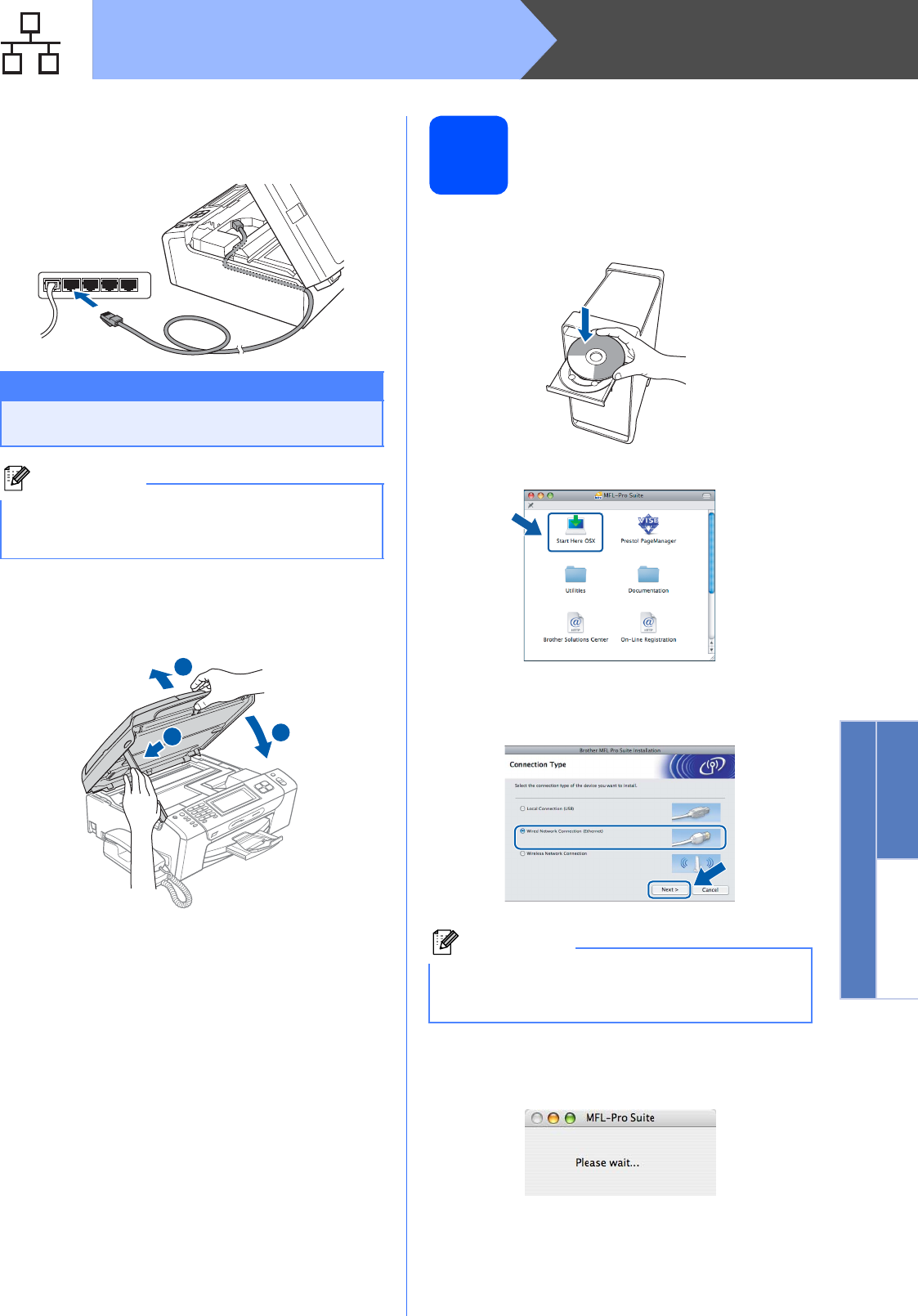
c Carefully route the network cable through the
trench and out the back of the machine. Then,
connect the cable to your network.
d Lift the scanner cover to release the lock a.
Gently push the scanner cover support
down b and close the scanner cover c.
25
Install MFL-Pro Suite
a Put the supplied CD-ROM into your CD-ROM
drive.
b Double-click the Start Here OSX icon to install.
c Choose Wired Network Connection, and
then click Next. Follow the on-screen
instructions.
d The Brother software will search for the Brother
device. During this time the following screen
will appear.
Important
Make sure that the cable does not restrict the
cover from closing, or an error may occur.
Note
If both USB and LAN cables are being used,
guide both cables through the trench with one on
top of the other.
1
3
2
Note
Please wait, it will take a few seconds for the
software to install. After the installation, click
Restart to finish installing the software.