
Printer/Fax/Scanner/Copier Quick Setup Guide
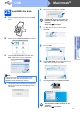
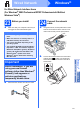
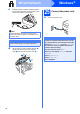
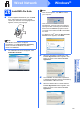

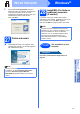
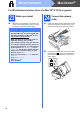
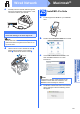
Table Of Contents
- Quick Setup Guide MFC-790CW MFC-990CW
- Start Here
- 1 Unpack the machine and check the components
- 2 Connect the handset (MFC-790CW only)
- 3 Load plain Letter/A4 paper
- 4 Connect the power cord and telephone line
- 5 Install the ink cartridges
- 6 Check the print quality
- 7 Choose your language (If needed)
- 8 Choose the correct Receive Mode
- 9 Setting up the Message Center
- 10 Set the LCD contrast (If needed)
- 11 Set the date and time
- 12 Set your station ID
- 13 Set tone or pulse dialing mode
- 14 Automatic Daylight Savings Time
- 15 Send in the Product Registration and Test Sheet (USA only)
- Set up the cordless handset (MFC-990CW only)
- For USB Interface Users (For Windows® 2000 Professional/XP/XP Professional x64 Edition/ Windows Vista®)
- For USB Interface Users (For Mac OS® X 10.2.4 or greater)
- For Wired Network Interface Users (For Windows® 2000 Professional/XP/XP Professional x64 Edition/ Windows Vista®)
- For Wired Network Interface Users (For Mac OS® X 10.2.4 or greater)
- For Wireless Network Interface Users
- 23 Before you begin
- 24 Confirm your network environment (Infrastructure Mode)
- Connecting the Brother machine to the wireless network
- Install the Drivers & Software (For Windows® 2000 Professional/XP/XP Professional x64 Edition/ Windows Vista®)
- Install the Drivers & Software (For Mac OS® X 10.2.4 or greater)
- Install Optional Applications Windows®
- For Network Users
- Consumables
- brother USA/CAN
- Start Here
28
Macintosh
®
Wired Network
For Wired Network Interface Users (For Mac OS
®
X 10.2.4 or greater)
23
Before you install
a Make sure your machine is connected to the
power and your Macintosh
®
is ON. You must
be logged on with Administrator rights.
24
Connect the network
cable
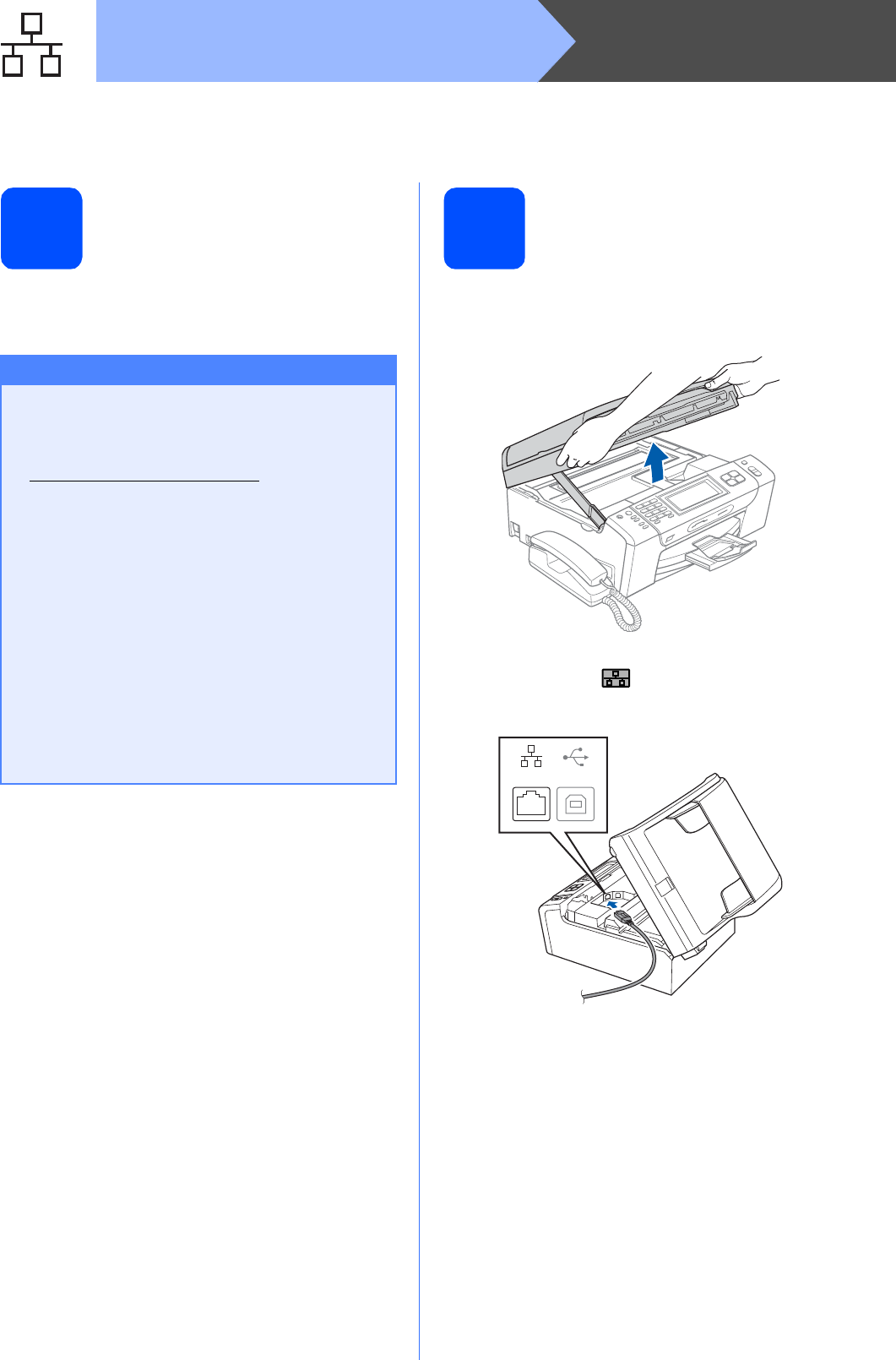
a Using both hands, use the plastic tabs on both
sides of the machine to lift the scanner cover
until it locks securely into the open position.
b Connect the network cable to the LAN socket
marked with a symbol. You will find the
LAN socket inside the machine on the left as
shown below.
Important
• For Mac OS
®
X 10.2.0 to 10.2.3 users,
upgrade to Mac OS
®
X 10.2.4 or greater. (For
the latest information for Mac OS
®
X, visit
http://solutions.brother.com/
)
• Make sure there are no memory cards or a
USB Flash memory drive inserted.
• If you have previously set up your machine
for a wireless network and then want to set
it up on a wired network, you should check
that the machine’s Network I/F is set to
Wired LAN. The wireless network interface
will be inactive with this setting. On your
machine, press MENU.
Press a or b to display Network and press
Network.
Press Network I/F.
Press Wired LAN.
Press Stop/Exit.
LAN USB