
Network User's Guide
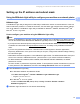
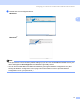
Table Of Contents
- NETWORK USER’S GUIDE
- Table of Contents
- 1 Introduction
- 2 Configuring your machine for a network with an Ethernet cable connection
- Overview
- IP addresses, subnet masks and gateways
- Step by step chart
- Setting up the IP address and subnet mask
- Changing the print server settings
- Using the BRAdmin Light utility to change the print server settings
- Using the BRAdmin Professional utility to change the wireless settings (For Windows®)
- Using the Remote Setup to change the print server settings (Not available for DCP models)
- Using the control panel to change the print server settings
- 3 Configuring your machine for a wireless network (Not available for MFC-5490CN and MFC-5890CN)
- Overview
- Wireless network terms and concepts
- Step by step chart for wireless network configuration
- Confirm your network environment
- Confirm your wireless network setup method
- Configuration using the machine’s control panel Setup Wizard to configure your wireless network machine
- Configuration using the SES/WPS/AOSS control panel menu (Infrastructure mode only)
- Configuration using the PIN Method of Wi-Fi Protected Setup™ (Infrastructure mode only)
- Configuration using the Brother installer application on the CD-ROM to configure your wireless network machine
- Configuring your machine for a wireless network
- 4 Wireless configuration for Windows® using the Brother installer application (Not available for MFC-5490CN and MFC-5890CN)
- 5 Wireless Configuration for Macintosh® using the Brother installer application (Not available for MFC-5490CN and MFC-5890CN)
- 6 Control panel setup
- Network menu
- TCP/IP
- Setup Misc. (MFC-5490CN only)
- Setup Wizard (wireless network only)
- SES/WPS/AOSS (wireless network only)
- WPS w/PIN code (wireless network only)
- WLAN Status (wireless network only)
- Ethernet (wired network only)
- E-mail/I-FAX (For MFC-6490CW and MFC-6890CDW)
- Scan to FTP (For MFC-5890CN and MFC-6490CW)
- Scan to FTP (For MFC-6890CDW)
- Time Zone (For MFC-6490CW and MFC-6890CDW)
- Network I/F (Not available for MFC-5490CN and MFC-5890CN)
- LDAP (For MFC-6890CDW)
- Restoring the network settings to factory default
- Printing the Network Configuration List
- Network menu
- 7 Driver Deployment Wizard (Windows® only)
- 8 Network printing from Windows® basic TCP/IP Peer-to-Peer printing
- 9 Network printing from a Macintosh®
- 10 LDAP operation (For MFC-6890CDW)
- 11 Internet fax and Scan to E-mail (For MFC-6490CW and MFC-6890CDW)
- Internet fax overview
- Getting connected
- Control panel key functions
- Sending an Internet fax
- Manually entering text
- Receiving E-mail or Internet fax
- Receiving an Internet fax to your computer
- Forwarding received E-mail and fax messages
- Relay broadcasting
- TX Verification Mail
- Setup Mail TX
- Setup Mail RX
- Error mail
- Important information on Internet fax
- Scan to E-mail Server overview (MFC-6490CW and MFC-6890CDW)
- Internet fax overview
- 12 Security features (For MFC-6490CW and MFC-6890CDW)
- 13 Troubleshooting
- Appendix A
- Appendix B
- Appendix C
- Index

Configuring your machine for a network with an Ethernet cable connection
12
2
Setting up the IP address and subnet mask 2
Using the BRAdmin Light utility to configure your machine as a network printer2
BRAdmin Light 2
The BRAdmin Light utility is designed for initial setup of the Brother network connected devices. It also can
search for Brother products in a TCP/IP environment, view the status and configure basic network settings,
such as IP address. The BRAdmin Light utility is available for Windows
®
2000/XP, Windows Vista
®
and
Mac OS
®
X 10.2.4 or greater.
How to configure your machine using the BRAdmin Light utility 2
Note
• Please use the BRAdmin Light utility version that was supplied on the CD-ROM of your Brother product.
You can also download the latest Brother BRAdmin Light utility version from http://solutions.brother.com
.
• If you require more advanced printer management, use the latest Brother BRAdmin Professional utility that
is available as a download from http://solutions.brother.com
. This utility is only available for Windows
®
users.
• If you are using Windows
®
Firewall or a firewall function of anti-spyware or antivirus applications,
temporarily disable them. Once you are sure that you can print, configure the software settings following
the instructions again.
• Node Name: Node Name appears in current BRAdmin Light window. The default Node Name of the print
server in the machine is “BRNxxxxxxxxxxxx” (“xxxxxxxxxxxx” is your machine’s Ethernet address.).
• For MFC-5490CN, MFC-5890CN, MFC-6490CW, DCP-6690CW and MFC-6890CDW, the default
password is “access“.
For other models, no password is required by default. To set a password, double-click the device you want
to set a password. Click Control tab, and then click Change Password. Enter the new password.
a Start the BRAdmin Light utility.
For Windows
®
2000/XP and Windows Vista
®
Click Start / All Programs
1
/ Brother / BRAdmin Light / BRAdmin Light.
1
Programs for Windows
®
2000 users
For Mac OS
®
X 10.2.4 or greater
Double-click Macintosh HD (Startup Disk) / Library / Printers / Brother / Utilities /
BRAdmin Light.jar file.
b BRAdmin Light will search for new devices automatically.