
User Manual
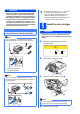
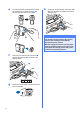
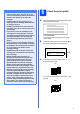
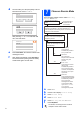
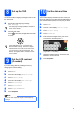
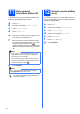
Table Of Contents
- Quick Setup Guide MFC-790CW
- Start Here
- 1 Unpack the machine and check the components
- 2 Connect the handset
- 3 Load plain A4 paper
- 4 Connect the power cord and telephone line
- 5 Install the ink cartridges
- 6 Check the print quality
- 7 Choose a Receive Mode
- 8 Set up the TAD
- 9 Set the LCD contrast (If needed)
- 10 Set the date and time
- 11 Enter personal information (station ID)
- 12 Set tone or pulse dialling mode
- 13 Choose your connection type
- For USB Interface Users (For Windows® 2000 Professional/XP/XP Professional x64 Edition/ Windows Vista®)
- For USB Interface Users (For Mac OS® X 10.2.4 or greater)
- For Wired Network Interface Users (For Windows® 2000 Professional/XP/XP Professional x64 Edition/ Windows Vista®)
- For Wired Network Interface Users (For Mac OS® X 10.2.4 or greater)
- For Wireless Network Interface Users
- 14 Before you begin
- 15 Confirm your network environment (Infrastructure Mode)
- Connecting the Brother machine to the wireless network
- Install the Drivers & Software (For Windows® 2000 Professional/XP/XP Professional x64 Edition/ Windows Vista®)
- Install the Drivers & Software (For Mac OS® X 10.2.4 or greater)
- Install Optional Applications Windows®
- For Network Users
- Consumables
- brother CHN-ENG
- Start Here

8
d The LCD asks you if the print quality is OK for
black and color. Press Yes or No.
After pressing Yes or No for both black and
color, the LCD shows:
e Press Color Start, the machine will then start
cleaning the colors.
f After cleaning is finished, press Color Start.
The machine starts printing the Print Quality
Check Sheet again. Go back to b.
7
Choose a Receive Mode
There are three possible receive modes: Fax Only,
Fax/Tel and Manual.
a Press MENU.
b Press a or b to display Initial Setup.
c Press Initial Setup.
d Press Receive Mode.
e Press Fax Only, Fax/Tel or Manual.
f Press Stop/Exit.
Black OK?
Yes No
Start Cleaning?
Press Start
For details, see Using receive modes in
Chapter 6 of the User's Guide.
You control the
telephone line and must
answer every call
yourself.
Manual
Your machine
automatically answers
every call as a fax.
Fax Only
Your machine controls
the line and
automatically answers
every call. If the call is
not a fax, the telephone
will ring for you to pick
up the call.
Fax/Tel
Your external telephone
answering device (TAD)
automatically answers
every call. Voice
messages are stored
on the external TAD.
If you set Fax Detect
to On, the Fax
messages are printed.
Manual
Yes
No
No
Yes
Yes
No
Are you using the built-in
TAD?
See Digital TAD in
Chapter 9 of the
User's Guide.
Do you want to use the telephone features of your
machine (if available) or an external telephone or
external telephone answering device connected on the
same line as the machine?
Are you using the voice message
function of an external telephone
answering device?
Do you want the machine to
answer fax and telephone calls
automatically?
Yes
No