
User Manual
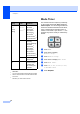
Table Of Contents
- USER’S GUIDE MFC-790CW
- Approval Information and Compilation and Publication Notice
- Table of Contents
- Section I General
- 1 General Information
- 2 Loading paper and documents
- 3 General setup
- 4 Security features
- Section II Fax
- 5 Sending a Fax
- Entering Fax mode
- Broadcasting (Monochrome only)
- Additional sending operations
- Sending faxes using multiple settings
- Contrast
- Changing fax resolution
- Dual access (Monochrome only)
- Real time transmission
- Overseas Mode
- Delayed Faxing (Monochrome only)
- Delayed Batch Transmission (Monochrome only)
- Checking and cancelling waiting jobs
- Setting your changes as a new default
- Restoring all settings to the factory settings
- Sending a fax manually
- Sending a fax at the end of a conversation
- Out of Memory message
- 6 Receiving a Fax
- 7 Telephone and External devices
- 8 Dialling and storing numbers
- 9 Digital TAD
- 10 Printing Reports
- 11 Polling
- 5 Sending a Fax
- Section III Copy
- Section IV Direct Photo Printing
- Section V Software
- Section VI Appendixes
- A Safety and Legal
- B Troubleshooting and Routine Maintenance
- Troubleshooting
- Error and Maintenance messages
- Routine maintenance
- Replacing the ink cartridges
- Cleaning the outside of the machine
- Cleaning the scanner glass
- Cleaning the machine’s printer platen
- Cleaning the paper pick-up roller
- Cleaning the print head
- Checking the print quality
- Checking the print alignment
- Checking the ink volume
- Uninstalling and installing the handset and handset cradle
- Machine Information
- Packing and shipping the machine
- C Menu and Features
- D Specifications
- E Glossary
- Index
- brother CHN-ENG

Chapter 3
28
LCD screen 3
LCD Contrast 3
You can adjust the LCD contrast for a sharper
and more vivid display. If you are having
difficulty reading the LCD, try changing the
contrast setting.
a Press MENU.
b Press a or b to display
General Setup.
c Press General Setup.
d Press a or b to display LCD Settings.
e Press LCD Settings.
f Press LCD Contrast.
g Press Light, Med or Dark.
h Press Stop/Exit.
Setting the backlight
brightness 3
If you are having difficulty reading the LCD,
try changing the brightness setting.
a Press MENU.
b Press a or b to display
General Setup.
c Press General Setup.
d Press a or b to display LCD Settings.
e Press LCD Settings.
f Press Backlight.
g Press Light, Med or Dark.
h Press Stop/Exit.
Setting the Dim Timer for the
backlight 3
You can set how long the LCD backlight stays
on for after you go back to the Ready screen.
a Press MENU.
b Press a or b to display
General Setup.
c Press General Setup.
d Press a or b to display LCD Settings.
e Press LCD Settings.
f Press Dim Timer.
g Press Off, 10 Secs, 20 Secs or 30
Secs.
h Press Stop/Exit.
LCD Language 3
You can change the LCD Language.
a Press MENU.
b Press a or b to display
Initial Setup.
c Press Initial Setup.
d Press a or b to display
Local Language.
e Press Local Language.
f Press English or Chinese.
g Press Stop/Exit.