
User Manual

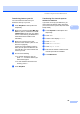
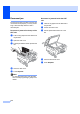
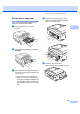
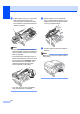

Table Of Contents
- USER’S GUIDE MFC-790CW
- Approval Information and Compilation and Publication Notice
- Table of Contents
- Section I General
- 1 General Information
- 2 Loading paper and documents
- 3 General setup
- 4 Security features
- Section II Fax
- 5 Sending a Fax
- Entering Fax mode
- Broadcasting (Monochrome only)
- Additional sending operations
- Sending faxes using multiple settings
- Contrast
- Changing fax resolution
- Dual access (Monochrome only)
- Real time transmission
- Overseas Mode
- Delayed Faxing (Monochrome only)
- Delayed Batch Transmission (Monochrome only)
- Checking and cancelling waiting jobs
- Setting your changes as a new default
- Restoring all settings to the factory settings
- Sending a fax manually
- Sending a fax at the end of a conversation
- Out of Memory message
- 6 Receiving a Fax
- 7 Telephone and External devices
- 8 Dialling and storing numbers
- 9 Digital TAD
- 10 Printing Reports
- 11 Polling
- 5 Sending a Fax
- Section III Copy
- Section IV Direct Photo Printing
- Section V Software
- Section VI Appendixes
- A Safety and Legal
- B Troubleshooting and Routine Maintenance
- Troubleshooting
- Error and Maintenance messages
- Routine maintenance
- Replacing the ink cartridges
- Cleaning the outside of the machine
- Cleaning the scanner glass
- Cleaning the machine’s printer platen
- Cleaning the paper pick-up roller
- Cleaning the print head
- Checking the print quality
- Checking the print alignment
- Checking the ink volume
- Uninstalling and installing the handset and handset cradle
- Machine Information
- Packing and shipping the machine
- C Menu and Features
- D Specifications
- E Glossary
- Index
- brother CHN-ENG

Troubleshooting and Routine Maintenance
151
B
Cleaning the scanner glass B
a Lift the document cover (1). Clean the
scanner glass (2) and the white
plastic (3) with a soft lint-free cloth
moistened with a non-flammable glass
cleaner.
b In the ADF unit, clean the white bar (1)
and the glass strip (2) with a lint-free
cloth moistened with a non-flammable
glass cleaner.
Note
In addition to cleaning the glass strip with
a non-flammable glass cleaner, run your
finger tip over the glass strip to see if you
can feel anything on it. If you feel dirt or
debris, clean the glass strip again
concentrating on that area. You may need
to repeat the cleaning process three or
four times. To test, make a copy after each
cleaning.
Cleaning the machine’s
printer platen B
WARNING
Be sure to unplug the machine from the
electrical socket before cleaning the printer
platen (1).
a Lift the scanner cover until it locks
securely into the open position.
b Clean the machine’s printer platen (1)
and the area around it, wiping off any
scattered ink with a soft, dry lint-free
cloth.
2
1
3
1
2
1