
User Manual
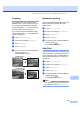
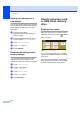
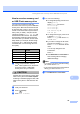


Table Of Contents
- USER’S GUIDE MFC-790CW
- Approval Information and Compilation and Publication Notice
- Table of Contents
- Section I General
- 1 General Information
- 2 Loading paper and documents
- 3 General setup
- 4 Security features
- Section II Fax
- 5 Sending a Fax
- Entering Fax mode
- Broadcasting (Monochrome only)
- Additional sending operations
- Sending faxes using multiple settings
- Contrast
- Changing fax resolution
- Dual access (Monochrome only)
- Real time transmission
- Overseas Mode
- Delayed Faxing (Monochrome only)
- Delayed Batch Transmission (Monochrome only)
- Checking and cancelling waiting jobs
- Setting your changes as a new default
- Restoring all settings to the factory settings
- Sending a fax manually
- Sending a fax at the end of a conversation
- Out of Memory message
- 6 Receiving a Fax
- 7 Telephone and External devices
- 8 Dialling and storing numbers
- 9 Digital TAD
- 10 Printing Reports
- 11 Polling
- 5 Sending a Fax
- Section III Copy
- Section IV Direct Photo Printing
- Section V Software
- Section VI Appendixes
- A Safety and Legal
- B Troubleshooting and Routine Maintenance
- Troubleshooting
- Error and Maintenance messages
- Routine maintenance
- Replacing the ink cartridges
- Cleaning the outside of the machine
- Cleaning the scanner glass
- Cleaning the machine’s printer platen
- Cleaning the paper pick-up roller
- Cleaning the print head
- Checking the print quality
- Checking the print alignment
- Checking the ink volume
- Uninstalling and installing the handset and handset cradle
- Machine Information
- Packing and shipping the machine
- C Menu and Features
- D Specifications
- E Glossary
- Index
- brother CHN-ENG

Chapter 13
106
Setting your changes as a
new default 13
You can save the print settings you use most
often by setting them as the default settings.
These settings will stay until you change
them again.
a Press your new setting.
Repeat this step for each setting you
want to change.
b After changing the last setting, press
a or b to choose Set New Default.
c Press Set New Default.
d Press Yes to confirm.
e Press Stop/Exit.
Restoring all settings to the
factory settings 13
You can restore all the settings you have
changed to the factory settings. These
settings will stay until you change them again.
a Press Print Setting.
b Press a or b to display
Factory Reset.
c Press Factory Reset.
d Press Yes to confirm.
e Press Stop/Exit.
Scan to a memory card
or USB Flash memory
drive 13
Entering Scan mode 13
When you want to scan to a memory card or
USB Flash memory drive, press (Scan).
The LCD shows:
Press Scan to Media.
If you are not connected to your computer
only the Scan to Media selection is available
on the LCD.
(See Scanning for Windows
®
or Macintosh
®
in the Software User’s Guide on the CD-ROM
for details about the other menu options.)
Scan to
E-mail
Scan to
File
Scan to
Image
Scan to
OCR
Scan to
Medi a
SCAN
SCA N