
Owner`s manual




Table Of Contents
- ZleFB MFC-9880
- APPROVAL INFORMATION
- Using This Manual
- User-Friendly Programming
- Table of Contents
- Preparation and Simple User Guide
- 1 Setup
- 2 Sending a Fax
- 3 Receiving a Fax
- 4 Telephone (Voice) Operation
- 5 Printing Reports
- 6 Advanced Sending
- 7 Advanced Receiving
- 8 Polling
- 9 Remote Fax Options
- 10 Making Copies
- 11 Using the machine as a Printer
- 12 Printer Driver Settings (For Windows® Only)
- Using the Brother MFC-9880 Printer Driver
- Basic Tab
- Advanced Tab
- Accessories Tab
- Support Tab
- General Tab
- Layout Tab
- Paper/Quality Tab
- Advanced Options
- Device Settings Tab
- 13 Using the Windows®-Based Brother Control Centre (For Windows® Only)
- 14 Using ScanSoft™ PaperPort® for Brother and ScanSoft™ TextBridge®
- Viewing Items in ScanSoft™ PaperPort® for Brother
- Organizing Your Items in Folders
- Links to Many Other Applications
- Using ScanSoft™ TextBridge® OCR (Converting Image Text to Text You Can Edit)
- Importing Items from Other Applications
- Exporting Items in Other Formats
- Accessing the Scanner
- Scanning a Document into your PC
- Settings in the Scanner Window
- PreScanning an Image
- 15 Setting Up and Using PC-FAX (For Windows® Only)
- Introduction
- MFC Remote Setup
- PC-FAX Sending (For Windows® Only)
- Setting Up User Information
- Setting Up Sending
- Setting Up Speed Dial
- The Address Book
- Setting Up a Member in the Address Book
- Setting Up a Group for Broadcasting
- Editing Member Information
- Deleting a Member or Group
- Exporting the Address Book
- Importing to the Address Book
- Setting Up Cover Page
- Sending a File as a PC-FAX Using the Simple Style
- Sending a File as a PC-FAX using the Facsimile Style
- PC-FAX Receiving
- 16 Using the Brother MFC with a New Power Macintosh® G3, G4 or iMac™/iBook™
- 17 For DOS User
- 18 Troubleshooting and Maintenance
- 19 Important Safety Information
- 20 Optional Accessories
- 21 Specifications
- Glossary
- Index
60 Chapter 11
Two-Sided Printing (Manual Duplexing)
The supplied printer driver for Windows
®
95, 98, 98SE, Me and for Windows NT
®
Workstation
Version 4.0 enables manual duplex printing. (For more information, see the Help screen for the
printer driver.)
The machine prints all the even-numbered pages on one side of the paper first. Then, the Windows
®
driver instructs you (with a pop-up message) to reinsert the paper. Before reinserting the paper,
straighten it well, or you may get a paper jam. Very thin or very thick paper is not recommended.
Manual Feed Slot
The machine has a manual feed slot above the paper tray. You can load envelopes and special print
media one at a time into this slot. You do not have to remove paper from the paper tray. (See
Acceptable Paper, page 65)
Use the manual feed slot to print or copy on labels, envelopes, card stock or thicker paper. (See
Printing on Thicker Paper and Card Stock, page 62)
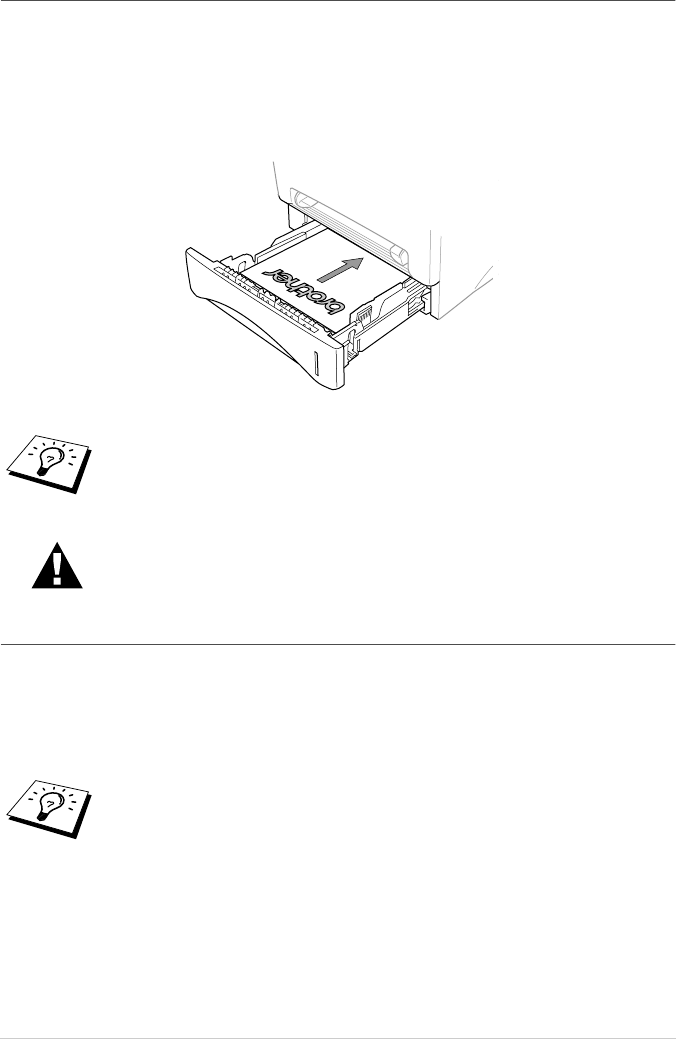
Please ensure that after making the first print of your “DUPLEX PRINT JOB” the
printed sheet goes into the paper tray face-up. Please note the correct orientation,
as in the diagram.
When you use the manual duplex function, it is possible that a paper jam
may occur or the printer quality might not be satisfactory.
If you use labels and envelopes, they must be of a type suitable for use with a laser
printer. If you use incorrect types it is possible to damage or contaminate the drum
surface and cause printing problems.