
Owner`s manual




Table Of Contents
- ZleFB MFC-9880
- APPROVAL INFORMATION
- Using This Manual
- User-Friendly Programming
- Table of Contents
- Preparation and Simple User Guide
- 1 Setup
- 2 Sending a Fax
- 3 Receiving a Fax
- 4 Telephone (Voice) Operation
- 5 Printing Reports
- 6 Advanced Sending
- 7 Advanced Receiving
- 8 Polling
- 9 Remote Fax Options
- 10 Making Copies
- 11 Using the machine as a Printer
- 12 Printer Driver Settings (For Windows® Only)
- Using the Brother MFC-9880 Printer Driver
- Basic Tab
- Advanced Tab
- Accessories Tab
- Support Tab
- General Tab
- Layout Tab
- Paper/Quality Tab
- Advanced Options
- Device Settings Tab
- 13 Using the Windows®-Based Brother Control Centre (For Windows® Only)
- 14 Using ScanSoft™ PaperPort® for Brother and ScanSoft™ TextBridge®
- Viewing Items in ScanSoft™ PaperPort® for Brother
- Organizing Your Items in Folders
- Links to Many Other Applications
- Using ScanSoft™ TextBridge® OCR (Converting Image Text to Text You Can Edit)
- Importing Items from Other Applications
- Exporting Items in Other Formats
- Accessing the Scanner
- Scanning a Document into your PC
- Settings in the Scanner Window
- PreScanning an Image
- 15 Setting Up and Using PC-FAX (For Windows® Only)
- Introduction
- MFC Remote Setup
- PC-FAX Sending (For Windows® Only)
- Setting Up User Information
- Setting Up Sending
- Setting Up Speed Dial
- The Address Book
- Setting Up a Member in the Address Book
- Setting Up a Group for Broadcasting
- Editing Member Information
- Deleting a Member or Group
- Exporting the Address Book
- Importing to the Address Book
- Setting Up Cover Page
- Sending a File as a PC-FAX Using the Simple Style
- Sending a File as a PC-FAX using the Facsimile Style
- PC-FAX Receiving
- 16 Using the Brother MFC with a New Power Macintosh® G3, G4 or iMac™/iBook™
- 17 For DOS User
- 18 Troubleshooting and Maintenance
- 19 Important Safety Information
- 20 Optional Accessories
- 21 Specifications
- Glossary
- Index
14 Chapter 1
1
Setup
Initial Settings
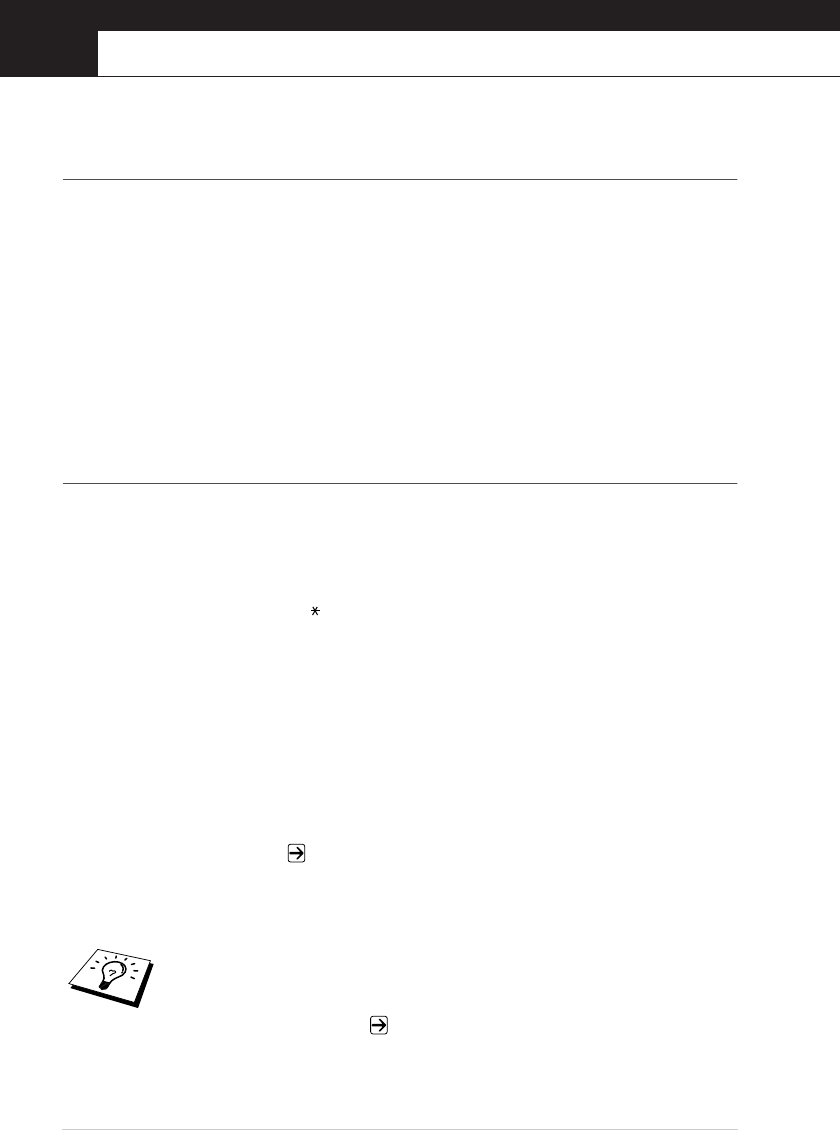
Setting the Date and Time
The machine displays the date and time, and prints it on every fax you send.
In the event of a power failure, the machine maintains date and time information for several hours.
All other settings remain unaffected.
1
Press Menu, 1, 1.
2
Enter the two digits of the year, and press Set. “02” is registered as 2002 in the machine.
3
Enter two digits for the month and press Set.
4
Enter two digits for the day and press Set.
5
Enter the time in 24 hour format and press Set.
6
Press Stop/Exit.
Setting the Station ID
You can store your name, fax number and telephone number in this setting. The name and fax
number will be printed on the fax cover pages and all fax pages that you send. (The telephone
number will be printed only on your cover pages.) (See Electronic Cover Page, page 33)
It is important that you enter the fax and telephone numbers in the internationally standardized
format, i.e. in accordance with the following strict sequence:
- The “+” (plus) character (press key)
- Your Country Code
- Your local area code minus any leading “0”
- A space
- Your number on the local exchange, using spaces to aid readability as appropriate.
1
Press Menu, 1, 2.
2
Enter your fax number (up to 20 digits) and press Set.
3
Enter your telephone number (up to 20 digits) and press Set.
4
Enter your name (up to 20 characters) using the dial pad and the chart. (See Entering Text, page
165) To enter a space press twice.
5
Press Set.
6
Press Stop/Exit.
■ When you enter your name, see Entering Text, page 165.
■ The telephone number you enter is used only for the Cover Page features.
■ If you do not enter a fax number, no additional information can be entered.
■ To enter a space, press
once between numbers and twice between
characters.
■ If your Station ID has already been programmed, the screen prompts “1” to
make a change, or “2” to exit without changing.