
Owner`s manual


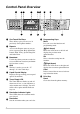
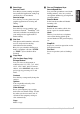

Table Of Contents
- ZleFB MFC-9880
- APPROVAL INFORMATION
- Using This Manual
- User-Friendly Programming
- Table of Contents
- Preparation and Simple User Guide
- 1 Setup
- 2 Sending a Fax
- 3 Receiving a Fax
- 4 Telephone (Voice) Operation
- 5 Printing Reports
- 6 Advanced Sending
- 7 Advanced Receiving
- 8 Polling
- 9 Remote Fax Options
- 10 Making Copies
- 11 Using the machine as a Printer
- 12 Printer Driver Settings (For Windows® Only)
- Using the Brother MFC-9880 Printer Driver
- Basic Tab
- Advanced Tab
- Accessories Tab
- Support Tab
- General Tab
- Layout Tab
- Paper/Quality Tab
- Advanced Options
- Device Settings Tab
- 13 Using the Windows®-Based Brother Control Centre (For Windows® Only)
- 14 Using ScanSoft™ PaperPort® for Brother and ScanSoft™ TextBridge®
- Viewing Items in ScanSoft™ PaperPort® for Brother
- Organizing Your Items in Folders
- Links to Many Other Applications
- Using ScanSoft™ TextBridge® OCR (Converting Image Text to Text You Can Edit)
- Importing Items from Other Applications
- Exporting Items in Other Formats
- Accessing the Scanner
- Scanning a Document into your PC
- Settings in the Scanner Window
- PreScanning an Image
- 15 Setting Up and Using PC-FAX (For Windows® Only)
- Introduction
- MFC Remote Setup
- PC-FAX Sending (For Windows® Only)
- Setting Up User Information
- Setting Up Sending
- Setting Up Speed Dial
- The Address Book
- Setting Up a Member in the Address Book
- Setting Up a Group for Broadcasting
- Editing Member Information
- Deleting a Member or Group
- Exporting the Address Book
- Importing to the Address Book
- Setting Up Cover Page
- Sending a File as a PC-FAX Using the Simple Style
- Sending a File as a PC-FAX using the Facsimile Style
- PC-FAX Receiving
- 16 Using the Brother MFC with a New Power Macintosh® G3, G4 or iMac™/iBook™
- 17 For DOS User
- 18 Troubleshooting and Maintenance
- 19 Important Safety Information
- 20 Optional Accessories
- 21 Specifications
- Glossary
- Index

Preparation and Simple User Guide 9
PREPARATION
AND SIMPLE USE
A
Scan Keys:
Scan to E-mail
Press this key to start scanning an original
into your E-mail application, setting it up
automatically as an attachment.
Scan to Image
Press this key to scan a picture into your
graphics application for viewing and
editing.
Scan to OCR
Press this key to start scanning a text
document. ScanSoft
™
TextBridge
®
will
convert it to editable text and display it in
your word processor application for
further editing.
B
Dial Pad
Dials phone and fax numbers, and can be
used as a keyboard for entering
information into the machine.
# key lets you switch the dialling type
during a telephone call from “PULSE”
to “TONE”. (Not available in New
Zealand)
C
Copy Keys:
(For the Next Copy Only)
Enlarge/Reduce
Lets you select an enlargement or
reduction ratio: 25%, 50%, 71%, 100%,
141%, 150%, 200%, 400%, For more
choices, select MANUAL and use dial
pad to type any percentage 25% and
400%.
Contrast
Press this key to temporarily change the
contrast.
Options
You can quickly and easily select
temporary settings.
Clear Settings
Resets your temporary copy settings
back to the user default settings. Use this
key when you do not want to wait 45
seconds for the temporary settings to
clear automatically.
Copy
Makes a copy.
D
Fax and Telephone Keys:
Search/Speed Dial
Lets you look up numbers stored in the
dialling memory. Also, lets you dial
stored phone numbers by pressing # and
two-digit number.
Receive Mode
Select how the machine will handle
incoming calls.
Redial/Pause
Redials the last number called. Also
inserts a pause in autodial numbers.
Hook
This key is used to have a telephone
conversation having picked up the
external handset in F/T pseudo-ringing
etc.
Stop/Exit
Stops a fax, cancels an operation or exits
from function mode.
Fax Start
Starts an operation (such as Sending a
fax).