
Owner`s manual
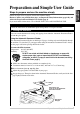
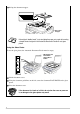


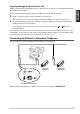

Table Of Contents
- ZleFB MFC-9880
- APPROVAL INFORMATION
- Using This Manual
- User-Friendly Programming
- Table of Contents
- Preparation and Simple User Guide
- 1 Setup
- 2 Sending a Fax
- 3 Receiving a Fax
- 4 Telephone (Voice) Operation
- 5 Printing Reports
- 6 Advanced Sending
- 7 Advanced Receiving
- 8 Polling
- 9 Remote Fax Options
- 10 Making Copies
- 11 Using the machine as a Printer
- 12 Printer Driver Settings (For Windows® Only)
- Using the Brother MFC-9880 Printer Driver
- Basic Tab
- Advanced Tab
- Accessories Tab
- Support Tab
- General Tab
- Layout Tab
- Paper/Quality Tab
- Advanced Options
- Device Settings Tab
- 13 Using the Windows®-Based Brother Control Centre (For Windows® Only)
- 14 Using ScanSoft™ PaperPort® for Brother and ScanSoft™ TextBridge®
- Viewing Items in ScanSoft™ PaperPort® for Brother
- Organizing Your Items in Folders
- Links to Many Other Applications
- Using ScanSoft™ TextBridge® OCR (Converting Image Text to Text You Can Edit)
- Importing Items from Other Applications
- Exporting Items in Other Formats
- Accessing the Scanner
- Scanning a Document into your PC
- Settings in the Scanner Window
- PreScanning an Image
- 15 Setting Up and Using PC-FAX (For Windows® Only)
- Introduction
- MFC Remote Setup
- PC-FAX Sending (For Windows® Only)
- Setting Up User Information
- Setting Up Sending
- Setting Up Speed Dial
- The Address Book
- Setting Up a Member in the Address Book
- Setting Up a Group for Broadcasting
- Editing Member Information
- Deleting a Member or Group
- Exporting the Address Book
- Importing to the Address Book
- Setting Up Cover Page
- Sending a File as a PC-FAX Using the Simple Style
- Sending a File as a PC-FAX using the Facsimile Style
- PC-FAX Receiving
- 16 Using the Brother MFC with a New Power Macintosh® G3, G4 or iMac™/iBook™
- 17 For DOS User
- 18 Troubleshooting and Maintenance
- 19 Important Safety Information
- 20 Optional Accessories
- 21 Specifications
- Glossary
- Index

Preparation and Simple User Guide 7
PREPARATION
AND SIMPLE USE
Outgoing Message (OGM) of External TAD
Timing is important in recording this message. The message sets up the ways to handle both manual
and automatic fax reception.
1
We recommend the outgoing message (OGM) is no longer than 20 seconds.
2
Allow 5 seconds of silence at the beginning of your message.
(This allows the fax to detect the calling tone prior to OGM, so reception can be faster.)
3
We recommend that you end your OGM by giving your Remote Activation Code for people
sending manual faxes. For example:
“After the beep, leave a message or send a fax manually by pressing 51 ( 91 for New
Zealand) and Start”
Please note that some faxes that are sent manually cannot be received automatically because some
fax machines do not send a fax tone if the call is manually dialled. In these cases you must inform
callers that they must enter the remote activation code to send a fax.
Connecting an External or Extension Telephone
You can connect a separate telephone to the machine, as shown below.
Whenever this external phone (or TAD) is in use, the screen displays TELEPHONE.
(Example for Australia)
External
Telephone
Extension
Telephone