
Owner`s manual


Table Of Contents
- ZleFB MFC-9880
- APPROVAL INFORMATION
- Using This Manual
- User-Friendly Programming
- Table of Contents
- Preparation and Simple User Guide
- 1 Setup
- 2 Sending a Fax
- 3 Receiving a Fax
- 4 Telephone (Voice) Operation
- 5 Printing Reports
- 6 Advanced Sending
- 7 Advanced Receiving
- 8 Polling
- 9 Remote Fax Options
- 10 Making Copies
- 11 Using the machine as a Printer
- 12 Printer Driver Settings (For Windows® Only)
- Using the Brother MFC-9880 Printer Driver
- Basic Tab
- Advanced Tab
- Accessories Tab
- Support Tab
- General Tab
- Layout Tab
- Paper/Quality Tab
- Advanced Options
- Device Settings Tab
- 13 Using the Windows®-Based Brother Control Centre (For Windows® Only)
- 14 Using ScanSoft™ PaperPort® for Brother and ScanSoft™ TextBridge®
- Viewing Items in ScanSoft™ PaperPort® for Brother
- Organizing Your Items in Folders
- Links to Many Other Applications
- Using ScanSoft™ TextBridge® OCR (Converting Image Text to Text You Can Edit)
- Importing Items from Other Applications
- Exporting Items in Other Formats
- Accessing the Scanner
- Scanning a Document into your PC
- Settings in the Scanner Window
- PreScanning an Image
- 15 Setting Up and Using PC-FAX (For Windows® Only)
- Introduction
- MFC Remote Setup
- PC-FAX Sending (For Windows® Only)
- Setting Up User Information
- Setting Up Sending
- Setting Up Speed Dial
- The Address Book
- Setting Up a Member in the Address Book
- Setting Up a Group for Broadcasting
- Editing Member Information
- Deleting a Member or Group
- Exporting the Address Book
- Importing to the Address Book
- Setting Up Cover Page
- Sending a File as a PC-FAX Using the Simple Style
- Sending a File as a PC-FAX using the Facsimile Style
- PC-FAX Receiving
- 16 Using the Brother MFC with a New Power Macintosh® G3, G4 or iMac™/iBook™
- 17 For DOS User
- 18 Troubleshooting and Maintenance
- 19 Important Safety Information
- 20 Optional Accessories
- 21 Specifications
- Glossary
- Index
146 Chapter 18
Drum Life Considerations for Your Brother Fax Machine
Your Brother fax machine uses a drum and toner assembly for document printing. The toner life is
directly dependent upon the amount of black printing on the printed pages. The estimated drum life
is up to 20,000 A4 sized pages. Maintaining quality print during this period will depend on factors
such as the number of pages printed per day, time between print jobs (and/or fax receptions), the
quality of the printing paper and the environment in which the machine is used.
The drum unit (DR-6000) is a consumable and to maintain an acceptable printing quality it should
be replaced at the end of it’s up to 20,000 A4 page life. Printing quality is a subjective issue and the
drum should be replaced at a time when the printing quality becomes unacceptable to the user in
relation to the documents being printed. The print quality will deteriorate over time and replacing
the drum will return the printing quality to its optimum level. In order to maintain optimum print
quality, we also recommend that the drum is replaced after 18 months service.
To assist you, the machine will advise when approximately 5-15% of the drum life remains by
showing the message CHANGE DRUM SOON on the display.
This indication takes the number of pages printed and the total printing time into consideration.
When the message appears we advise that a new drum be obtained for replacement at a convenient
future time.
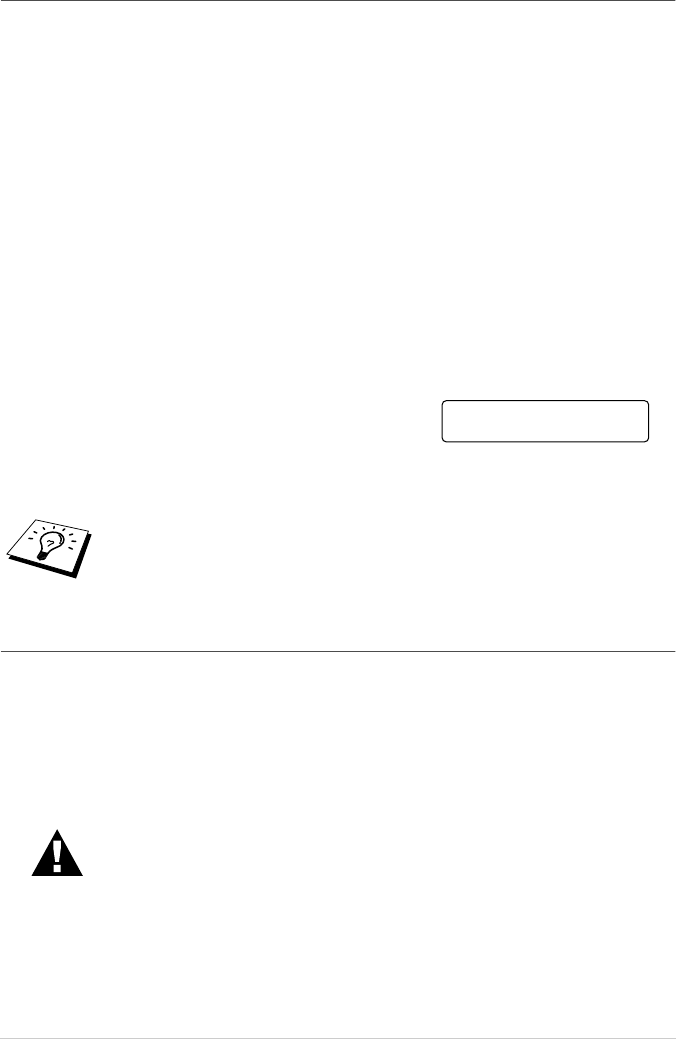
1
To check the remaining drum life, press Menu, 2, 0, 3.
2
The following indication appears on the LCD for 5 sec,
and the display returns automatically to
MISCELLANEOUS menu.
3
Press Stop/Exit.
Replacing the Drum Unit
The machine uses a drum unit to create the print images on paper. If the screen displays CHANGE
DRUM SOON, the drum unit is nearly at the end of its life. Prepare a new drum unit to replace the
current one. You may need to order one from your Brother dealer.
Even if the display shows CHANGE DRUM SOON, you may be able to continue to print without
replacing the drum unit for a while. However, if there is a noticeable deterioration in the output print
quality even before CHANGE DRUM SOON is shown, then the drum unit should be replaced. You
should clean the machine when you replace the drum unit.
We emphasise that even if the drum life remaining indicates 0%, you only need to
replace the drum if the print quality is unacceptable. By using a drum past the 0%
indication no damage will be caused to the machine and whilst the print quality
remains acceptable then the drum may be used beyond its designed life.
When removing the drum unit, handle carefully because it contains toner.
When you replace the drum unit, you should clean the machine.
DRUM LIFE
REMAINING:###%