
Owner`s manual


Table Of Contents
- ZleFB MFC-9880
- APPROVAL INFORMATION
- Using This Manual
- User-Friendly Programming
- Table of Contents
- Preparation and Simple User Guide
- 1 Setup
- 2 Sending a Fax
- 3 Receiving a Fax
- 4 Telephone (Voice) Operation
- 5 Printing Reports
- 6 Advanced Sending
- 7 Advanced Receiving
- 8 Polling
- 9 Remote Fax Options
- 10 Making Copies
- 11 Using the machine as a Printer
- 12 Printer Driver Settings (For Windows® Only)
- Using the Brother MFC-9880 Printer Driver
- Basic Tab
- Advanced Tab
- Accessories Tab
- Support Tab
- General Tab
- Layout Tab
- Paper/Quality Tab
- Advanced Options
- Device Settings Tab
- 13 Using the Windows®-Based Brother Control Centre (For Windows® Only)
- 14 Using ScanSoft™ PaperPort® for Brother and ScanSoft™ TextBridge®
- Viewing Items in ScanSoft™ PaperPort® for Brother
- Organizing Your Items in Folders
- Links to Many Other Applications
- Using ScanSoft™ TextBridge® OCR (Converting Image Text to Text You Can Edit)
- Importing Items from Other Applications
- Exporting Items in Other Formats
- Accessing the Scanner
- Scanning a Document into your PC
- Settings in the Scanner Window
- PreScanning an Image
- 15 Setting Up and Using PC-FAX (For Windows® Only)
- Introduction
- MFC Remote Setup
- PC-FAX Sending (For Windows® Only)
- Setting Up User Information
- Setting Up Sending
- Setting Up Speed Dial
- The Address Book
- Setting Up a Member in the Address Book
- Setting Up a Group for Broadcasting
- Editing Member Information
- Deleting a Member or Group
- Exporting the Address Book
- Importing to the Address Book
- Setting Up Cover Page
- Sending a File as a PC-FAX Using the Simple Style
- Sending a File as a PC-FAX using the Facsimile Style
- PC-FAX Receiving
- 16 Using the Brother MFC with a New Power Macintosh® G3, G4 or iMac™/iBook™
- 17 For DOS User
- 18 Troubleshooting and Maintenance
- 19 Important Safety Information
- 20 Optional Accessories
- 21 Specifications
- Glossary
- Index
Troubleshooting and Maintenance 141
MAINTENANCE
Replacing the Toner Cartridge
The machine can print up to 6,000 pages using a high yield toner cartridge (TN-6600). When the
toner cartridge is running low, the display shows CHANGE TONER. The machine is supplied with
a standard toner cartridge (TN-6300) that must be replaced after approximately 3,000 pages. Actual
page count will vary depending on your average document type.
It is a good idea to keep a new toner cartridge ready for use when you see the toner low warning.
Discard the used toner cartridge according to local regulations. If you are not sure of them, consult
with Brother dealer for service. Be sure to seal the toner cartridge tightly so toner powder does not
spill out of the cartridge. When discarding used toner cartridges, keep them separate from domestic
garbage.
It is recommended that you clean the machine when you replace the toner.
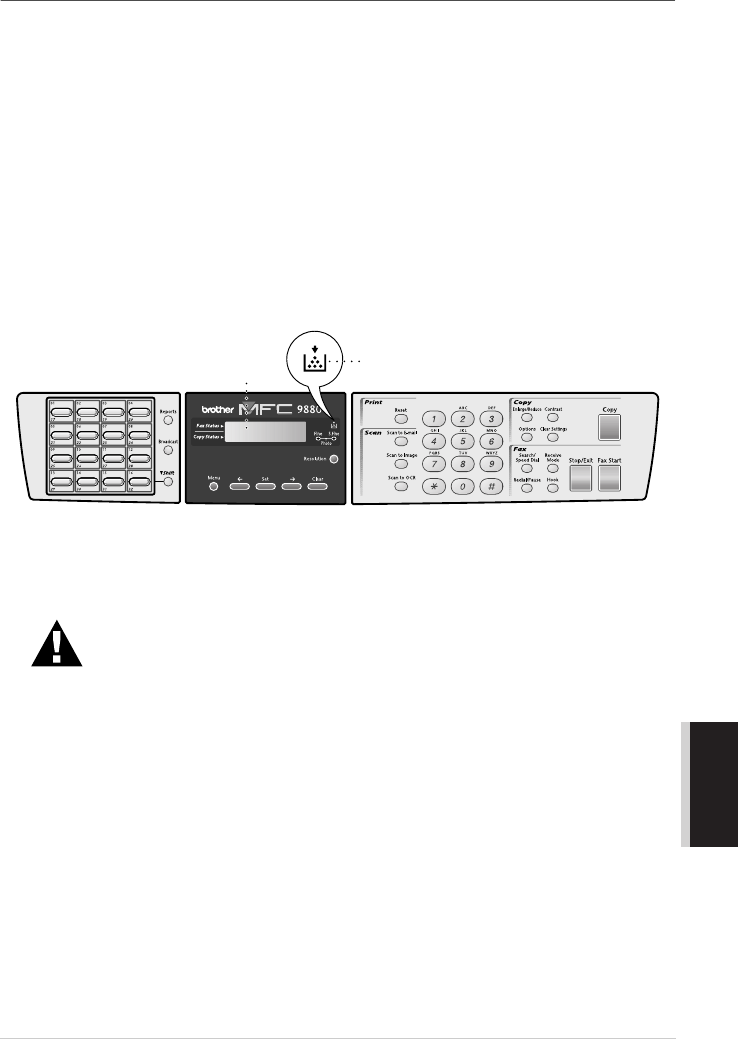
Toner Empty Indicator
When the toner cartridge is running low, the display shows CHANGE TONER and the Toner
Empty LED on the control panel flashes on and off to indicate the toner is low.
The Toner Empty LED light stays on and the display shows TONER EMPTY to indicate that the
toner is empty. Once this indication appears, the machine will not resume printing until you have
installed a new toner cartridge.
DO NOT refill the toner cartridges. Attempting to use refilled toner cartridges
or the use of incompatible toners, may cause damage to your product. Any
such damages will not be covered by warranty. Warranty coverage does not
apply to problems caused by the use of 3rd party consumables. We can only
recommend the use of genuine Brother consumables.
Display
Toner Empty LED