
Owner`s manual




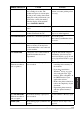
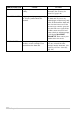
Table Of Contents
- ZleFB MFC-9880
- APPROVAL INFORMATION
- Using This Manual
- User-Friendly Programming
- Table of Contents
- Preparation and Simple User Guide
- 1 Setup
- 2 Sending a Fax
- 3 Receiving a Fax
- 4 Telephone (Voice) Operation
- 5 Printing Reports
- 6 Advanced Sending
- 7 Advanced Receiving
- 8 Polling
- 9 Remote Fax Options
- 10 Making Copies
- 11 Using the machine as a Printer
- 12 Printer Driver Settings (For Windows® Only)
- Using the Brother MFC-9880 Printer Driver
- Basic Tab
- Advanced Tab
- Accessories Tab
- Support Tab
- General Tab
- Layout Tab
- Paper/Quality Tab
- Advanced Options
- Device Settings Tab
- 13 Using the Windows®-Based Brother Control Centre (For Windows® Only)
- 14 Using ScanSoft™ PaperPort® for Brother and ScanSoft™ TextBridge®
- Viewing Items in ScanSoft™ PaperPort® for Brother
- Organizing Your Items in Folders
- Links to Many Other Applications
- Using ScanSoft™ TextBridge® OCR (Converting Image Text to Text You Can Edit)
- Importing Items from Other Applications
- Exporting Items in Other Formats
- Accessing the Scanner
- Scanning a Document into your PC
- Settings in the Scanner Window
- PreScanning an Image
- 15 Setting Up and Using PC-FAX (For Windows® Only)
- Introduction
- MFC Remote Setup
- PC-FAX Sending (For Windows® Only)
- Setting Up User Information
- Setting Up Sending
- Setting Up Speed Dial
- The Address Book
- Setting Up a Member in the Address Book
- Setting Up a Group for Broadcasting
- Editing Member Information
- Deleting a Member or Group
- Exporting the Address Book
- Importing to the Address Book
- Setting Up Cover Page
- Sending a File as a PC-FAX Using the Simple Style
- Sending a File as a PC-FAX using the Facsimile Style
- PC-FAX Receiving
- 16 Using the Brother MFC with a New Power Macintosh® G3, G4 or iMac™/iBook™
- 17 For DOS User
- 18 Troubleshooting and Maintenance
- 19 Important Safety Information
- 20 Optional Accessories
- 21 Specifications
- Glossary
- Index

Troubleshooting and Maintenance 127
MAINTENANCE
COOLING DOWN
The temperature of the drum unit or
toner cartridge is too hot. The
machine will pause its current print
job and go into cooling down mode.
During the cooling down mode, you
will hear the cooling fan running
while the display on the machine
shows COOLING DOWN.
You must wait and allow the
machine to resume printing when
it is ready.
COVER OPEN The front cover was not completely
closed.
Open, then close the front cover.
DISCONNECTED The other party or other party’s fax
machine terminated the call.
Try to re-transmit or call the other
party to see what happened.
MACHINE ERROR XX
Machine has a mechanical problem. Turn off the power.
Then contact your Brother dealer
for service.
NO RESPONSE/BUSY
The number you called does not
answer or is busy. You may have
reached number that is not connected
to a fax machine.
Check the number and try again.
NOT ASSIGNED You tried to access a One Touch or
Speed Dial number that is not
programmed.
Set up the One Touch or Speed
Dial number. (See Storing One
Touch Dial Numbers, page 18 and
Storing Speed Dial Numbers, page
18)
OUT OF MEMORY
(When the machine is
used as a printer.)
The machine memory capacity has
been exceeded.
- Press Reset to delete data
remaining in the memory of
the machine.
- If you have installed the
Windows
®
driver, try again
after setting the True Type
mode to “Print as Graphics” in
the PRINT menu of your
application software.
- Reduce the print resolution or
reduce the complexity of your
document.
- Expand the printer memory
with the optional memory
board.
OUT OF MEMORY
(When the machine is
used as a copier.)
The machine memory capacity has
been exceeded.
See Out of Memory Message, page
51.
PAPER JAM The recording paper is jammed in the
machine.
See Printer Jam or Paper Jam,
page 129.
ERROR MESSAGE CAUSE ACTION