
Owner`s manual




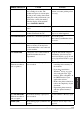
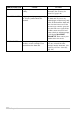
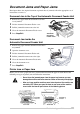
Table Of Contents
- ZleFB MFC-9880
- APPROVAL INFORMATION
- Using This Manual
- User-Friendly Programming
- Table of Contents
- Preparation and Simple User Guide
- 1 Setup
- 2 Sending a Fax
- 3 Receiving a Fax
- 4 Telephone (Voice) Operation
- 5 Printing Reports
- 6 Advanced Sending
- 7 Advanced Receiving
- 8 Polling
- 9 Remote Fax Options
- 10 Making Copies
- 11 Using the machine as a Printer
- 12 Printer Driver Settings (For Windows® Only)
- Using the Brother MFC-9880 Printer Driver
- Basic Tab
- Advanced Tab
- Accessories Tab
- Support Tab
- General Tab
- Layout Tab
- Paper/Quality Tab
- Advanced Options
- Device Settings Tab
- 13 Using the Windows®-Based Brother Control Centre (For Windows® Only)
- 14 Using ScanSoft™ PaperPort® for Brother and ScanSoft™ TextBridge®
- Viewing Items in ScanSoft™ PaperPort® for Brother
- Organizing Your Items in Folders
- Links to Many Other Applications
- Using ScanSoft™ TextBridge® OCR (Converting Image Text to Text You Can Edit)
- Importing Items from Other Applications
- Exporting Items in Other Formats
- Accessing the Scanner
- Scanning a Document into your PC
- Settings in the Scanner Window
- PreScanning an Image
- 15 Setting Up and Using PC-FAX (For Windows® Only)
- Introduction
- MFC Remote Setup
- PC-FAX Sending (For Windows® Only)
- Setting Up User Information
- Setting Up Sending
- Setting Up Speed Dial
- The Address Book
- Setting Up a Member in the Address Book
- Setting Up a Group for Broadcasting
- Editing Member Information
- Deleting a Member or Group
- Exporting the Address Book
- Importing to the Address Book
- Setting Up Cover Page
- Sending a File as a PC-FAX Using the Simple Style
- Sending a File as a PC-FAX using the Facsimile Style
- PC-FAX Receiving
- 16 Using the Brother MFC with a New Power Macintosh® G3, G4 or iMac™/iBook™
- 17 For DOS User
- 18 Troubleshooting and Maintenance
- 19 Important Safety Information
- 20 Optional Accessories
- 21 Specifications
- Glossary
- Index
126 Chapter 18
18
Troubleshooting and Maintenance
Error Messages
You may occasionally encounter a difficulty with the machine or telephone line. If this happens, the
machine often identifies the problem and displays an error message. The list below explains the most
common error messages, in alphabetical order.
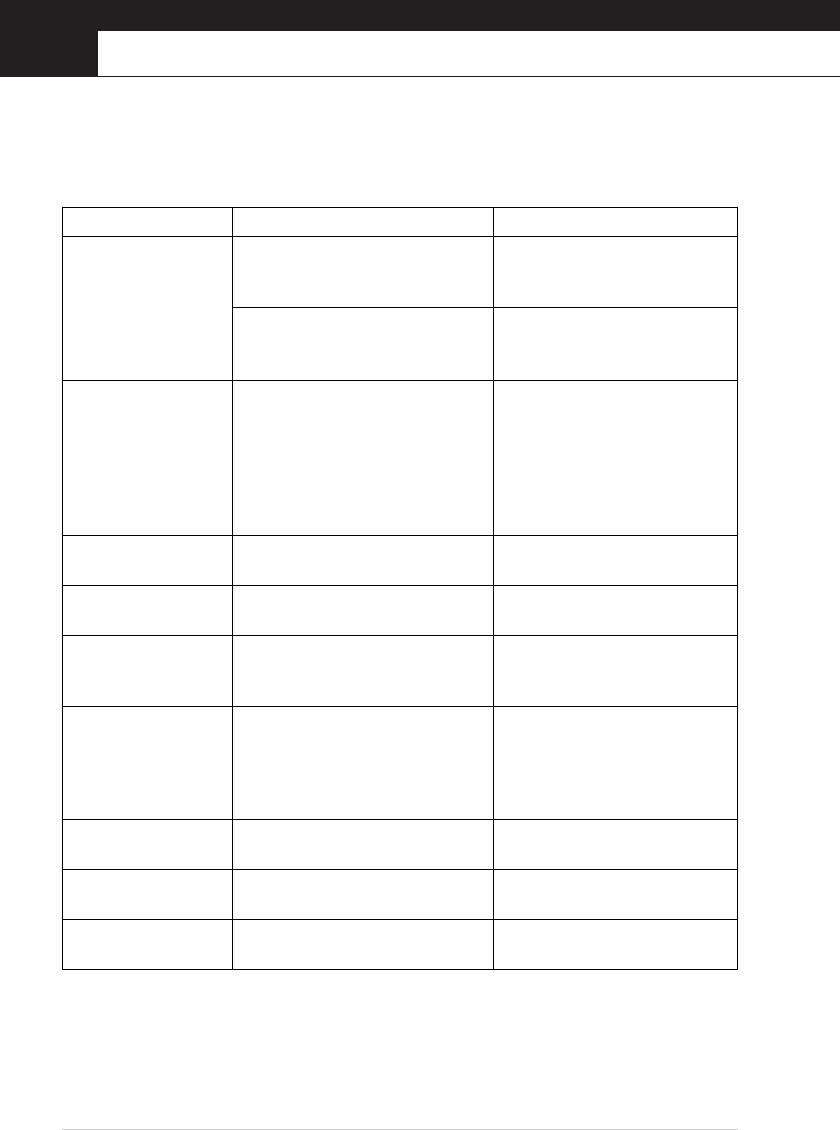
ERROR MESSAGE CAUSE ACTION
CHANGE DRUM SOON
The drum unit is near the end of its
life.
If you have a print quality
problem, replace the drum unit
with a new one.
The drum counter was not reset after
a new drum was fitted.
1. Open the front cover and press
Clear.
2. Press 1 to reset.
CHANGE TONER If the display shows CHANGE
TONER and at the same time the
Toner Empty LED on the control
panel flashes on and off, you can still
print. But the toner is depleted and
the machine is telling you that the
toner will soon run out.
Order a new toner cartridge now.
CHECK CASSETTE
MFC cassette is not installed
properly.
Install cassette properly.
CHECK SCAN LOCK
The scanner lock is locked. Release the scanner lock lever and
press Stop/Exit.
CHECK DOCUMENT
Documents were not inserted or fed
properly or document was too long.
Do not pull paper out until you see
Document Jams and Paper Jams,
page 129.
CHECK PAPER
CHECK PAPER #1*
CHECK PAPER #2*
*With optional paper
tray
The machine is out of paper or paper
is not properly loaded in the paper
tray.
Refill the paper or remove the
paper and load it again.
CHECK PAPER SIZE
Paper Size is improper for fax
receiving.
Load A4 paper in the paper tray.
COMM.ERROR A poor quality phone line caused
communications error.
Try the call again.
CONNECTION FAIL You tried to poll a fax machine that is
not in Polled Waiting mode.
Verify the other party’s polling
setup.