
Owner`s manual


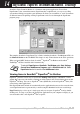




Table Of Contents
- ZleFB MFC-9880
- APPROVAL INFORMATION
- Using This Manual
- User-Friendly Programming
- Table of Contents
- Preparation and Simple User Guide
- 1 Setup
- 2 Sending a Fax
- 3 Receiving a Fax
- 4 Telephone (Voice) Operation
- 5 Printing Reports
- 6 Advanced Sending
- 7 Advanced Receiving
- 8 Polling
- 9 Remote Fax Options
- 10 Making Copies
- 11 Using the machine as a Printer
- 12 Printer Driver Settings (For Windows® Only)
- Using the Brother MFC-9880 Printer Driver
- Basic Tab
- Advanced Tab
- Accessories Tab
- Support Tab
- General Tab
- Layout Tab
- Paper/Quality Tab
- Advanced Options
- Device Settings Tab
- 13 Using the Windows®-Based Brother Control Centre (For Windows® Only)
- 14 Using ScanSoft™ PaperPort® for Brother and ScanSoft™ TextBridge®
- Viewing Items in ScanSoft™ PaperPort® for Brother
- Organizing Your Items in Folders
- Links to Many Other Applications
- Using ScanSoft™ TextBridge® OCR (Converting Image Text to Text You Can Edit)
- Importing Items from Other Applications
- Exporting Items in Other Formats
- Accessing the Scanner
- Scanning a Document into your PC
- Settings in the Scanner Window
- PreScanning an Image
- 15 Setting Up and Using PC-FAX (For Windows® Only)
- Introduction
- MFC Remote Setup
- PC-FAX Sending (For Windows® Only)
- Setting Up User Information
- Setting Up Sending
- Setting Up Speed Dial
- The Address Book
- Setting Up a Member in the Address Book
- Setting Up a Group for Broadcasting
- Editing Member Information
- Deleting a Member or Group
- Exporting the Address Book
- Importing to the Address Book
- Setting Up Cover Page
- Sending a File as a PC-FAX Using the Simple Style
- Sending a File as a PC-FAX using the Facsimile Style
- PC-FAX Receiving
- 16 Using the Brother MFC with a New Power Macintosh® G3, G4 or iMac™/iBook™
- 17 For DOS User
- 18 Troubleshooting and Maintenance
- 19 Important Safety Information
- 20 Optional Accessories
- 21 Specifications
- Glossary
- Index

Using ScanSoft
™
PaperPort
®
for Brother and ScanSoft
™
TextBridge
®
95
PRINTER/SCANNER
14
Using ScanSoft
™
PaperPort
®
for Brother and ScanSoft
™
TextBridge
®
ScanSoft
™
Paper Port
®
for Brother is a document management application. You will use
PaperPort
®
to view scanned documents. PaperPort
®
has a sophisticated, yet easy-to-use, filing
system that will help you organize your documents. It allows you to combine or “stack” documents
of different formats for printing or filing. PaperPort
®
can be accessed through the PaperPort
®
program group.
The complete ScanSoft
™
PaperPort
®
User’s Guide, including ScanSoft
™
TextBridge
®
OCR, is in
the Manuals Section on the CD-ROM. This chapter is only an introduction to the basic operations.
When you install MFC Software Suite, ScanSoft
™
PaperPort
®
for Brother and ScanSoft
™
TextBridge
®
OCR are installed with it automatically.
Viewing Items in ScanSoft
™
PaperPort
®
for Brother
PaperPort
®
provides several ways to view items: Desktop View displays a thumbnail, a small
graphic that represents each item in a Desktop or folder. Items in the selected folder appear on the
PaperPort
®
Desktop. You can see PaperPort
®
items (MAX files) and non-PaperPort
®
items (files
created using other applications).
Non-PaperPort
®
items include an icon that indicates the application that was used to create the item;
a non-PaperPort
®
item is represented by a small rectangular thumbnail and not an actual image.
Page View displays a close-up of a single page and you can open a PaperPort
®
item by double-
clicking on it. As long as you have the appropriate application on your computer to display it, you
can also double-click a non-PaperPort
®
item to open it.
To uninstall PaperPort
®
and ScanSoft
™
TextBridge
®
select Start, Settings,
Control Panel, Add/Remove Programs and the Install/Uninstall tab. Select
PaperPort
®
from the list and click the Add/Remove button.