
Owner`s manual






Table Of Contents
- ZleFB MFC-9880
- APPROVAL INFORMATION
- Using This Manual
- User-Friendly Programming
- Table of Contents
- Preparation and Simple User Guide
- 1 Setup
- 2 Sending a Fax
- 3 Receiving a Fax
- 4 Telephone (Voice) Operation
- 5 Printing Reports
- 6 Advanced Sending
- 7 Advanced Receiving
- 8 Polling
- 9 Remote Fax Options
- 10 Making Copies
- 11 Using the machine as a Printer
- 12 Printer Driver Settings (For Windows® Only)
- Using the Brother MFC-9880 Printer Driver
- Basic Tab
- Advanced Tab
- Accessories Tab
- Support Tab
- General Tab
- Layout Tab
- Paper/Quality Tab
- Advanced Options
- Device Settings Tab
- 13 Using the Windows®-Based Brother Control Centre (For Windows® Only)
- 14 Using ScanSoft™ PaperPort® for Brother and ScanSoft™ TextBridge®
- Viewing Items in ScanSoft™ PaperPort® for Brother
- Organizing Your Items in Folders
- Links to Many Other Applications
- Using ScanSoft™ TextBridge® OCR (Converting Image Text to Text You Can Edit)
- Importing Items from Other Applications
- Exporting Items in Other Formats
- Accessing the Scanner
- Scanning a Document into your PC
- Settings in the Scanner Window
- PreScanning an Image
- 15 Setting Up and Using PC-FAX (For Windows® Only)
- Introduction
- MFC Remote Setup
- PC-FAX Sending (For Windows® Only)
- Setting Up User Information
- Setting Up Sending
- Setting Up Speed Dial
- The Address Book
- Setting Up a Member in the Address Book
- Setting Up a Group for Broadcasting
- Editing Member Information
- Deleting a Member or Group
- Exporting the Address Book
- Importing to the Address Book
- Setting Up Cover Page
- Sending a File as a PC-FAX Using the Simple Style
- Sending a File as a PC-FAX using the Facsimile Style
- PC-FAX Receiving
- 16 Using the Brother MFC with a New Power Macintosh® G3, G4 or iMac™/iBook™
- 17 For DOS User
- 18 Troubleshooting and Maintenance
- 19 Important Safety Information
- 20 Optional Accessories
- 21 Specifications
- Glossary
- Index
92 Chapter 13
OCR Package—From the pull-down list, select TextBridge Classic OCR if you want to use the
OCR package that was installed with the Brother MFC Software Suite.
Click the OCR Settings… button to choose how the OCR application will read the pages you scan
into your word processor application.
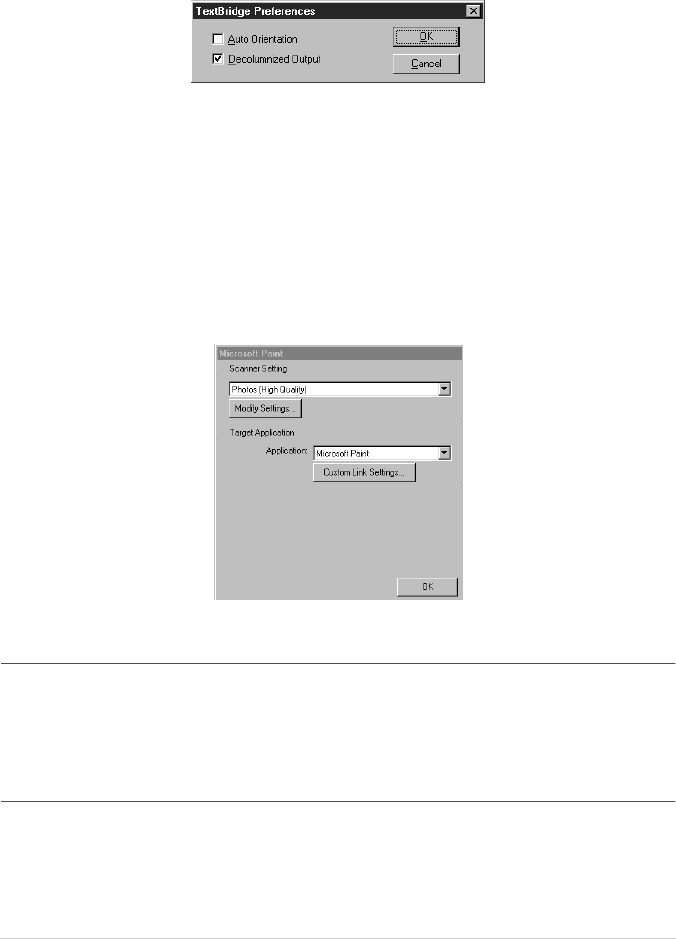
The Preferences window will appear:
Select your setting and click OK.
◆ Auto Orientation—Check this checkbox if you want your word processor application to
read the page as it is set up.
◆ Decolumnized Output—Check this checkbox if you want your word processor application
to read across the entire page from left to right.
Document Format—From the pull-down list, select the file format you want to use for your word
processor or text documents.
User Defined Button
Scanner Settings
From the pull-down list, select the scanning mode that is appropriate for the type of file: Faxing,
Filing and Copying; Text for OCR; Photos; Photos (High Quality); Photos (Quick Scan); Custom;
Draft Copy or Fine Copy.
To change any of the settings for that mode, click the Modify Settings… button.
Target Application
Application—From the pull-down list, select the application you want to add to this Pop-Up screen.
Click the Custom Link Settings… button to set up links for your user-defined application.