
Owner`s manual


Table Of Contents
- ZleFB MFC-9880
- APPROVAL INFORMATION
- Using This Manual
- User-Friendly Programming
- Table of Contents
- Preparation and Simple User Guide
- 1 Setup
- 2 Sending a Fax
- 3 Receiving a Fax
- 4 Telephone (Voice) Operation
- 5 Printing Reports
- 6 Advanced Sending
- 7 Advanced Receiving
- 8 Polling
- 9 Remote Fax Options
- 10 Making Copies
- 11 Using the machine as a Printer
- 12 Printer Driver Settings (For Windows® Only)
- Using the Brother MFC-9880 Printer Driver
- Basic Tab
- Advanced Tab
- Accessories Tab
- Support Tab
- General Tab
- Layout Tab
- Paper/Quality Tab
- Advanced Options
- Device Settings Tab
- 13 Using the Windows®-Based Brother Control Centre (For Windows® Only)
- 14 Using ScanSoft™ PaperPort® for Brother and ScanSoft™ TextBridge®
- Viewing Items in ScanSoft™ PaperPort® for Brother
- Organizing Your Items in Folders
- Links to Many Other Applications
- Using ScanSoft™ TextBridge® OCR (Converting Image Text to Text You Can Edit)
- Importing Items from Other Applications
- Exporting Items in Other Formats
- Accessing the Scanner
- Scanning a Document into your PC
- Settings in the Scanner Window
- PreScanning an Image
- 15 Setting Up and Using PC-FAX (For Windows® Only)
- Introduction
- MFC Remote Setup
- PC-FAX Sending (For Windows® Only)
- Setting Up User Information
- Setting Up Sending
- Setting Up Speed Dial
- The Address Book
- Setting Up a Member in the Address Book
- Setting Up a Group for Broadcasting
- Editing Member Information
- Deleting a Member or Group
- Exporting the Address Book
- Importing to the Address Book
- Setting Up Cover Page
- Sending a File as a PC-FAX Using the Simple Style
- Sending a File as a PC-FAX using the Facsimile Style
- PC-FAX Receiving
- 16 Using the Brother MFC with a New Power Macintosh® G3, G4 or iMac™/iBook™
- 17 For DOS User
- 18 Troubleshooting and Maintenance
- 19 Important Safety Information
- 20 Optional Accessories
- 21 Specifications
- Glossary
- Index
90 Chapter 13
File Attachments
Do not convert files—Click this checkbox if you do not want to change the file type of attachments.
The Conversion Options will not be available (greyed).
Convert MAX files only—Click this checkbox if you want to convert only attachments that are
PaperPort files.
Convert all files when possible—Click this checkbox if you want to change the file type of all
attachments.
Conversion Options
Format
Combine all files into one file when possible—Click this checkbox to combine all files of the same
type into one file.
(For Brother Models with colour scanner only) Convert non-image files to colour—Click this
checkbox to convert all files that have been processed through OCR to colour.
Show QuickSend Menu
Click this checkbox if you want the Select QuickSend Recipient window to be displayed when you
choose Scan to E-mail. This feature works only with MAPI type E-mail applications, such as
Microsoft Exchange, Microsoft Outlook and Eudora.
QuickSend List
You can create a list of E-mail names and addresses for quick selection.
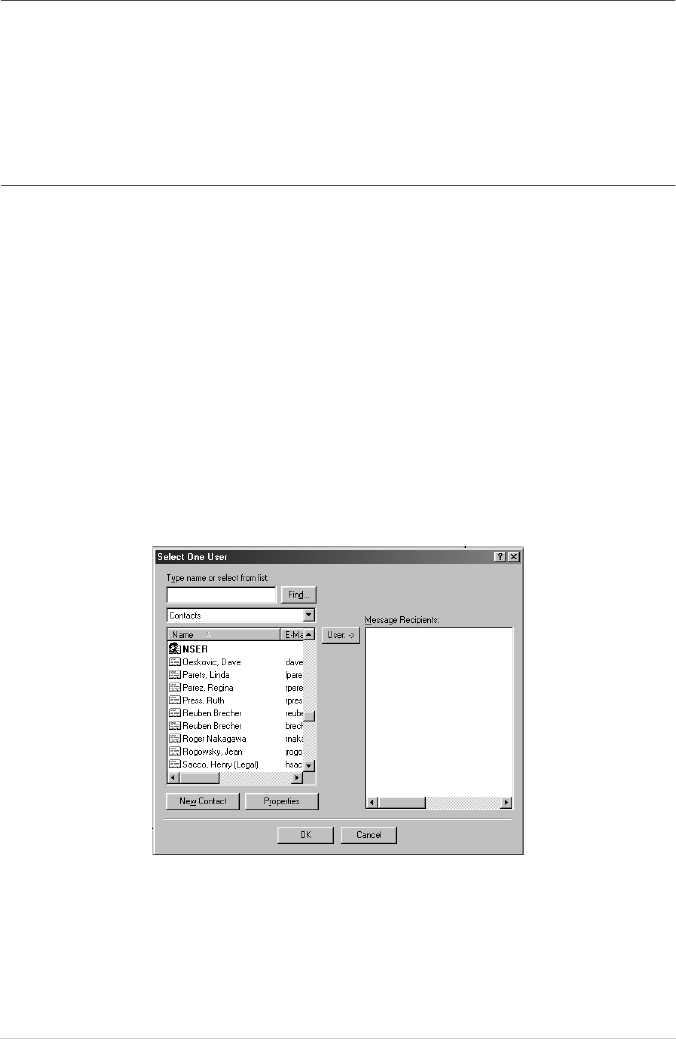
Click the New button to add a name(s) to your QuickSend list. Your E-mail phone book listing is
displayed, so you can select stored names or create new ones:
Highlight the name(s) you want to add to your list, click the User button, then click OK to return to
the Link Preferences window.
From the Link Preferences window, you can remove a name from the QuickSend list, by
highlighting the name and clicking the Delete button.