50P FAX-8350P MF MFC-9650 FAX-87 OWNER'S MANUAL FAX-8350P MFC-9650 FAX-8750P
Available Models for each country U.K. FAX-8350P, MFC-9650, FAX-8750P Ireland FAX-8350P Others MFC-9650 Congratulations on purchasing your Brother Fax machine. Please set up your machine as follows — refer to the Owner’s Manual for further information. 1. Check the Packing List 2. Install the Drum Unit 3. Install the Phone Line and Power Cord 4. Attach Document Tray and Support wire 5. Loading Paper 6.
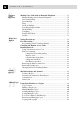
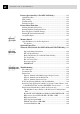
i Table of Contents 1 Introduction 2 Installation 3 On-Screen Programming Using This Manual ................................................................................. 1 Finding Information .............................................................................. 1 Symbols Used in This Manual .............................................................. 2 About Fax Machines ............................................................................. 2 Fax Tones and Handshake ...........
ii TABLE OF CONTENTS 4 Initial Setup 5 Setup Receive Getting Started ..................................................................................... 31 Setting the Dialling Mode (Tone/Pulse) ............................................. 31 Setting the Date and Time ................................................................... 31 Setting the Station ID .......................................................................... 32 Entering Text ................................................
TABLE OF CONTENTS 6 Setup Send 7 Setup Quick-Dial Numbers BT Call Sign (For U.K. Only) ............................................................ 49 Set the BT Call Sign ....................................................................... 49 Polling .................................................................................................... 50 Secure Polling ................................................................................. 50 Setup for Polling Receive ......................
iv TABLE OF CONTENTS 8 Telephone (Voice) Operation 9 Remote Fax Options 10 11 Printing Reports Making Copies Making Voice Calls with an External Telephone ............................ 75 Manual Dialling with an External Telephone ..................................... 75 One Touch Dialling ............................................................................. 75 Speed Dialling ..................................................................................... 76 Pause .......................
TABLE OF CONTENTS 12 Setting Up the Machine and Computer to Work Together (For MFC-9650/FAX-8750P Only) 13 Using the Machine as a Printer (For MFC-9650/FAX-8750P Only) Using Brother Machine with Your PC ............................................. 93 Before You Install Multi-Function Link® Unimessage Pro ........... 94 Computer Requirements ..................................................................... 94 Using a USB Cable to Connect Brother Machine to PC for MFC-9650 (Using Windows® 98 Only) .
vi TABLE OF CONTENTS 14 15 Optional Accessories Important Information 16 Printer Operation Keys (For MFC-9650 Only) ............................ 123 On/Off Line Key ............................................................................... 123 FF/Cont Key ..................................................................................... 123 Test/Reset Key .................................................................................. 123 Print Priority Key ...................................
TABLE OF CONTENTS 17 Specifications Graphics or Text is Missing when the Document is Printed ........ 147 Packing and Shipping the Machine ................................................ 148 Regular Maintenance ........................................................................ 150 Cleaning the Scanner ........................................................................ 150 Cleaning the Printer ..........................................................................
viii Ordering Accessories and Supplies For the best quality results use only genuine Brother accessories. These are available from most Brother dealers or alternatively you can contact our mail order department on telephone number 0161 931 2258 or Fax number 0161 931 2218. Description Model Name TN-6300 Laser Fax Toner TN-6600 Laser Fax Toner DR-6000 Laser Fax Drum LT-400 Optional Paper Tray *ME-2050 2MB memory Board *ME-4050 4MB memory Board **NC-8000 Network (LAN) Board * .......
1 C H A P T E R O N E Introduction Using This Manual Thank you for purchasing a Brother fax machine. This machine has been designed to be simple to use, with LCD screen prompts to guide you through functions. However, you can use your machine to its fullest potential by taking a few minutes to read this manual. Additionally, your machine has a Help Key. Press Help/Broadcastor Help to print a list of basic operational steps and functions.
2 CHAPTER ONE Symbols Used in This Manual Note or additional information. The machine may be damaged or may not work correctly if this is not observed. Warning. Damage can result if this is not observed. About Fax Machines If you’re a first-time fax machine user, fax operation might seem a little mysterious. You’ll soon get used to the unusual fax tones on your phone line, and be able to send and receive faxes easily.
INTRODUCTION When your fax machine is in Fax/Tel (F/T) Mode, it answers with a short beep. After this beep, the fax machine listens for CNG tones, and then responds with receiving tones. The fax “handshake” is the time in which the sending machine’s CNG tones and the receiving machines “chirps” overlap. This must be for at least 2 to 4 seconds, so the fax machines can understand how each is sending and receiving the fax.
CHAPTER ONE 16 17 2 18 19 3 4 20 5 6 21 7 8 9 FAX-8350P Control Panel Overview 10 11 12 13 14 15 1 4
INTRODUCTION 1 2 Liquid Crystal Display Reduce Displays messages to help you set up and operate your machine. Reduces copies depending upon the ratio you select: AUTO, 100%, 50%, 75%, 87%, 93% and MANUAL. AUTO sets the machine to calculate automatically the reduction ratio that fits the size of your paper. MANUAL allows you to enter the reduction ratio from 50%– 100% using increments of 1%.
CHAPTER ONE 10 17 18 2 19 20 3 4 21 5 6 22 7 8 9 MFC-9650 Control Panel Overview 11 12 13 14 15 16 1 6
INTRODUCTION 1 2 Liquid Crystal Display Print Priority Displays messages to help you set up and operate your machine. Press this key if you want to print PC data without interruption from incoming faxes. Faxes will be stored and can be printed later. Toner Empty LED The Toner Indicator flashes on and off when toner is low, so you’ll know to order another toner cartridge. You will still be able to print until the Indicator stays on. 3 Resolution Sets the resolution when you send a fax.
CHAPTER ONE 12 13 11 10 20 21 2 22 23 3 4 24 5 6 25 7 8 9 FAX-8750P Control Panel Overview 14 15 16 17 18 19 1 8
INTRODUCTION 1 Liquid Crystal Display Displays messages to help you set up and operate your machine. 2 Toner Empty LED The Toner Indicator flashes on and off when toner is low, so you’ll know to order another toner cartridge. You will still be able to print until the Indicator stays on. 3 Resolution Sets the resolution when you send a fax. 4 Tel-Index Lets you look up numbers stored in the dialling memory. 5 Resolution Indicator Lights These LEDs show the resolution mode you selected.
10 CHAPTER ONE
11 2 C H A P T E R T W O Installation Packing List Make sure you have the following items: *Filter Core IEEE-1284 Compliant Bi-directioned Cable (For MFC-9650 Only) (Example for the U.K.) *Cable Tie *Important Notice Drum Unit Assembly Document Support Power Cord Telephone Wire Cord Document Tray with Extension Operations Manual MFL Unimessage Pro Manual (For MFC-9650 Only) CD-ROM (For MFC-9650 and FAX-8750P Only) * ...
12 CHAPTER TWO Choosing a Location Place your fax machine on a flat, stable surface, such as a desk. Select a place that is free of vibration and shocks. Locate the machine near a telephone wall socket and a standard earthed electrical socket, grounded power outlet. Avoid placing your machine where it may be knocked. Do not place near heaters, air conditioners, water, chemicals or refrigerators. Do not expose the machine to direct sunlight, excessive heat, moisture or dust.
I N S TA L L AT I O N Caution 1 We recommend that this product be used with a surge protection device to protect the product against damage caused by a lightning strike. 2 Never touch telephone wires or terminals that are not insulated unless the telephone line has been disconnected at the network interface. 3 Avoid using a telephone (other than a cordless type) during an electrical storm. There may be a remote risk of electric shock from lightning.
14 CHAPTER TWO 2 Open the front cover of the machine. 3 Insert the drum unit assembly into the machine. 4 Close the front cover.
I N S TA L L AT I O N Attach the Trays 1 Attach the document support and document tray with extension, and unfold the extension, which holds documents in place. Document Support Document Tray with Extension 2 Unfold the Front Output Bin Extension, which holds printed pages in place.
16 CHAPTER TWO Loading Paper in Multi-purpose Paper Cassette 1 Pull the paper cassette completely out of the machine. 2 Adjust the paper guides at the right and rear of the paper cassette for the paper size you want.
I N S TA L L AT I O N 3 Fan the paper well. Load paper in the paper cassette. Press down on the paper to flatten it in all four corners, keeping the paper level below the guide. The cassette can hold up to 250 sheets of 20 lb (75 g/m2) paper. Maximum Paper Height Guide 4 Slide the paper cassette into the machine until it locks into place. Acceptable Paper Size : A4, Letter, B5, A5, A6, Executive Weight : 64 g/m2 – 105 g/m2 Thickness : 0.08 – 0.
18 CHAPTER TWO Acceptable Paper Size : 70 x 116 mm – 216 x 356 mm Weight : 64 g/m2 – 158 g/m2 Thickness : 0.08 – 0.20 mm Setting Up the Machine Follow the instructions below to connect power cord, and telephone line. (Example for the U.K.) 1 Connect the power cord. You must use the supplied power cord. When you connect the power, the screen displays the date and time.
I N S TA L L AT I O N IMPORTANT: If you need to remove the moulded mains plug in order to fit an appropriate type, you must discard the moulded plug immediately having cut it off, in order that it is not inadvertently inserted into a live socket, thus presenting a shock hazard. The wires in the mains lead of this appliance are coloured in accordance with the following code.
20 CHAPTER TWO Multi-Line Connections (PABXs) Most offices use a central telephone system, or PABX. The machine will work with most PABX or key systems that allow a two-wire analogue connection. However, we recommend that you have a separate telephone line for your machine. You can then leave the machine in Fax Only Mode to receive faxes any time of day or night.
I N S TA L L AT I O N Using Extension Telephones It may be that your premises are already wired with parallel extension telephones, or you intend to add extension telephones to your line, in addition to your machine.
22 CHAPTER TWO Connecting an External Telephone Answering Device (TAD) Sequence You might choose to connect an additional answering machine. When you have an external TAD on the same telephone line as the machine, the TAD answers all calls. The machine “listens” for fax calling (CNG) tones. If it hears them, the machine takes over the call and receives the fax. If it doesn’t hear the CNG tones, the machine will not answer the call, and messages can be left on the TAD by callers in the normal way.
I N S TA L L AT I O N Outgoing Message (OGM) of External TAD Timing is important in recording this message. The message sets up the ways to handle both manual and automatic fax reception. 1 We recommend the outgoing message (OGM) is no longer than 20 seconds. 2 Allow 5 seconds of silence at the beginning of your message. (This allows the fax to detect the calling tone prior to OGM, so reception can be faster.
24 CHAPTER TWO
3 C H A P T E R T H R E E On-Screen Programming User-Friendly Programming See “Using This Manual” chap. 1 We have designed your fax machine with on-screen programming and a Help key. User-friendly programming helps you take full advantage of all the functions your machine has to offer. Since your programming is done on the LCD, we have created step-bystep on-screen prompts to help you program your machine.
26 CHAPTER THREE Function Selection Table If you have a basic understanding of how to program your machine, you can perform most of the programming settings without the Owner’s Manual. To help you understand the function selections, options, and settings that are available, use the Function Selection Table below. < 1. FAX MENU FUNCTIONS > 1. INITIAL SETUP Function Description Factory Set Chapter 1. TONE/PULSE Select the dialling mode. TONE 4 2.
ON-SCREEN PROGRAMMING 2. SETUP RECEIVE (continued) Function Description Factory Set Chapter 4. REMOTE CODE Turn ON this function and enter a code to activate or deactivate your machine from a remote location. OFF ( 51, #51) 5 5. REDUCTION Reduces size of image. AUTO 5 6. MEM. RECEIVE Automatically stores any incoming faxes in its memory if it runs out of paper. ON 5 7. PRINT DENSITY Adjusts printing to be lighter or darker. -- 5 8.
28 CHAPTER THREE 3. SETUP SEND (continued) Function Description Factory Set Chapter 9. REAL TIME TX NEXT FAX ONLY/ON/OFF OFF 6 0. BATCH TX Sends all delayed faxes that are to the same fax number and at the same time as one transmission. OFF 6 4. REMAINING JOBS Function Description Factory Set Chapter Cancel a delayed fax (timer) or polling job. 6 5.
ON-SCREEN PROGRAMMING 7. PRINT REPORTS (continued) Function Description Factory Set Chapter 4. TEL.INDEX Alphabetical list of stored numbers. -- 10 5. SYSTEM SETUP Lists various system settings. -- 10 6. MEMORY STATUS Lists information about memory use. -- 10 7. ORDER FORM -- 10 Print accessories order form to your dealer when your machine needs to replace the drum or toner. 8. REMOTE FAX OPT Function Description Factory Set Chapter 1. FAX FWD Set your fax machine to forward faxes.
30 CHAPTER THREE < 2. PRINTER MENU FUNCTIONS (Only for MFC-9650/FAX-8750P) > 1. PRINT OPTIONS Function Description Factory Set Chapter 1. INTERNAL FONT You can print resident fonts to check and confirm font types. -- 13 -- 13 2. CONFIGURATION Printer settings and status are listed here. 2. RESET PRINTER Function Description Factory Set Chapter 1. FACTORY RESET You can restore factory default settings and temporary settings for the printer back to factory default settings. -- 13 2.
4 C H A P T E R F O U R Initial Setup Getting Started Setting the Dialling Mode (Tone/Pulse) Your machine is initially set to TONE. If you are using a PULSE dial line, you can change the setting to PULSE by following the steps below. 1 For the FAX-8350P, Press Menu, 1, 1. For the MFC-9650/FAX-8750P, Press Menu, 1, 1, 1. The screen prompts you to select TONE or PULSE. DIALLING:TONE SELECT { } & SET DIALLING:PULSE SELECT { } & SET 2 Use or to select the dialling mode.
32 CHAPTER FOUR 1 For the FAX-8350P, Press Menu, 1, 2. For the MFC-9650/FAX-8750P, Press Menu, 1, 1, 2. The screen prompts you to enter the year. YEAR:XX ENTER & SET 2 Enter the last two digits of the year. The screen displays your entry. 3 Press Set. The screen prompts you to enter the month. MONTH:XX ENTER & SET 4 Enter two digits for the month (for example, enter 09 for September, or 10 for October). The screen displays your entry. 5 Press Set. The screen prompts you to enter the day.
INITIAL SETUP - A space - Your number on the local exchange, using spaces to aid readability as appropriate. As an example, your machine is installed in the United Kingdom, is to be used for both fax and voice calls, and your national telephone number is 0161-444 5555, then you must set the fax and telephone number parts of your station ID as: +44 161-444 5555 1 For the FAX-8350P, Press Menu, 1, 3. For the MFC-9650/FAX-8750P, Press Menu, 1, 1, 3. The screen prompts you to enter your fax number.
34 CHAPTER FOUR Entering Text When you are setting certain functions, such as the Station ID, you may need to enter text into the machine. Most keys on the dial pad have three or four letters printed above them. The keys for 0, #, and don’t have printed letters because they are used for special characters. By pressing the appropriate number on the dial pad the correct number of times, you can access the character you want.
INITIAL SETUP Setting the Beeper Volume You can set the beeper to LOW, HIGH or OFF. The machine comes with this volume set to LOW. When the beeper is set to LOW or HIGH, the machine beeps every time you press a key or make an error, and at the end of sending or receiving a fax. 1 For the FAX-8350P, Press Menu, 1, 4. For the MFC-9650/FAX-8750P, Press Menu, 1, 1, 4. 2 Press or to select your setting. 3 When the screen displays the setting you want, press Set. 4 Press Stop to exit.
36 CHAPTER FOUR Setting the Clock Change You can easily let the machine’s clock gain or lose one hour by using this feature. 1 For the FAX-8350P, Press Menu, 1, 6. For the MFC-9650/FAX-8750P, Press Menu, 1, 1, 6. The screen displays TO SUMMER TIME ? SELECT { } & SET 2 Press or to select Summer time to gain an hour or Winter time to lose an hour. 3 Press Set. 4 Press 1 to change to Winter time or Summer time. ––OR–– Press 2 to exit without changing.
INITIAL SETUP Setting the Speaker Volume You can adjust the speaker volume when your machine has dialled (onhook dialling) and the line is connected. You can turn the volume OFF or you can select a volume level. or to adjust the volume level. The display shows the setting Press you are choosing. Each key press changes the volume to the next setting. The new setting will remain until you change it again. Setting the Ring Volume You can adjust the ring volume when your machine is idle.
38 CHAPTER FOUR Using Memory Security You must use a password to switch Memory Security ON and OFF. Setting Up Memory Security for the First Time 1 Press Menu, 0, 2, or press Security. The screen prompts you to enter the password, and then press Set. NEW PASSWD:XXXX ENTER & SET 2 Enter a 4-digit number as a password. 3 Press Set. The screen prompts you re-enter the password. VERIFY:XXXX ENTER & SET 4 Re-enter the password and press Set.
INITIAL SETUP Changing the Memory Security Password 1 Press Menu, 0, 2, or press Security. SET SECURITY SELECT { } & SET SET PASSWORD SELECT { } & SET 2 Press or 3 Press Set. to choose SET PASSWORD. The screen prompts you to enter the old password. OLD PASSWD:XXXX ENTER & SET 4 Enter the current password. 5 Press Set. The screen prompts you to enter the new password. NEW PASSWD:XXXX ENTER & SET 6 Enter a 4-digit number as a new password. 7 Press Set.
40 CHAPTER FOUR 4 Enter a 4-digit password, followed by Set. This is the same as the security password of your machine already stored. The screen displays ACCEPTED for 2 seconds, followed by SECURE MODE - Memory Security is now switched ON. If the password you enter at Step 4 is incorrect, the screen would display WRONG PASSWORD. After 2 seconds the display will then return to normal (displaying the date & time). You must then start from Step 1 to set Memory Security.
41 5 C H A P T E R F I V E Setup Receive Basic Receiving Operations Select Answer Mode You’ll need to connect an external telephone to select Fax/Tel (F/T) or Manual Mode. Answer Mode ( means light off. 1. Manual ( with an External Telephone For means light on.) Fax ) 2. Fax Only TAD F/T Fax TAD F/T Use this function if you receive many telephone calls and few fax messages. You must answer all calls yourself.
42 CHAPTER FIVE See “Fax/Tel (F/T) Mode Only” in this chapter 3. Fax/Tel (F/T) ( with an External Telephone ) 4. TAD Fax TAD F/T Fax TAD F/T Use this function if you expect to receive many fax messages and seldom phone calls. The machine automatically answers every call. If the call is a fax, it prints the fax. If the call is not a fax, it signals you with an F/T pseudo-ring, different from the phone company ringing, to alert you to pick up the call.
SETUP RECEIVE See “Operation from an External or Extension Telephone” and “For Fax/Tel (F/T) Mode Only” in this chapter Setting the Ring Delay The Ring Delay setting determines the number of times the machine rings before it answers. 1 For the FAX-8350P, Press Menu, 2, 1. For the MFC-9650/FAX-8750P, Press Menu, 1, 2, 1. 2 Press or to select how many times the line rings before the machine answers (01-04 or 02-04 for IRE). 3 Press Set when the screen displays your selection. 4 Press Stop to exit.
44 CHAPTER FIVE Fax Detect (with an External Telephone) See “Operation from an External or Extension Telephone” and “For Fax/Tel (F/T) Mode Only” in this chapter When you use this feature, you don’t have to press Start when you answer a fax call and hear calling beeps. Just hold the handset and wait for several seconds.
SETUP RECEIVE NOTE: ■ When you use Auto Reduction to reduce incoming documents to fit on one page of recording paper, you can do so only as long as the original document is not longer than 35 cm. If the original is longer than 35 cm, the data will not be reduced and will carry over to print on a second page. ■ When you use Auto Reduction and you receive an incoming document that is smaller than your recording paper, no reduction will take place, and you will get the same size recorded as the original.
46 CHAPTER FIVE Setting the Print Density If your machine is printing too light or too dark, you can adjust the print density level. The new setting will remain until you change it again. 1 For the FAX-8350P, Press Menu, 2, 7. For the MFC-9650/FAX-8750P, Press Menu, 1, 2, 7. 2 Press or to select your setting. Each key press changes the print density to the next setting. 3 When the screen shows the setting you want, press Set. 4 Press Stop to exit. Toner Save You can conserve toner using this feature.
SETUP RECEIVE Advanced Receiving Operations Operation from an External or Extension (For FAX-8350P/MFC-9650 Only) Telephone An external phone is a telephone that is plugged into your machine (either into the machine’s EXT socket or into the back of the connector that plugs into the telephone wall socket). An extension phone is another phone on the same phone number as your machine, but plugged into a different telephone wall socket.
48 CHAPTER FIVE For Fax/Tel (F/T) Mode Only When the machine is in Fax/Tel (F/T) Mode, it will use the F/T Ring Time (F/T pseudo-ringing) to alert you to a voice call. If you’re at the machine, you can lift the external telephone’s handset and press Tel to answer. If you’re at an extension phone, you’ll need to lift the handset during the F/T Ring Time and press # 5 1 between the F/T pseudo-rings.
SETUP RECEIVE Printing a Fax from Memory See “Setting Fax Storage” chap. 9 If you have fax storage ON for remote retrieval, you can still print a fax from the machine’s memory when you are at your machine: 1 For the FAX-8350P, Press Menu, 8, 4. For the MFC-9650/FAX-8750P, Press Menu, 1, 8, 4. 2 Press Start. 3 After all the data saved in memory is printed out. Press Stop. BT Call Sign (For U.K.
50 CHAPTER FIVE Polling Polling is the process of retrieving faxes from another machine. You can use your machine to “poll” other machines, or you can have someone poll your machine. All parties involved in polling need to set up their machines to accommodate polling. When someone polls your machine to receive a fax, they pay for the call; if you poll someone’s fax machine to receive a fax, you pay for the call. (See “Setup for Polling Transmit” in chap. 6.
SETUP RECEIVE Setup for Polling Receive with Secure Code You need to make sure you are using the same ID number as the other party. 1 For the FAX-8350P, Press Menu, 2, 8. For the MFC-9650/FAX-8750P, Press Menu, 1, 2, 8. 2 Press or to choose SECURE. POLLING:SECURE SELECT { } & SET 3 Press Set. 4 Enter a four-digit number. This should be the same as the security code of the fax machine you are polling. 5 Press Set.
52 CHAPTER FIVE 7 Enter the fax number (you can use One Touch or Speed Dial, or dial manually). 8 Press Start. The machine makes the polling call at the time you entered. You can set up only one Delayed Polling. Sequential Polling Your machine can request documents from several fax units in a single operation. You just specify several destinations in Step 6. Afterward, a Sequential Polling Report will be printed. 1 For the FAX-8350P, Press Menu, 2, 8. For the MFC-9650/FAX-8750P, Press Menu, 1, 2, 8.
SETUP RECEIVE Setting PC Interface Mode (Only for MFC-9650/FAX-8750P) If you connect your machine to your PC, you can receive faxes into your PC. After completing all setup for Multi-Function Link Unimessage Pro for Fax, you can select PC Interface Mode (ON/OFF) for routing incoming faxes. 1 Press Menu, 1, 2, 0. 0.PC INTERFACE 2 Press or to select ON or OFF. 3 Press Set when the screen displays your selection. 4 Press Stop to exit.
54 CHAPTER FIVE
6 C H A P T E R S I X Setup Send Before You Begin ■ Documents must be between 14.8 and 21.6 cm wide, and 10 and 36 cm long. This machine can only scan an image 20.7 cm wide, regardless of how wide the document is. ■ Make sure you insert documents face down, top edge first. ■ Adjust the paper guides to fit the width of your document. ■ The automatic document feeder (ADF) can hold up to 30 pages, See “Resolution” in this chapter feeding each one individually through the fax machine.
56 CHAPTER SIX Resolution See “Multiple Resolution Transmission” in this chapter When you have a document in the feeder, you can use the Resolution key. Press Resolution continuously until you see the LED change. Standard –––– Suitable for most typed documents. Fine –––––––– Good for small print; transmits a little slower than standard resolution. Super Fine ––– Good for small print or artwork; transmits slower than Fine resolution.
SETUP SEND Automatic Transmission This is the easiest way to send a fax. IMPORTANT: Do not pick up the external telephone’s handset. 1 Insert the document face down in the feeder. 2 Enter the fax number using One Touch Dial, Speed Dial, Tel-Index or the dial pad. 3 Press Start. The machine starts scanning the document and the display indicates the job number and how much memory is available. Then the machine will start dialling if it is not sending, receiving or printing the other documents.
58 CHAPTER SIX Dual Access You can scan up to 50 messages into the fax memory, even while the machine is receiving or sending another fax (from the memory). You can set temporary settings for each fax you’re scanning, except Timer and Polling. If you get a MEMORY FULL message while scanning the first page of a fax press Stop to cancel a scan.
SETUP SEND 5 For the next fax only, press or to select ON (or OFF) and press Set. ACCEPTED NEXT 1.YES 2.NO 6 Press 1 if you want to select additional settings. The display returns to the SETUP SEND menu. ––OR–– Press 2 if you have finished choosing settings and go to Step 7. 7 Enter the fax number and press Start. Basic Sending Operations Composing an Electronic Cover Page See “Setup Quick-Dial Numbers” chap. 7 See “Setting Station ID” chap.
60 CHAPTER SIX As well as using one of the comments above, you can also enter up to two customized messages, each 27 characters long. Use the chart of “Entering Text” in chap. 4 to help enter characters. 5. (user defined) 6. (user defined) Most of the SETUP SEND functions are temporary settings that allow you to make adjustments for each document you send.
SETUP SEND 10 Press 1 if you want to select additional settings. The display returns to the SETUP SEND menu. ––OR–– Press 2 if you have finished choosing settings and go to Step 11. 11 Enter the fax number you’re calling. 12 Press Start. Always Send Cover Page Make sure Station ID is set up (chap. 4). This feature does not work without the Station ID. You can set the machine to send a cover page whenever you send a fax. The number of pages in your fax is not included when you use this setting.
62 CHAPTER SIX Using a Printed Cover Page If you prefer using a printed cover page that you can write on, you can print the sample page and attach it to your fax. 1 For the FAX-8350P, Press Menu, 3, 1. For the MFC-9650/FAX-8750P, Press Menu, 1, 3, 1. 2 Press or to select PRINT SAMPLE. 3 Press Set when the screen displays your selection. 4 Press Start. Your machine prints a copy of your cover page.
SETUP SEND Advanced Sending Operations Overseas Mode Sometimes, when sending a fax to overseas numbers, problems can be experienced. This mode makes the machine work better for such calls. After you send a fax using this feature, the feature turns itself off. 1 Insert the document. 2 For the FAX-8350P, Press Menu, 3, 5. For the MFC-9650/FAX-8750P, Press Menu, 1, 3, 5. 5.OVERSEAS MODE 3 Press or to select ON (or OFF). 4 Press Set when the screen displays your selection.
64 CHAPTER SIX 2 For the FAX-8350P, Press Menu, 3, 6. For the MFC-9650/FAX-8750P, Press Menu, 1, 3, 6. The screen displays the current setting for Call Reservation. CALL RESERVE:OFF CALL RESERVE:ON 3 Press or to select ON (or OFF). 4 Press Set, when the screen displays your selection. If you set Call Reservation ON, the screen displays the current setting for Call Back Message. CALL MESSAGE:OFF CALL MESSAGE:ON 5 Press or to select ON (or OFF). 6 Press Set when the screen displays your selection.
SETUP SEND Print Sample Call Back Message 1 For the FAX-8350P, Press Menu, 3, 6. For the MFC-9650/FAX-8750P, Press Menu, 1, 3, 6. 2 Press or 3 Press Set. 4 Press Start. to select PRINT SAMPLE. Delayed Transmission (Timer) You can use this function to send a fax up to 24 hours later. For the FAX-8750P, you can skip to Step 3 below by pressing the Delayed Transmit key. 1 Insert the document in the feeder. 2 For the FAX-8350P, Press Menu, 3, 7. For the MFC-9650/FAX-8750P, Press Menu, 1, 3, 7.
66 CHAPTER SIX Delayed Batch Transmission Before sending the delayed faxes, your Brother machine will economize by sorting all the documents in memory by destination and scheduled time. All delayed faxes scheduled at the same time to the same fax number will be sent as one transmission. 1 For the FAX-8350P, Press Menu, 3, 0. For the MFC-9650/FAX-8750P, Press Menu, 1, 3, 0. 2 Press or to select ON (or OFF) and press Set. BATCH TX:ON SELECT { } & SET 3 Press Stop to exit.
SETUP SEND 5 Press Help/Broadcast or Broadcast. 6 Enter the next fax number. Example: Manual dialling, using the dial pad. 7 Press Start. Your machine will read the documents into memory and then start sending faxes to all the numbers you entered. ■ To stop the broadcasting in progress, press Stop. The display asks if you want to cancel all locations or just the location that is being sent to.
68 CHAPTER SIX If you want to copy a document using multiple resolutions, press Copy in Step 5. Setup for Polling Transmit Polling Transmit is when you set up your fax machine to wait with a document so another fax machine can retrieve it. 1 Place document to be retrieved in feeder. 2 For the FAX-8350P, Press Menu, 3, 8. For the MFC-9650/FAX-8750P, Press Menu, 1, 3, 8. 3 The screen displays POLLING:STANDARD SELECT { } & SET 4 Press or to choose STANDARD. 5 Press Set. The screen displays 1.DOC 2.
SETUP SEND 1 Place document in feeder. 2 For the FAX-8350P, Press Menu, 3, 8. For the MFC-9650/FAX-8750P, Press Menu, 1, 3, 8. 3 The screen displays POLLING:STANDARD SELECT { } & SET 4 Press or to choose SECURE, and press Set. 5 Enter a four-digit number and press Set. 1.DOC 2.MEMORY 6 Press 1 to select DOC if you want your machine to scan the printed document at the time it is polled. ––OR–– Press 2 to select MEMORY. ACCEPTED NEXT 1.YES 2.NO 7 Press 1 if you want to select additional settings.
70 CHAPTER SIX 2 If you have more than two jobs waiting, use or to select the job you want to cancel. Press Set when the screen displays your selection. —OR— If you have only one job waiting, go to Step 3. #02 SALES REPORT 1.CLEAR 2.QUIT 3 Press 1 to cancel. —OR— Press 2 to exit without cancelling. To cancel another job, return to Step 2. 4 Press Stop to exit. You can check which jobs are remaining in memory by following Steps 1 and 2 above.
7 C H A P T E R S E V E N Setup Quick-Dial Numbers Storing Numbers for Easy Dialling You can set up your machine to do three types of easy dialling: One Touch, Speed Dial and Groups for Broadcasting of faxes. Storing One Touch Dial Numbers See “One Touch Dialling” chap. 8 You can store 32 fax/phone numbers that you can dial by pressing one key. You can also store names with these numbers. Even if you lose electrical power, numbers stored in memory will not be lost.
72 CHAPTER SEVEN 6 Press Set. The screen prompts you to select the type of number this is. Use FAX TEL F/T or to select the type you want. a fax only number a telephone (voice) number both a fax and telephone (voice) number 7 Press Set. 8 Return to Step 2 to store another One Touch Dial number. —OR— Press Stop to exit. When you dial a One Touch Dial number, the screen displays the name you’ve stored, or, if you haven’t stored a name, the number you’ve stored. ■ One Touch key no.
SETUP QUICK-DIAL NUMBERS 6 Use the dial pad to enter the name (up to 15 characters). You can use the chart of “Entering Text” in chap. 4 to help you enter letters. –– OR–– Press Set and go to Step 8 to store the number without a name. 7 Press Set. 8 The screen prompts you to select the type of number this is. Use or to select the type you want. FAX TEL F/T a fax number a telephone (voice) number both a fax and telephone number 9 Press Set. 10 Return to Step 2 to store another Speed Dial number.
74 CHAPTER SEVEN You can include up to 32 One Touch locations, or up to 100 Speed Dial locations. If you broadcast to more than the maximum locations available, you will be unable to set up transmissions using Dual Access and the Timer. 1 For the FAX-8350P, Press Menu, 6, 3. For the MFC-9650/FAX-8750P, Press Menu, 1, 6, 3. The screen displays SELECT ONE-TOUCH 2 Select a One Touch key where you wish to store the number. (For example, press One Touch key 02 to use as a Group.
8 C H A P T E R E I G H T Telephone (Voice) Operation Making Voice Calls with an External Telephone If you connect an external telephone to the machine, your fax machine can be used to make normal telephone calls. You can dial numbers, by using One Touch or Speed Dial memory, or using the dial pad. Manual Dialling with an External Telephone Manual dialling is simply pressing all of the digits of the phone number. 1 Pick up the external telephone’s handset.
76 CHAPTER EIGHT See “Storing Speed Dial Numbers” chap. 7 Speed Dialling 1 Pick up the external telephone’s handset. 2 When you hear a dial tone, press Speed Dial, then press the twodigit Speed Dial number. 3 To hang up, replace the external telephone’s handset. If you are sending a fax, press Start after pressing the Speed Dial number. If you picked up the handset, press Start when the receiving fax machine answers with fax tone. Pause Press Redial/Pause to insert a pause between digits to be dialled.
T E L E P H O N E ( V O I C E ) O P E R AT I O N 3 When the screen displays the name you want to call, press Start to begin dialling. 4 Pick up the external telephone’s handset and press Tel when the other party answers. (The speaker works only one way; the other party won’t be able to hear you unless you pick up the external telephone’s handset.) 5 When the call is over, hang up.
78 CHAPTER EIGHT Tel Key This key is used to enter into a telephone conversation having picked up the handset of an external telephone in F/T pseudo-ringing etc. Also, if you press Tel when you are talking on the external telephone’s handset the call is transferred to the fax machine’s monitor speaker and the handset is muted. Pressing Tel key switches back to the handset.
9 C H A P T E R N I N E Remote Fax Options Setting Fax Storage If you set Fax Storage to ON, you will be able to retrieve fax messages from another location, using Fax Forwarding or Remote Retrieval functions. The screen will indicate when you have a fax stored in memory. 1 For the FAX-8350P, Press Menu, 8, 2. For the MFC-9650/FAX-8750P, Press Menu, 1, 8, 2. The screen prompts you to choose a fax setting. FAX STORAGE:OFF SELECT { } & SET 2 Press or to select ON (or OFF).
80 CHAPTER NINE Fax Forwarding You cannot use Fax Forwarding when “Fax Storage” is set to OFF. Programming a Fax Forwarding Number See “Changing the Fax Forwarding number” in this chapter When Fax Forwarding is set to ON and the machine has finished receiving a fax in memory, it dials the fax number you’ve programmed, and forwards the fax message. 1 For the FAX-8350P, Press Menu, 8, 1. For the MFC-9650/FAX-8750P, Press Menu, 1, 8, 1. 2 Press or to select ON (or OFF).
REMOTE FAX OPTIONS Remote Retrieval Using Your Remote Access Code To receive faxes at your location, you must call from a fax machine using touch tone. For convenience, you can retrieve faxes from a touch tone phone by having them sent to a fax machine. For example, if your hotel room does not have a fax machine, you can enter the number of the fax machine at the hotel’s Front Desk. 1 Dial your fax number from a touch tone phone.
82 CHAPTER NINE Program Fax Forward Number––Press 4. Automatically, the machine will turn Fax Forwarding ON. Turn Fax Storage ON––Press 6. Turn Fax Storage OFF––Press 7. Only possible if there are no faxes in memory or all faxes have been erased (by using Remote Control 9 6 3). Retrieve a Fax Press 9 6 then to Print a Memory Status List––Press 1, then enter the number of remote fax machine and the # #. After the beep, hang up and wait.
REMOTE FAX OPTIONS Retrieving the Memory Status List You can retrieve the Memory Status List from a remote fax machine to see if you have any fax messages. 1 Dial your fax machine’s number. 2 When you hear the beep, immediately enter your Remote Access Code (the factory setting is 1 5 9 ). 3 When you hear two short beeps, use the dial pad to press 9 6 1. 4 Using the dial pad, enter the number (up to 20 digits) of the remote fax machine where you want the Memory Status List forwarded, and then press # #.
84 CHAPTER NINE Changing the Fax Forwarding Number You can change the default setting of your fax forwarding number from a remote fax machine. 1 Dial your fax machine’s number. 2 When you hear the beep, immediately enter your Remote Access Code (the factory setting is 1 5 9 ). 3 When you hear two short beeps, use the dial pad to press 9 5 4. 4 Enter the new number of the remote fax machine (up to 20 digits) where you want your fax messages forwarded, and then press # #.
10 C H A P T E R T E N Printing Reports Machine Settings and Journal You can print the following lists and reports: 1.XMIT REPORT If set to ON a Transmission Verification Report is printed after each Fax has been sent. 2.JOURNAL Journal lists information about the last 50 incoming and outgoing faxes. TX means Transmit; RX means Receive. 3.QUICK-DIAL Lists names and numbers stored in One Touch and Speed Dial memory, in numerical order. 4.TEL.INDEX Quick-Dial list (above), alphabetically. 5.
86 CHAPTER TEN To Print a Report 1 For the FAX-8350P, Press Menu, 7. For the MFC-9650/FAX-8750P, Press Menu, 1, 7. 2 Enter the number (see list above) of the report you want to print. For example, press 4 to print the TEL.INDEX. For printing a Journal or to choose PRINT JOURNAL and press press 2, then press Set. 3 Press Start. 4 Press Stop to exit. Transmission Verification (Xmit) Report You can use the Xmit Report as confirmation that you sent a fax.
PRINTING REPORTS Journal Period You can set the machine to print activity reports at specific intervals (1, 3, 6, 12, 24 hours, 2, 4 or 7 days). If you set the interval to OFF, you can print the report by following the steps in the previous section. 1 For the FAX-8350P, Press Menu, 7, 2. For the MFC-9650/FAX-8750P, Press Menu, 1, 7, 2. 2 Press or to display JOURNAL PERIOD 3 Press Set. 4 Press or to choose your setting.
88 CHAPTER TEN
89 11 C H A P T E R E L E V E N Making Copies Using Your Machine as a Copier You can use your machine as a copy machine, making up to 99 copies at a time. The machine can stack the copies or collate (sort) them. The scannable area of your machine begins at approximately 4mm from the edge of the paper.
90 CHAPTER ELEVEN Copy Contrast You can adjust copy contrast, making copies darker or lighter. 1 For the FAX-8350P, Press Menu, 0, 3. For the MFC-9650/FAX-8750P, Press Menu, 1, 0, 3. 3.COPY CONTRAST 2 Press to make a copy lighter, or press Set. to make a copy darker and 3 Press Stop to exit. 4 Press Copy. Making a Single Copy The default resolution for a single copy is Standard, which you can use for documents containing both text and photographs. You can also select S. Fine and Photo, as needed.
MAKING COPIES Sorting Multiple Copies Sorting uses more memory than Stacking, as the whole document is scanned into memory to start with. 1 2 3 4 Insert pages to be copied face-down in the feeder. Press Sort. Enter the number (1-99) of copies you want. Wait five seconds. ––OR–– Press Copy. If You Get a Memory Full Message If the memory becomes full while your scanning a document to be copied the screen displays MEMORY FULL P.
92 CHAPTER ELEVEN Copying a Photograph You can copy a photograph by pressing Photo, without pressing Resolution. 1 2 3 4 Insert the photo(s) face-down in the feeder. Press Photo. Use the dial pad to enter the number of copies you want (up to 99). Wait five seconds. ––OR–– Press Copy again.
12 C H A P T E R 93 T W E L V E Setting Up the Machine and Computer to Work Together (For MFC-9650/FAX-8750P Only) Using Brother Machine with Your PC Multi-Function Link® Unimessage Pro software (MFL Unimessage Pro) turns your Brother machine into a multi-function center, by enabling you to use your fax machine as a printer and a scanner and to use it to fax from Windows® applications in your computer. The MFC-9650 is a 5 in 1 multi-function center.
94 CHAPTER TWELVE Before You Install Multi-Function Link ® Unimessage Pro If you have a USB cable (For Windows® 98 users only), see “Using a USB Cable to Connect Brother Machine to PC” in this chapter. If you don’t have a USB cable, see “Connecting Brother Machine to PC Using Parallel Cable” in this chapter. Computer Requirements Recommended system requirements for the communication software suite provided are: • Windows® 95, 98, NT® Workstation Version 4.
SETTING UP THE MACHINE AND COMPUTER TO WORK TOGETHER Using a USB Cable to Connect Brother Machine to PC for MFC-9650 (Using Windows® 98 Only) Please find your Windows® 98 CD-ROM before you begin. A USB cable is not included with your Brother machine, Before you can set up the USB interface, you must purchase a standard USB cable. Or, if you prefer to set up the parallel cable, please see “Connecting Brother Machine to PC Using Parallel Cable”.
96 CHAPTER TWELVE 4 When the Add New Hardware Wizard screen appears, click Next. 5 Select [Recommended] and click Next. Installing Brother Software Using a USB Cable 1 Insert the MFL Unimessage Pro CD-ROM into your CD-ROM drive. 2 Select Specify a location and remove the other check marks, then click Browse to locate the file.
SETTING UP THE MACHINE AND COMPUTER TO WORK TOGETHER 3 Double-click on the CD icon and click on the Win98usb folder, then click OK. 4 Select Specify a location and click Next. 5 Select [Recommended] and click Next.
98 CHAPTER TWELVE 6 Confirm the choice is Brother MFC USB Composite Device and click Next. 7 When the Insert Disk Wizard appears, remove the MFL CD-ROM and insert your Windows 98 CD-ROM (to get the Windows® standard driver) and click OK. 8 After the file is copied, the Add New Hardware Wizard reappears. Remove the Windows 98 CD-ROM and reinsert the MFL CD-ROM and click Finish.
SETTING UP THE MACHINE AND COMPUTER TO WORK TOGETHER 9 After the MFC USB Composite Device is installed and the Add New Hardware Wizard reappears, click Next. 10 Select [Recommended] and click Next. 11 Select Specify a location and click Next.
100 CHAPTER TWELVE 12 Confirm the choice is Brother MFC USB Port(FaxModem) and click Next. 13 When the Add New Hardware Wizard displays the message that installation of the FaxModem and its USB driver is completed, click Finish. Repeat Steps 9-13 two more times (for the Scanner Driver, then Printer Driver). 14 After the USB Composite Device, FaxModem, Scanner and Printer Driver have been installed, select BRUSB: USB Printer Port as the printer port and click Next.
SETTING UP THE MACHINE AND COMPUTER TO WORK TOGETHER 15 Type Brother MFL Pro Printer II as the name of Printer name and click Finish. 16 Select your language and click OK. 17 When the Add New Hardware Wizard displays the message that the software (drivers for FaxModem, Scanner and Printer) have been installed, click Finish.
102 CHAPTER TWELVE 18 Click OK. Windows will restart automatically. 19 Reboot your PC. The MFL Unimessage Pro CD-ROM should auto run. Please follow the on screen prompts to install the Multi-Function Link® Unimessage Pro software, which is described in the software’s Quick Start Guide [supplied with the MFL Unimessage Pro CD-ROM]. If you have installed both the USB Drivers [as described in the chapter] and the Resource Manager [which uses the parallel port], you may be prompted with the message below.
SETTING UP THE MACHINE AND COMPUTER TO WORK TOGETHER Connecting Brother Machine to PC With a USB Cable for FAX-8750P (For Using Windows® 98 Only) A USB cable is not included with your FAX-8750P. Before you can set up the USB interface, please purchase a standard USB cable. Or, to set up the parallel interface instead, please see “Connecting Brother Machine to PC Using Parallel Cable” in this chapter.
104 CHAPTER TWELVE 4 Select [Recommended] and click Next. Installing Brother Printer Driver Using USB Cable 1 Insert the Printer driver CD-ROM. 2 Select Specify a location and remove the other check marks, then click Browse to locate the file.
SETTING UP THE MACHINE AND COMPUTER TO WORK TOGETHER 3 Double-click on the CD icon and click on the W98usb folder, then click OK. 4 Click Next. 5 Select [Recommended] and click Next.
106 CHAPTER TWELVE 6 Confirm the choice is Brother MFL Pro Printer II and click Next. 7 Select BRUSB: USB Printer Port and click Next. 8 Type Brother MFL Pro Printer II as the name of printer and click Finish.
SETTING UP THE MACHINE AND COMPUTER TO WORK TOGETHER 9 Select your language and click OK. 10 Click Finish. This completes the installation of the Printer and its USB driver. Installing True Type Fonts True Type fonts are the fonts that are used in the Windows® operating systems. If you install the Brother True Type Fonts, more types of fonts will be available for Windows® applications. For Windows® 95/98 and Windows NT® Workstation Version 4.
108 CHAPTER TWELVE Software for your MFC-9650/ FAX-8750P Software/Drivers The following software is provided to optimize the use of your MFC-9650 and for the FAX-8750P, the Brother printer driver is provided. The software can run under Windows® 95, 98 and Windows NT® Workstation Version 4.0. ■ Printer Driver*- The printer driver creates the print data from the applications, controls transmission and makes settings for printing.
SETTING UP THE MACHINE AND COMPUTER TO WORK TOGETHER 109 Connecting Brother Machine to PC Using Parallel Cable 1 Make sure you have an IEEE 1284 compliant, bi-directional parallel interface cable. 2 Disconnect the telephone line cord, then unplug the machine power cord from the electrical outlet before connecting the parallel interface cable. 3 Make sure your computer is off and unplugged from electrical power before you connect the interface cable.
110 CHAPTER TWELVE If you are using Windows® 95, after you connect Brother machine to Computer. you may see “New Hardware Found Brother MFCXXXX” during startup. You can select “Do not install a driver (Windows® will not prompt you again).” and click OK, so Windows® will not display this dialog box again —OR— If you see “Update Device Driver Wizard”, Click Next to bypass the Windows® Plug and Play Printer Driver screens, followed by Finish.
SETTING UP THE MACHINE AND COMPUTER TO WORK TOGETHER 2 Attach the Filter core, pressing until you hear a click, between the Parallel Interface connector and the Cable tie. Filter Core to MFC Cable Tie Filter Core Double shielded Parallel I/F cable Installing the Software/Drivers under Windows® for MFC-9650 All the software and drivers are supplied on a single CD. An Auto-Install program will guide you through most of the installation process.
112 CHAPTER TWELVE 4 From the Auto-Installer Select your preferred language by double clicking on it with your mouse. 5 The MFC-9650 is a parallel laser device so select this option, again by double clicking. 6 Select STEP 1 and install the Brother Resource Manager. You can either install the software now or make floppies*. Follow the onscreen prompts and re-boot your PC when instructed to do so.
SETTING UP THE MACHINE AND COMPUTER TO WORK TOGETHER If you are using Windows® 95 or 98: 1 Insert the CD-ROM for the FAX-8750P printer driver into your CDROM Drive. 2 Click the Start button in the Task bar. 3 Select Run. 4 Enter X:\win9598\setup (where X is your CD-ROM Drive).
114 CHAPTER TWELVE Installing the Maintenance Utility on MS-DOS® How to Use the MFC with Your DOS Application Software Before working with your application software that runs on DOS, check that the machine’s name appears in the printer selection of your application software. If the machine is not listed, you must install the printer driver that corresponds to HP LaserJet IIP’s emulations. The following table shows combinations of printer drivers and emulation mode.
SETTING UP THE MACHINE AND COMPUTER TO WORK TOGETHER 115 Printer Status Monitor Program This utility program can monitor your printer’s status using bi-directional parallel communications. This utility program stays resident in your computer memory (Terminate-and-Stay Resident program) and runs in the background. Installing the Remote Printer Console Before you install the program, make sure you have the following hardware and software to install the program: DOS Version 3.
116 CHAPTER TWELVE Running the Remote Printer Console Main Program Type C:\RPCX>RPCX and press the Enter key to start the Remote Printer Console main program. The Main Screen will appear on your computer screen. ■ Do not use this program from a DOS window running under Windows.
13 C H A P T E R 117 T H I R T E E N Using the Machine as a Printer (For MFC-9650/FAX-8750P Only) Special Printing Features Windows® Printing See “Brother Drivers” in chap. 12 The dedicated printer driver and TrueType™ - compatible fonts for Microsoft® Windows® 95, 98 and Windows NT® Workstation Version 4.0 are available on the CD-ROM supplied with your machine. You can easily install them into your Windows® system using our installer program.
118 CHAPTER THIRTEEN The RPC program also provides a status monitor program, a Terminateand-Stay Resident (TSR) program. It monitors the printer status while running in the background, and reports the current status or errors on your computer screen. Bi-directional Parallel Interface The bi-directional interface lets the machine communicate with the computer, sending information about memory and printer setup conditions. The Remote Printer Console and Windows® 95, 98 or Windows NT® Workstation 4.
USING THE MACHINE AS A PRINTER 119 Two-Sided Printing (Manual Duplexing) The supplied printer driver for Windows® 95, 98 and for Windows NT® Workstation Version 4.0 enables manual duplex printing. (For more information, see the Help screen for the printer driver.) The machine prints all the even-numbered pages on one side of the paper first. Then, the Windows® driver instructs you (with a pop-up message) to reinsert the paper. Before reinserting the paper, straighten it well, or you may get a paper jam.
120 CHAPTER THIRTEEN 1 Align the paper at the center of the manual feed slot, and be sure to insert it all the way. 2 Adjust the paper guide of the manual feed slot to the width of the paper you’re using. Manual Feed Slot Loading more than One Sheet of Paper 1 Open the Setup dialog box of the Windows® printer driver and select Manual Feed in the Paper Source section. Follow Steps 1 and 2 above to load the first page. The machine starts printing automatically.
USING THE MACHINE AS A PRINTER Printing on Thicker Paper and Card Stock When the rear cover is lifted up, the machine has a straight paper path from the manual feed slot to the rear of the printer. Use this paper feed and output method when you want to print on envelopes, thicker paper or card stock. 1 Select manual feed mode in the printer driver. 2 Send the print data as usual. 3 Lift up the rear cover at the rear of the machine.
122 CHAPTER THIRTEEN Face Down Output Bin The machine ejects paper with printed surfaces face down into the output bin in the front of the machine. Unfold the output bin extension to support the printed pages. To prevent the possibility of transparencies smudging as they stack in the output bin, remove each transparency after it exits. Simultaneous Printing/Faxing Your machine can print data from your computer while sending or receiving a fax, or while scanning information into the computer.
USING THE MACHINE AS A PRINTER Printer Operation Keys (For MFC-9650 Only) On/Off Line Key This key toggles the machine’s On Line and Off Line print status, which appears on the display. If you press this key while printing, the machine stops printing and goes offline. Press On/Off Line again to resume printing. FF/Cont Key This key sets the machine for Form Feed, Continue (Cont) Key. When the screen displays REMAINED DATA, press On/Off Line, then press FF/Cont.
124 CHAPTER THIRTEEN Printer Menu Functions Printing the Internal Font List You can print a list of the machine’s internal (or resident) fonts to see how each font looks before you select it. 1 2 3 4 Press Menu. Press 2, 1, 1. Press Start. The machine prints the list. Press Stop to exit. Printing the Print Configuration List You can print a list of current settings for the printer. 1 2 3 4 Press Menu. Press 2, 1, 2. Press Start. The machine prints the settings. Press Stop to exit.
USING THE MACHINE AS A PRINTER 125 1 Press Menu 2, 2, 2. The screen displays 1.SET 2.QUIT 2 Press 1 to set PC to print in hexadecimal mode. —OR— Press 2 to exit. 3 Press Stop to exit. Acceptable Paper To achieve high quality printing from your machine, it’s very important to select the right kind of paper. When the fax is used as a printer, the MFC can handle paper that has the following specifications. But please note that you can receive Fax messages ONLY on A4 cut sheet.
126 CHAPTER THIRTEEN
127 14 C H A P T E R F O U R T E E N Optional Accessories Memory Board The memory board is installed on the main controller board inside the machine. When you add the optional memory board, it increases the performance modes for the fax operations. Optional Memory for the Fax Operations The FAX-8350P and MFC-9650 have 2 MB of memory and the FAX-8750P has 6 MB of memory. FAX-8350P and MFC-9650 can recognize 2 MB (ME2050) or 4 MB (ME4050) of Optional Memory.
128 CHAPTER FOURTEEN Optional Paper Tray You can purchase the Paper Tray accessory (LT400) to use as a third paper source. The paper tray holds up to 250 sheets of 20 lb (75 m/g2) paper. Network (LAN) Board (For MFC-9650 and FAX-8750P Only) Installation of the optional NC-8000 allows the MFC-9650/FAX-8750P to be connected to an Ethernet network. This allows Internet Faxing, Network Scanning, Network printing and Network Management.
15 C H A P T E R 129 F I F T E E N Important Information Important Safety Instructions 1 2 3 4 Read all of these instructions. Save them for later reference. Follow all warnings and instructions marked on the product. Unplug this product from the telephone and AC sockets (in this order) before cleaning. Do not use liquid or aerosol cleaners. Use a damp cloth for cleaning. 5 Do not place this product on an unstable surface.
130 CHAPTER FIFTEEN 12 Never push objects of any kind into this product through cabinet slots, since they may touch dangerous voltage points or short out parts resulting in a risk of fire or electric shock. Never spill liquid of any kind on the product. 13 Do not attempt to service this product yourself, because opening or removing covers may expose you to dangerous voltage points and/or other risks. Refer all servicing to service personnel. 14 This product has no mains ON/OFF switch.
I M P O RTA N T I N F O R M AT I O N IEC 825 Specification This machine is a Class 1 laser product as defined in IEC 825 specifications. The label shown below is attached in countries where required. CLASS 1 LASER PRODUCT APPAREIL À LASER DE CLASSE 1 LASER KLASSE 1 PRODUKT This machine has a Class 3B Laser Diode which emits invisible laser radiation in the Scanner Unit. The Scanner Unit should not be opened under any circumstances.
132 CHAPTER FIFTEEN Radio Interference (For 220-240 V Model Only) This apparatus complies with EN55022 (CISPR Publication 22)/Class B and EN55024. For Your Safety To ensure safe operation the three-pin plug supplied must be inserted only into a standard three-pin power point which is effectively grounded through the normal household wiring. The fact that the equipment operates satisfactorily does not imply that the power is grounded and that the installation is completely safe.
133 16 C H A P T E R S I X T E E N Troubleshooting and Maintenance Troubleshooting Error Messages You may occasionally encounter a difficulty with your machine or telephone line. If this happens, your machine often identifies the problem and displays an error message. The list below explains the most common error messages, in alphabetical order. ERROR MESSAGES ERROR MESSAGE CHANGE DRUM SOON CAUSE ACTION The drum unit is near the end of its life.
134 CHAPTER SIXTEEN ERROR MESSAGE CAUSE ACTION COOLING DOWN The temperature of the drum You must wait and allow unit or toner cartridge is too the machine to resume hot. The machine will pause printing when it is ready. its current print job and go into cooling down mode. During the cooling down mode, you will hear the cooling fan running while the display on the machine shows COOLING DOWN. COVER OPEN The cover or cassette cover was not completely closed. Open, then close, each cover.
TROUBLESHOOTING AND MAINTENANCE ERROR MESSAGE CAUSE ACTION NO RESPONSE/BUSY The number you called does Check the number and try not answer or is busy. again. Or, you may have reached a number that is not connected to a fax machine. NOT ASSIGNED You tried to access a One Set up the One Touch or Touch or Speed Dial number Speed Dial number. See that is not programmed. chap. 7. PLS CLEAN DRUM The primary corona wire of drum unit is dirty.
136 CHAPTER SIXTEEN Document Jam The documents were not inserted or fed properly, or were too long. 1 Open the control panel. 2 Carefully pull the document toward the front of the machine. 3 Close the control panel and press Stop. Printer Jam Before you can clear a paper jam error, you must find out where the paper is stuck. WARNING Do not force the jammed paper from the paper tray because you may damage the machine and cause toner to scatter.
TROUBLESHOOTING AND MAINTENANCE Paper is Jammed in the Multi-purpose Paper Cassette 1 Pull the paper cassette out of the machine. 2 Remove any crinkled sheets. 3 Adjust the guides to fit. 4 Press down the paper to flatten it in the paper cassette. 5 Reinstall the paper cassette. Paper is Jammed near the Drum Unit 1 Open the front cover. 2 Remove the drum unit but do not force it if it cannot be removed easily. Instead, pull the edge of the jammed paper from the paper cassette.
138 CHAPTER SIXTEEN Paper is Jammed in the Fuser Unit 1 Open the rear cover. 2 Carefully pull out jammed paper. When you have to pull paper out the back of the machine, the fuser may get dirty with toner powder causing the next few printed page(s) to look messy. Print a few copies of the test page until the pages print clearly. 3 Close the rear cover.
TROUBLESHOOTING AND MAINTENANCE If You Are Having Difficulty with Your Machine If you think there is a problem with your machine, make a copy first. If the copy looks good, the problem is probably not your machine. Check the table below and follow the troubleshooting tips. DIFFICULTY SUGGESTIONS Display The screen does not display the date and time.
140 CHAPTER SIXTEEN Sending Faxes DIFFICULTY SUGGESTIONS Poor transmitting quality Try changing your resolution to FINE or SUPERFINE (see chap. 6) Make a copy to verify the machine’s scanner operation. Transmission verification prints “Results:NG” There is probably temporary noise or static on the phone line. Try sending the fax again. If the problem continues, call the Telephone Company to check your phone line.
TROUBLESHOOTING AND MAINTENANCE DIFFICULTY SUGGESTIONS My headers or footers appear when I view my document on the screen but do not show up when I print them. Most laser printers have a restriced area that will not accept print. Usually these are the first two lines and last two lines, leaves 62 printable lines. Adjust the top and bottom margins in your document to allow for this. Windows® Setup Printing Difficulties (For MFC-9650/ FAX-8750P only) I cannot print from my application software.
142 CHAPTER SIXTEEN DIFFICULTY SUGGESTIONS Printed pages contain white You may fix this by wiping the scanner windows with a stripes. clean soft cloth. (See “Regular Maintenance” and “Cleaning the Drum Unit” in this chapter.) If you still see white stripes or faint images and the display shows CHANGE DRUM SOON, replace the drum unit with a new one. Check the machine’s environment. Conditions such as humidity, high White Stripes or Faint lmages temperatures, etc. may cause this print defect to occur.
TROUBLESHOOTING AND MAINTENANCE DIFFICULTY SUGGESTIONS Printed pages are blurred at Certain environmental conditions such as humidity, high the center or at either edge. temperatures, etc. may cause this condition to occur. Make sure the machine is placed on a flat, horizontal surface. Remove the drum unit with the toner cartridge installed. Try rocking them from side to side. You may clear a blurred page by wiping the scanner windows with a clean soft cloth.
144 CHAPTER SIXTEEN Problem Using Applications which Use Special Comms Drivers, such as the HP Pavilion PC and the “HP DEMO” Screen Saver Some applications may use custom comm. drv files which will conflict with the files used by MFL Unimessage Pro. In such a case it will be necessary to edit the SYSTEM. INI file as outlined below: Installing the “HP Demo” screen saver on your HP Pavilion PC after you have installed the MFL Unimessage Pro software will overwrite the SYSTEM.
TROUBLESHOOTING AND MAINTENANCE 145 The Machine Connect Failure or Bi-directional Communication Error Recently, some printers have included a function to show the printer status on the PC display. Such printers use the bi-directional communication parallel port between the printer and the PC. Our machine also has a bi-directional parallel port function. If you install two or more different bi-directional device drivers into Windows®, they might conflict with each other and cause some problems.
146 CHAPTER SIXTEEN To disable this function, put a semicolon at the start of the sentence as follows; [spooler] ;QP.LPT1 = wpsljqp.dll Then, open the file “system.ini” by using the “Notepad” application. You can find the following statement in the [386Enh] section. [386Enh] device=wpsljvpd.386 WPSLPT1=1 To disable this function, put a semicolon at the start of the sentences as follows; ;device=wpsljvpd.386 ;WPSLPT1=1 You must restart Windows® to make these modification effective.
TROUBLESHOOTING AND MAINTENANCE To disable this function, put a semicolon at the start of the sentence as follows; [windows] ;run=C:/WINDOWS/SYSTEM/WPSIOMON Also, you can find the following statement in the [spooler] section. [spooler] QP.LPT1=wpslbq.dll To disable this function, put a semicolon at the start of the sentence as follows; [spooler] ;QP.LPT1=wpslbq.dll Then, open the file “system.ini” by using the “Notepad” application. You can find the following statement in the [386Enh] section.
148 CHAPTER SIXTEEN Packing and Shipping the Machine Whenever you transport the machine, use the packing materials that came with your machine. If you do not pack the machine correctly, you could void your warranty. 1 Remove the line cord and unplug the machine from the AC outlet. 2 Open the front cover. 3 Remove the drum unit assembly. WARNING Remove the drum unit and toner cartridge assembly. Leave the toner cartridge installed in the drum unit.
TROUBLESHOOTING AND MAINTENANCE 149 6 Wrap the machine in the plastic bag and place it in the original carton with the original packing material. 7 Place documents (manual and printed material) and the cables (MFC-9650), document tray and document support, drum unit and toner cartridge assembly into the carton as shown below. (FAX-8750P only) (MFC-9650 only) 8 Close the carton and tape it shut.
150 CHAPTER SIXTEEN Regular Maintenance You can keep your machine in optimum condition by cleaning it on a regular basis. It is a good idea to clean the drum unit during this routine. Avoid using thinners or other organic solvents to clean the machine and do not use water. Cleaning the Scanner 1 Unplug the telephone line and then the power cord. When you reconnect these lines later, make sure to connect the power cord first, then the telephone line. 2 Lift the control panel cover.
TROUBLESHOOTING AND MAINTENANCE Cleaning the Printer WARNING ■ Do not use isopropyl alcohol to remove dirt from the control panel. It may cause a crack on the panel. ■ Do not use isopropyl alcohol to clean the scanner window. ■ Do not touch the scanner window with your finger. ■ Handle the drum unit carefully as it contains toner. If toner scatters and your hands or clothes get dirty, immediately wipe or wash it off with cold water. 1 Open the front cover. 2 Remove the drum unit assembly.
152 CHAPTER SIXTEEN Cleaning the Drum Unit We recommend you place the drum unit on a drop cloth or large piece of disposable paper to avoid spilling and scattering toner. 1 Clean the primary corona wire inside the drum unit by gently sliding the tab from right to left several times. 2 Return the tab to the home position (▼ mark position) before reinstalling the drum unit.
TROUBLESHOOTING AND MAINTENANCE 153 Replacing the Toner Cartridge The machine can print up to 6,000 pages using a high yield toner cartridge (TN-6600). When the toner cartridge is running low, the display shows CHANGE TONER. The machine is supplied with a standard toner cartridge (TN-6300) that must be replaced after approximately 3,000 pages. Actual page count will vary depending on your average document type.
154 CHAPTER SIXTEEN Steps for Replacing Toner Cartridge WARNING After you have just used the machine, some internal parts of the machine will be extremely HOT! So, never touch the shaded parts shown in the illustration below. HOT! 1 Open the front cover and pull out the drum unit. Place the drum unit on a drop cloth or large piece of disposable paper to avoid spilling and scattering the toner. 2 Hold down the lock lever on the right and pull the toner cartridge out of the drum unit assembly.
TROUBLESHOOTING AND MAINTENANCE WARNING Handle the toner cartridge carefully. If toner scatters on your hands or clothes, immediately wipe it off or wash it with cold water. 3 Unpack the new toner cartridge. Place the used toner cartridge into the aluminium bag and discard it according to local regulations. WARNING ■ Wait to unpack the toner cartridge until immediately before you install it into the machine. If a toner cartridge is left unpacked for a long period of time, the toner life is shortened.
156 CHAPTER SIXTEEN 6 Install the new toner cartridge into the drum unit until it clicks into place. Drum Unit Toner Cartridge 7 Clean the primary corona wire inside the drum unit by gently sliding the blue tab from right to left several times. Return the blue tab to the home position before reinstalling the drum unit assembly. Corona Wire Tab Home Position ( ) 8 Reinstall the drum unit into the machine and close the front cover.
TROUBLESHOOTING AND MAINTENANCE 157 Drum Life Considerations for Your Brother Fax Machine Your Brother fax machine uses a drum and toner assembly for document printing. The toner life is directly dependent upon the amount of black printing on the printed pages. The drum will last for 77 hours of continuous printing time, which in normal use will be up to 20,000 A4 sized pages.
158 CHAPTER SIXTEEN Replacing the Drum Unit The machine uses a drum unit to create the print images on paper. If the screen displays CHANGE DRUM SOON, the drum unit is nearly at the end of its life. Prepare a new drum unit to replace the current one. You may need to order one from your Brother dealer. Even if the display shows CHANGE DRUM SOON, you may be able to continue to print without replacing the drum unit for a while.
TROUBLESHOOTING AND MAINTENANCE Follow these steps to replace the drum unit: 1 Open the front cover. 2 Remove the old drum unit. Place the drum unit on a drop cloth or large piece of disposable paper to avoid spilling and scattering the toner. 3 Pull the toner cartridge out of the drum unit assembly while holding down the lock lever with your right hand. For more information, see “Replacing the Toner Cartridge” in this chapter. Lock Lever Discard the used drum unit according to local regulations.
160 CHAPTER SIXTEEN 4 Unpack the new drum unit immediately before installing it. Place the old drum unit into the aluminium bag and discard it according to local regulations. ■ If an unpacked drum unit is subjected to excessive direct sunlight or room light, the unit may be damaged. ■ Handle the toner cartridge and the drum unit carefully because they contain toner. If toner scatters and your hands or clothes get dirty, immediately wipe or wash with cold water.
17 C H A P T E R S E V E N T E E N Specifications Type Desktop facsimile transceiver Compatibility ITU-T Group 3 Coding system FAX-8350P/MFC-9650: MH/MR/MMR FAX-8750P: MH/MR/MMR/JBIG Modem speed 14400 - 2400 bps; Automatic Fallback (FAX-8350P/ MFC-9650) 33600 - 2400 bps; Automatic Fallback (FAX-8750P) Document input width 148 mm to 216 mm Document input length 100 mm to 360 mm Scanning width 207 mm Printing width 208 mm ADF 30 pages Paper cassette 250 Sheets (75 g/m2) Printer type L
162 CHAPTER SEVENTEEN Automatic redial 4 times at 2 minute intervals 3 times at 2 minute intervals (Only for Ireland) Speaker type Monitor Auto answer 1, 2, 3 or 4 rings 2, 3 or 4 rings (Only for Ireland) Comm unication sour ce Public switched telephone network (PSTN) Printer Specifications Emulation Brother Printing System for Windows®, emulation mode of HP LaserJet IIP (PCL level 4: MFC-9650/FAX-8750P) Printer Driver Windows® 95, 98 and Windows NT® Workstation Version 4.
S P E C I F I C AT I O N S Drum Unit: Life Expectancy: Up to 20,000 pages 77 hours of continuous printing There are many factors that determine the actual drum life, such as temperature, humidity, type of paper and toner that you use, the number of pages per print job, etc. TrueType Fonts on CD-R OM TrueType-compatible soft-fonts for Windows® on the (Only for MFC-9650/FAX-8750P) supplied CD-ROM Electrical and Environment Temperature (Allowable) 10 - 32.5° C (50 - 90.
164 CHAPTER SEVENTEEN PARALLEL INTERFACE SPECIFICATIONS (For MFC-9650/ FAX-8750P Only) Interface Connector Printer Side: Amphenol FCN-685J036-L/X or equivalent A shielded cable should be used. Pin Assignment Pin No. Signal Direction Pin No. Signal Direction 1 2 3 4 5 6 7 8 9 10 11 12 13 14 15 16 17 18 DATA STROBE DATA 1 DTAT 2 DATA 3 DATA 4 DATA 5 DATA 6 DATA 7 DATA 8 ACKNLG BUSY PE SLCT AUTO FEED N.C. 0V (S.G.) 0V (S.G.
S P E C I F I C AT I O N S Brougham 12 (10 point) Letter Gothic 16.66 (8.5 point) upright/normal upright/bold italic/normal italic/bold upright/normal upright/bold italic/normal italic/bold (Portrait and Landscape are available for the above.
166 CHAPTER SEVENTEEN The following table shows characters available only in the corresponding character set. The numbers at the top of the table are code values with which characters are to be replaced in the Roman 8 character set. For other characters, see character set of Roman 8.
167 Glossary ADF (Automatic Document Feed) Refers to the number of pages that can be placed in the document feeder and fed one at a time automatically. automatic fax transmission Sending a fax without picking up the external telephone’s handset. beeper The sound the keys make when they are pressed, an error occurs or a document has been received or transmitted. beeper volume Volume setting for the beep when you press a key or make an error.
168 GLOSSARY Delayed Transmission Sends your fax at a later time (up to 24 hours later). drum unit A printing device for your machine. Dual Access Your machine can scan outgoing faxes or scheduled jobs into memory at the same time it is sending a fax or receiving or printing an incoming fax. ECM (Error Correction Mode) Detects errors during fax transmission and resends the page(s) of the document that had an error.
GLOSSARY 169 One Touch Dial Keys on the machine control panel where you can store numbers for easy dialling. You must use a separate key for each number. Out of Paper Reception Receives faxes into the machine’s memory when the machine is out of paper. Overseas Mode Makes temporary changes to the fax tones to accommodate noise and static on overseas phone lines. Pause Allows you to place a 3.5 second delay in the dialling sequence stored on One Touch and Speed Dial numbers.
170 GLOSSARY super fine resolution 392 x 203 dpi. Best for very small print and line art. System Setup List A printed report that shows the current setting of your machine. Tel-Index An electronic, alphabetical listing of stored One Touch, Speed Dial and Group numbers. Temporary Setting You can select certain options for each fax transmission without changing the default settings. Timer A feature that lets you program a fax to go out at a certain time, such as Delayed Fax or Delayed Polling Receive.
171 Index A Activation Code ........................................ Answer Mode ........................................... Answering Machine .................................. Assembly .................................................. Automatic Transmission ........................... D 47 41 22 13 57 B Batch Transmission .................................. Beeper ....................................................... Broadcasting ............................................. BT Call Sign (For U.K.
172 INDEX G O Grey scale ............................................... 161 Groups ...................................................... 73 On Hook Dialling ..................................... 76 On-Screen Programming .......................... 25 On/Off Line Key ..................................... 123 One Touch Dial Numbers ......................... 71 One Touch Dialling .................................. 75 Optional Memory Board ......................... 127 Optional Paper Tray ................
INDEX S Safety Instructions .................................. 129 Secure Polling ........................................... 50 Sequential Polling ..................................... 52 Setting Up .................................................. 11 Setting Up (with Computer) ..................... 93 Sleep Mode ............................................... 36 Speaker Volume ........................................ 37 Special Characters .................................... 34 Specifications ..........
174 INDEX
175 Change Answer Mode Press 9 8 then for TAD, press 1. Fax/Tel (F/T), press 2. Fax, press 3. Exit Remote Operation REMOTE CONTROL ACCESS CARD Using Remote Access Code 1 Dial your machine phone number from a touch tone phone. Press 9 0. 2 Enter your Remote Control Access Code Change Remote Access Code 3 Your machine signals the kinds of messages 1 For the FAX-8350P, Press Menu, 8, 3. received: 1 long beep — Fax message(s) No beeps — no messages 4 After 2 short beeps, enter a command.
176 Remote Commands Change Fax Forwarding Setting Press 9 5 then to Turn feature off press 1. Enter Fax Forwarding press 2. Program Fax Forward Number press 4. Enter the new number of the remote fax machine where you want your fax messages forwarded and then press # #. Press 9 6 1 after two short beeps, then enter the number of remote fax machine, and then # # to retrieve Memory Status List. Turn Fax Storage on press 6. Turn Fax Storage off press 7.
Declaration of Conformity We Brother International Europe Ltd.
® This machine is approved for use in the country of purchase only, local Brother companies or their dealers will only support fax machines purchased in their own countries.