
User`s guide


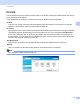

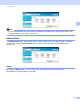

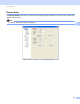

Table Of Contents
- SOFTWARE USER'S GUIDE
- Trademarks
- Table of Contents
- Windows®
- 1 Printing
- Using the Brother printer driver
- Printing a document
- Duplex printing
- Simultaneous scanning, printing and faxing
- Printer operation keys
- Status Monitor
- Printer driver settings
- Features in the Windows® printer driver
- Basic tab
- Advanced tab
- Tray Settings tab
- Support
- Features in the BR-Script (PostScript® 3™ language emulation) printer driver
- 2 Scanning
- Scanning a document using the TWAIN driver
- Scanning a document using the WIA driver (Windows® XP/Windows Vista®/Windows® 7)
- Scanning a document using the WIA driver (Windows Photo Gallery and Windows Fax and Scan)
- Using ScanSoft™ PaperPort™ 11SE with OCR by NUANCE™
- 3 ControlCenter3
- 4 Remote Setup
- 5 Brother PC-FAX Software
- 6 Firewall settings (For Network users)
- 1 Printing
- Apple Macintosh
- 7 Printing and Faxing
- 8 Scanning
- 9 ControlCenter2
- 10 Remote Setup
- Using The Scan key
- Index

ControlCenter3
77
3
Send 3
The Send button lets you scan a document and automatically send the image as a fax from the PC using the
Brother PC-FAX software. (See PC-FAX sending on page 85.)
To change the Send settings, right-click the Send button and click ControlCenter Configuration. You can
change the Resolution, Scan Type, Document Size, Show Scanner Interface, Brightness and Contrast
settings.
Receive/View Received 3
The Brother PC-FAX Receiving software option lets you view and store your faxes on your PC. It is
automatically installed when you install the MFL-Pro Suite.
By clicking the Receive button, the PC-FAX receiving function is activated and starts to receive fax data from
your Brother machine. Before you use the PC-FAX Receive function, you must select the PC-FAX Receive
option from the control panel menu of the Brother machine. (See Enabling PC-FAX Receiving software on
your machine on page 100.)
To configure the PC-FAX Receive software, see Setting up your PC on page 101.
When the PC-FAX receiving software is running, you can open the viewer application with the
View Received button. (PaperPort™ 11SE)