
User`s guide

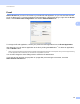

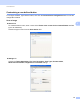


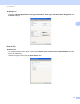
Table Of Contents
- SOFTWARE USER'S GUIDE
- Trademarks
- Table of Contents
- Windows®
- 1 Printing
- Using the Brother printer driver
- Printing a document
- Duplex printing
- Simultaneous scanning, printing and faxing
- Printer operation keys
- Status Monitor
- Printer driver settings
- Features in the Windows® printer driver
- Basic tab
- Advanced tab
- Tray Settings tab
- Support
- Features in the BR-Script (PostScript® 3™ language emulation) printer driver
- 2 Scanning
- Scanning a document using the TWAIN driver
- Scanning a document using the WIA driver (Windows® XP/Windows Vista®/Windows® 7)
- Scanning a document using the WIA driver (Windows Photo Gallery and Windows Fax and Scan)
- Using ScanSoft™ PaperPort™ 11SE with OCR by NUANCE™
- 3 ControlCenter3
- 4 Remote Setup
- 5 Brother PC-FAX Software
- 6 Firewall settings (For Network users)
- 1 Printing
- Apple Macintosh
- 7 Printing and Faxing
- 8 Scanning
- 9 ControlCenter2
- 10 Remote Setup
- Using The Scan key
- Index

ControlCenter3
65
3
E-mail 3
Scan to E-mail lets you scan a document to your default E-mail application, so you can send the scanned
job as an attachment. To change the default E-mail application or attachment file type, right-click the E-mail
button, click ControlCenter Configuration and click the Software Button tab.
To change the E-mail application, choose your preferred E-mail application from the E-mail Application
drop-down list. You can add an application to the list by clicking the Add button
1
. To delete an application,
click the Delete button.
1
When you first start ControlCenter3 a default list of compatible E-mail applications will appear in the drop-down list. If you are having trouble using
a custom application with ControlCenter3 you should choose an application from the list.
You can also change the other settings used to create the file attachments.
If you want to scan and then crop a portion of a page after pre-scanning the document, check the
Show Scanner Interface box.